Try our free AI tools – no sign-up needed!

How to Make a Favicon and ICO File for Your Website
A favicon is the small icon that appears in a browser tab, bookmarks, and other places where your website is shown. This guide explains how to make a favicon and ICO file from an SVG, PNG, JPG, or WebP image, choose the right sizes, and add the icon to your website.
Beginner-friendly guide • No design experience needed • Create an icon pack online
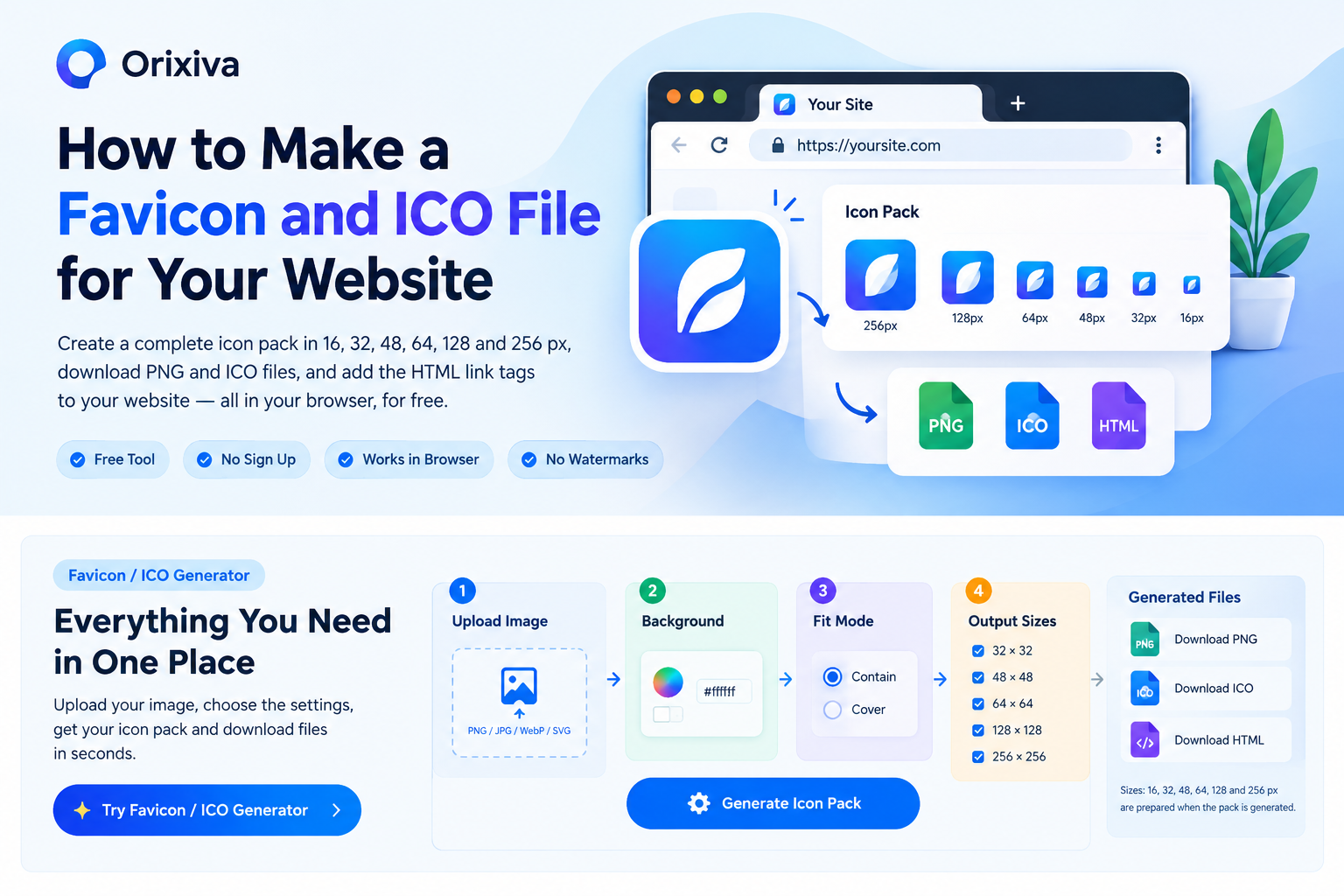
Quick answer: Open Orixiva’s SVG Converter, go to the Favicon / ICO tab, upload a square logo or icon, choose Contain or Cover, select an optional background color, and click Generate Icon Pack. Download the PNG and ICO files, then add the supplied HTML link tags to your website.
You do not need to create every favicon size by hand. A favicon generator can prepare several icon sizes from one image. Orixiva’s free, browser-based Favicon / ICO Generator creates a pack with 16, 32, 48, 64, 128, and 256 pixel versions, plus PNG files, an ICO file, and HTML code for your site.
What Is a Favicon?
A favicon is a small graphic that represents a website. The word comes from “favorite icon.” It is commonly visible in a browser tab beside the page title and may also appear in bookmarks, browser history, shortcuts, and other browser interfaces.
A favicon often uses a simple version of a brand logo, such as one letter, a small symbol, or a recognizable shape. Because the icon is tiny, a detailed logo with small text may be hard to see. A clear design helps people recognize your website more easily.
Why does a favicon matter?
- Helps visitors recognize your website in open tabs.
- Makes bookmarks easier to identify.
- Gives your website a more complete, professional look.
- Supports brand recognition across browsing sessions.
Does a favicon improve SEO?
A favicon is not a direct ranking shortcut. However, a clear icon can support brand recognition and may help your site look more recognizable in browser and search experiences where an icon is displayed. It cannot guarantee higher rankings or more clicks.
What Is an ICO File?
An ICO file is an icon file format commonly used for website favicons, especially the traditional favicon.ico file. An ICO file can contain multiple icon images at different sizes, allowing compatible software to use a suitable version.
PNG is also widely used for website icons. Many websites use a combination of an ICO file for compatibility and PNG icons for specific sizes or devices. The right setup depends on your website and the browsers you want to support.
Favicon Sizes: Which Icon Sizes Do You Need?
Different browsers and devices may use different icon sizes. Orixiva’s Favicon / ICO Generator prepares six sizes in one pack, so you do not need to resize the same image manually.
| Icon size | Common use | Helpful tip |
|---|---|---|
| 16 × 16 px | Small browser tab and compact browser interface | Use a simple symbol with strong contrast. |
| 32 × 32 px | Standard favicon use in many browser contexts | Check that the icon stays clear at a small size. |
| 48 × 48 px | Larger icon contexts and some Windows-related uses | Avoid thin lines that may disappear. |
| 64 × 64 px | Extra size for workflows that need a larger icon | Keep the design centered and balanced. |
| 128 × 128 px | Large icon assets and certain app or shortcut workflows | Use a clean, high-quality source image. |
| 256 × 256 px | Larger icon asset for supported workflows | Keep important artwork away from the edges. |
These are practical output sizes, not a guarantee that every browser or device will use every size. Some platforms have separate requirements for app icons, pinned tabs, or mobile home-screen icons.
How to Make a Favicon and ICO File Online
Follow these steps to create a favicon online with the Favicon / ICO tab in Orixiva’s SVG Converter. The tool works in your browser and does not require a separate image-editing program.
1
Upload a square logo or icon
Upload a PNG, JPG, WebP, or SVG file. A square image is usually the easiest starting point because it can fit into a square icon without unwanted cropping. If you only have a wide logo, consider making a square version with a simple symbol or letter.
2
Choose Contain or Cover
The Contain option fits the full image inside the square output area. It helps prevent parts of your logo from being cut off, although empty space may appear around the image.
The Cover option fills the square area. It can make the icon look larger, but the edges of a wide or tall image may be cropped.
3
Choose an optional background color
If your logo has transparent areas, you can choose a background color to make the icon easier to see. Use a color that contrasts with your logo. If you want a transparent icon, use the transparent or no-background option when available.
4
Click Generate Icon Pack
The generator prepares favicon assets at 16, 32, 48, 64, 128, and 256 pixels. You do not have to export each size one by one.
5
Download the PNG, ICO, and HTML files
Download the PNG and ICO files from the generated files area. Also download or copy the HTML snippet. It contains link tags that tell a browser where to find the favicon files.
6
Add the favicon files to your website
Upload the downloaded files to your website, then add the relevant link tags inside the page’s HTML <head> section. If you use WordPress, you can often set a site icon through the site identity settings instead. Follow your theme or SEO plugin’s instructions to avoid adding conflicting icon tags.
Example: Make a Favicon for a Small Business Website
Imagine you run a website called Bright Bakery. Your full logo includes the business name and a small illustration. At 16 × 16 pixels, the words may be too small to read.
- Create a square version with only the bakery symbol or the letter “B”.
- Upload the square image to the Favicon / ICO Generator.
- Choose Contain if you want to keep the whole symbol visible.
- Choose a light or dark background that makes the symbol easy to see.
- Generate the icon pack and download the PNG, ICO, and HTML files.
- Add the icon files and HTML link tags to your website, then test the result in a browser.
The same process works for a blog, online shop, portfolio, business website, or web application. Use a design that matches your brand and remains recognizable at small sizes.
How to Add a Favicon to Your Website
After you generate your favicon, upload the files to a public location on your website. The HTML link tags should point to the actual file paths. For example, if your files are in the website’s root folder, the links may look like this:
<link rel="icon" href="/favicon.ico" sizes="any">
<link rel="icon" type="image/png" sizes="32x32" href="/favicon-32.png">
<link rel="icon" type="image/png" sizes="16x16" href="/favicon-16.png">
Important: These paths are examples. Change the filenames and paths to match the files you uploaded. Use the exact HTML snippet supplied by the generator if it matches your filenames and setup.
How to add a favicon in WordPress
- Open your WordPress dashboard.
- Look for Appearance → Customize → Site Identity, or the equivalent Site Logo / Site Icon setting in your theme or WordPress version.
- Upload a suitable square image if your WordPress setup supports this method.
- Save the changes and open your website in a browser to check the icon.
If you need to use a custom ICO file or multiple link tags, follow your theme or site setup instructions. Do not paste HTML link tags into the visible page content and expect them to work: favicon link tags belong in the document head.
Simple Favicon Creation Flowchart
Choose image→
Upload logo→
Set fit & background→
Generate pack→
Download files→
Add & test
Tips for Creating a Clear, Professional Favicon
- Start with a square image: It usually needs less adjustment for square icon sizes.
- Keep it simple: Use one symbol, letter, or clear shape instead of tiny text.
- Use strong contrast: Make sure the icon can be seen against light and dark browser themes where possible.
- Check small sizes: Preview the 16 × 16 and 32 × 32 versions because details may disappear.
- Leave some space: Do not place important parts right against the edge.
- Use a suitable background: Transparent backgrounds are useful, but a solid background can improve visibility for some logos.
- Test after uploading: Browsers may cache old favicons. Try a hard refresh or wait for the browser cache to update.
- Use the correct paths: A link tag will not work if the file path or filename is wrong.
Common Favicon Problems and How to Fix Them
| Problem | Possible reason | What to do |
|---|---|---|
| Favicon does not appear | Wrong file path, missing link tag, or browser cache | Check the URL, inspect the page head, and refresh or clear the cache. |
| Logo looks cropped | Cover mode cuts off part of the image | Try Contain or use a square source image. |
| Icon looks blurry | Low-quality or very small source image | Upload a clean, larger source file and generate the pack again. |
| Logo is hard to see | Low contrast or too much detail | Use a simpler symbol and test a suitable background color. |
| Only some devices show the icon | Different platforms use different icon formats or sizes | Check the relevant platform requirements and provide the needed icon files. |
Why Use a Free Browser-Based Favicon Generator?
A browser-based favicon tool saves time because you can create several icon sizes from one source image. With Orixiva’s Favicon / ICO Generator, you can upload an image, choose the fit mode and background, generate the icon pack, and download PNG, ICO, and HTML files in one workflow.
One upload, multiple sizes
Prepare 16, 32, 48, 64, 128, and 256 px versions without resizing each file by hand.
Useful download formats
Get PNG and ICO files, plus HTML link tags to help add the favicon to your site.
Simple controls
Choose Contain or Cover and set an optional background color to suit your icon.
Works in your browser
The tool is designed for browser-based use, so you do not need to install a separate desktop icon editor.
Create Your Favicon and ICO File Now
Turn your logo or icon into a complete favicon pack. Generate 16–256 px icons, download PNG and ICO files, and get HTML link tags for your website with Orixiva’s free browser-based tool.
Open the Free Favicon / ICO GeneratorFrequently Asked Questions
How do I make a favicon and ICO file?
Upload a square PNG, JPG, WebP, or SVG image to a favicon generator, choose the fit mode and optional background, then generate and download the icon pack. Download the ICO and PNG files and add the correct link tags to your website.
What is the easiest way to create a favicon online?
Use a browser-based favicon generator. Upload your logo, choose how it fits into the icon area, generate the pack, and download the files. You do not need to resize every icon manually.
Can I create a favicon from a PNG image?
Yes. A PNG image can be used to create a favicon pack. A transparent PNG can be especially useful when you want the icon to sit on a chosen background.
Can I make a favicon from a JPG file?
Yes. You can upload a JPG to the Orixiva Favicon / ICO Generator. JPG does not support transparency, so the image will already have a background.
Can I create a favicon from an SVG file?
Yes. Upload an SVG file to the Favicon / ICO tab. The generator prepares the supported icon sizes and downloadable files from your source graphic.
Can I use a WebP image to make a favicon?
Yes. The tool supports WebP uploads as well as PNG, JPG, and SVG. Use a clear source image for the best result at small sizes.
What does a favicon do?
A favicon is a small website icon that can appear in browser tabs, bookmarks, and other browser interfaces. It helps visitors recognize your website.
What is the difference between a favicon and an ICO file?
A favicon is the website icon itself, while ICO is a file format often used to store favicons. A favicon can also be supplied as a PNG or another supported format.
Is favicon.ico still needed?
An ICO file remains a useful compatibility option for many websites. Some setups can use PNG icons as well. Check your site and browser requirements before deciding which files to provide.
What favicon sizes should I generate?
Common sizes include 16 × 16 and 32 × 32 pixels. Orixiva’s generator prepares 16, 32, 48, 64, 128, and 256 px versions to give you a broader icon pack.
Why does the favicon generator create different sizes?
Browsers and devices can use different icon dimensions in different places. Providing several sizes helps make a suitable asset available for supported contexts.
What is the 16 × 16 favicon used for?
The 16 × 16 pixel icon is a small favicon size often used in browser tabs and compact browser interfaces. Simple shapes and strong contrast help at this size.
What is the 32 × 32 favicon used for?
A 32 × 32 pixel icon is a common favicon size for browser use. It offers more pixels than a 16 × 16 icon while remaining compact.
Should I choose Contain or Cover when making a favicon?
Choose Contain to keep the full image visible, even if space appears around it. Choose Cover to fill the square area, understanding that some edges may be cropped.
How do I choose a background color for my favicon?
Choose a color that gives your logo enough contrast. If the image has transparent areas, a background can make the icon more visible. If transparency is needed, use the transparent option when available.
Can I make a favicon with a transparent background?
Yes, if your source image and chosen output settings support transparency. PNG is commonly used for transparent website icons. Check the generated result before adding it to your site.
How do I add a favicon to HTML?
Upload the icon files to your website and place the relevant link tags inside the HTML head section. Use the actual paths and filenames for the files you uploaded.
Where should I put the favicon HTML code?
Favicon link tags belong in the document’s head section, not in the visible page content. In WordPress, you may be able to set a site icon through the theme or Site Identity settings.
How do I add a favicon to WordPress?
Open your WordPress dashboard and look for Site Identity or Site Icon settings in your theme or WordPress interface. Upload a suitable square image, save your changes, and test your website. Use custom head code only when needed.
Can I use a favicon on an Elementor website?
Yes. Elementor does not prevent you from using a favicon. Set the site icon through WordPress or your theme settings, or add appropriate link tags to the document head using a suitable method.
Why is my favicon not showing in the browser tab?
Common causes include a wrong file path, a missing or incorrect link tag, caching, or an unsupported file reference. Check that the file is publicly accessible and that your link tags point to the correct location.
Why does my old favicon still appear after I update it?
Browsers may cache favicons. Try a hard refresh, clear the relevant browser cache, or wait and test in a private window. Also confirm that the updated file was uploaded to the expected path.
Will a favicon improve my Google rankings?
A favicon is not a direct ranking shortcut and cannot guarantee better rankings. It supports site identity and can help users recognize your website in browser interfaces.
Does a favicon help with website branding?
Yes. A simple, recognizable favicon can make your brand easier to identify in open tabs and bookmarks. Use a design that matches your logo and stays clear at small sizes.
Is the Orixiva Favicon / ICO Generator free?
Yes. The Favicon / ICO Generator is part of Orixiva’s free browser-based SVG Converter tool.
Do I need to install software to make a favicon with Orixiva?
No separate desktop icon editor is needed. Open the Orixiva SVG Converter in a compatible browser and use the Favicon / ICO tab.
Does the favicon tool work on mobile devices?
It is browser-based, but the experience can depend on your device, browser, and the size of the image you upload. For easier file handling, a desktop or laptop may be more convenient.
Are my images uploaded to a server when I use Orixiva’s tool?
Orixiva’s SVG Converter is designed to process files in your browser, without uploading them to a server. This means the conversion workflow does not require a remote file-processing backend.
Can I use the same favicon for every page on my website?
Yes. Most websites use the same favicon across their pages to keep a consistent brand identity. You generally do not need a separate favicon for every article or page.
Can I use my full company logo as a favicon?
You can, but a wide logo or one with small text may be difficult to read at favicon size. A simplified symbol or initial often works better.
What makes a good favicon design?
A good favicon is simple, recognizable, centered, and easy to see at small sizes. Strong contrast and limited detail usually help.
Can I download both PNG and ICO files?
Yes. After generating the icon pack, Orixiva provides PNG and ICO downloads, along with an HTML snippet for adding icons to a website.
What is included in the generated favicon pack?
The pack prepares 16, 32, 48, 64, 128, and 256 px sizes. You can download PNG and ICO files and access HTML link tags for your website.
Do I need all six favicon sizes?
Not every website needs every size, but having several sizes available can support different browser and device contexts. Use the formats and sizes relevant to your website setup.
Can I use an online favicon generator for an online store?
Yes. An online store can use a favicon to reinforce its brand in browser tabs and bookmarks. Choose an icon that matches your store identity and remains clear at small sizes.
How can I check if my favicon works correctly?
Open your website in more than one browser if possible, check the browser tab and bookmark view, and verify that the icon file URLs load. If the old icon remains, check caching and file paths.
Can I generate a favicon for a blog or portfolio website?
Yes. A blog, portfolio, business website, online store, or web app can use a favicon. A simple logo mark or initial is often enough.
What should I do if my logo looks too small inside the favicon?
Try Cover if cropping will not remove important parts, or create a square version with less empty space around the logo. Preview the result at 16 × 16 and 32 × 32 pixels.
Can I change my favicon later?
Yes. Generate a new icon pack, replace the old files or update their paths, and make sure the HTML link tags point to the new assets. You may need to account for browser caching.
Is an ICO file the same as an SVG file?
No. SVG is a vector graphics format, while ICO is an icon file format. SVG can scale cleanly as vector artwork; ICO is commonly used to package favicon images in supported sizes.
Can I create a favicon without design skills?
Yes. Start with a clear logo or symbol and use a generator to create the required icon files. Keep the design simple and review the generated sizes before publishing.
Explore More Tools in Orixiva’s SVG Converter
Orixiva’s SVG Converter does more than make favicon and ICO files. It turns PNG, JPG, and WebP images into vector SVG files, exports SVG back to PNG, JPG, or WebP, and includes an editor, optimizer, favicon generator, batch processor, sprite builder, color tools, and file analyzer on the same page.
The tool runs in your browser: your files are not uploaded to a server, there is no sign-up, and there are no watermarks.
Quick answer for image-to-SVG conversion: Upload a PNG, JPG, or WebP file in the Convert tab, choose “Image → SVG,” select a tracing preset such as Balanced or Detailed, review the preview, and download the SVG. To convert an SVG into a regular image, choose “SVG → Image” and export PNG, JPG, or WebP at the size you need.
Visit Orixiva’s free SVG Converter and Favicon / ICO Generator →