Try our free AI tools – no sign-up needed!
How the SVG converter works
Free SVG Converter, Editor and Icon Studio
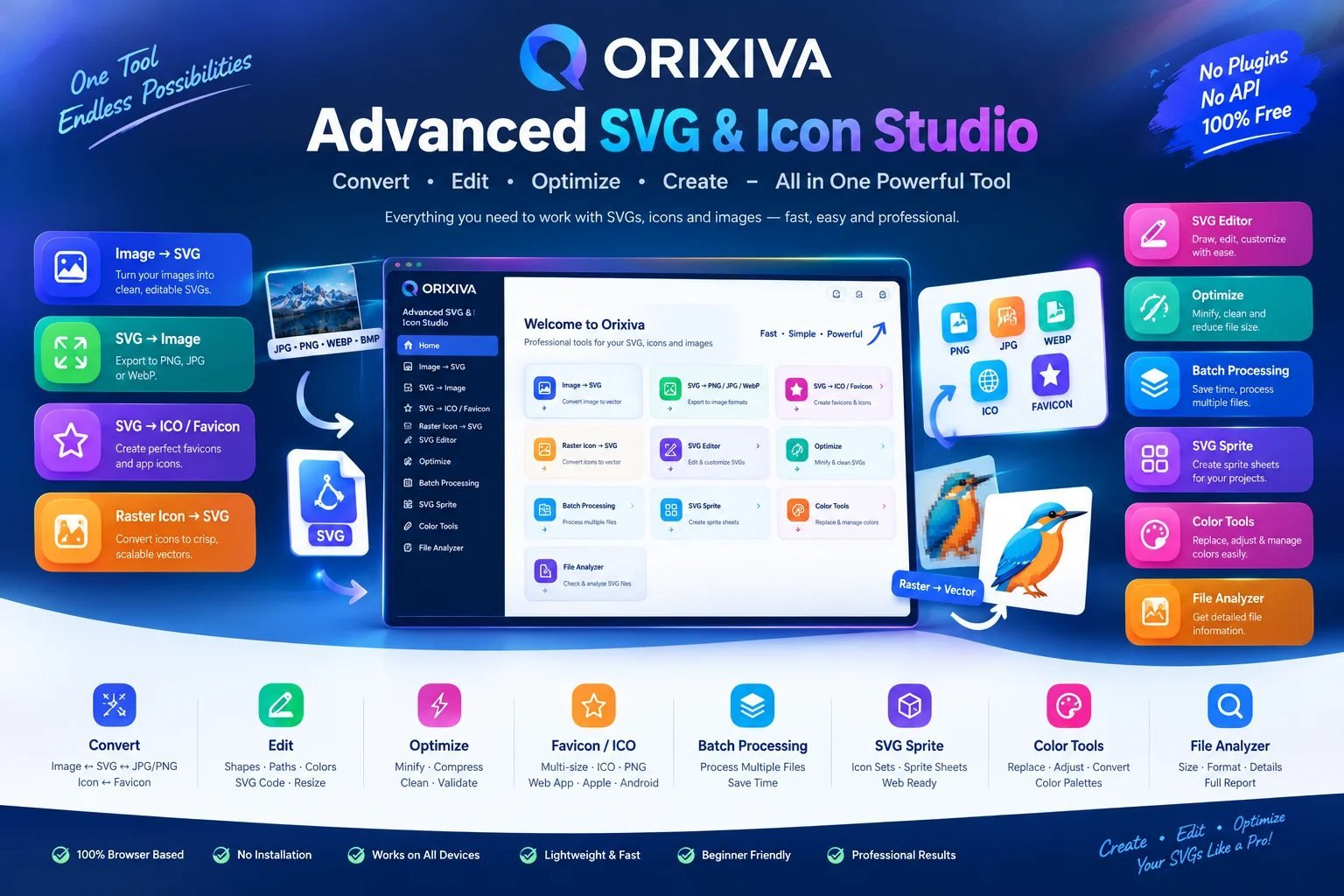
Orixiva’s SVG converter turns PNG, JPG and WebP images into real vector SVG files, exports SVG back to PNG, JPG or WebP, and gives you an editor, optimizer, favicon generator, batch processor, sprite builder, color tools and file analyzer on the same page. Everything runs in your browser: your files are not uploaded to a server, there is no sign-up and there are no watermarks.
Quick answer: To convert an image to SVG, upload a PNG, JPG or WebP file in the Convert tab, choose “Image → SVG”, pick a tracing preset such as Balanced or Detailed, compare the preview and download the SVG. To go the other way, choose “SVG → Image” and export PNG, JPG or WebP at the size you need.
- 8tools in one studio
- 5tracing presets
- 6favicon sizes, 16 to 256 px
- 0uploads to a server
What is an SVG converter?
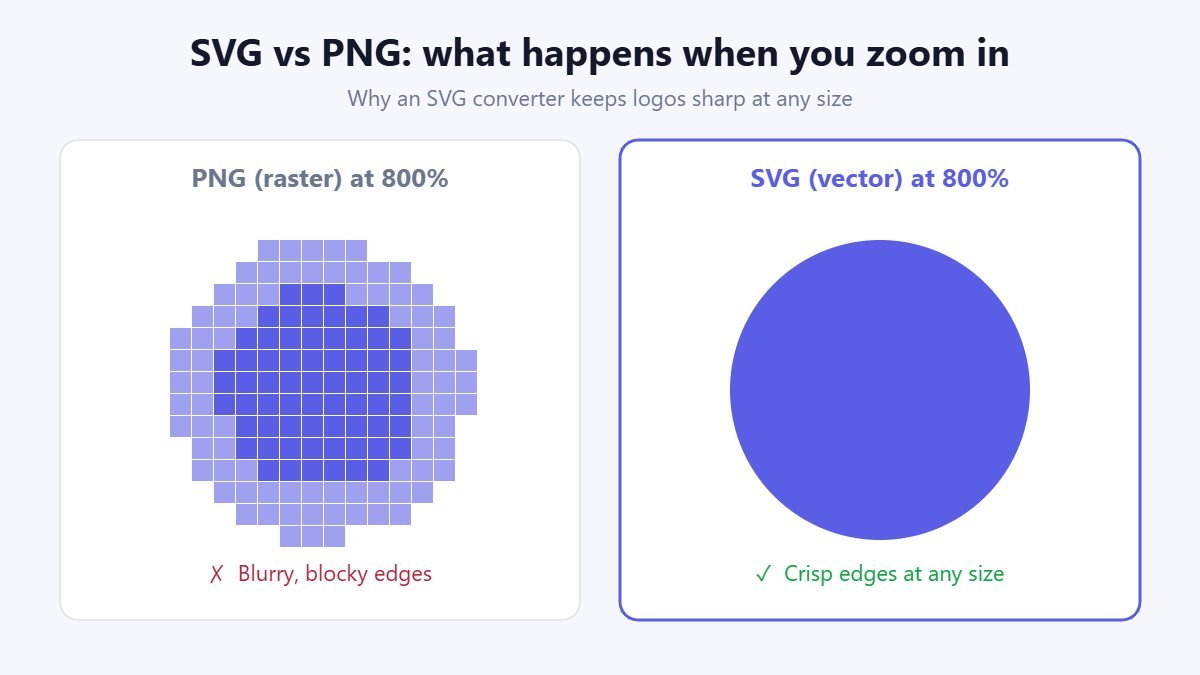
An SVG converter changes images between SVG (Scalable Vector Graphics) and other formats. SVG describes a picture with shapes and paths instead of pixels, so it stays sharp at any size, from a 16-pixel favicon to a billboard. Converting a raster image such as a PNG into SVG is called tracing or vectorizing: the converter looks at areas of color and draws vector paths around them. Converting SVG back to PNG, JPG or WebP is called rasterizing, and it is what you need when a platform does not accept SVG uploads.
Many online tools only wrap a PNG inside an SVG file, which looks like a vector but still blurs when you zoom in. Orixiva’s SVG converter performs real tracing with the open-source ImageTracer library, so the result contains genuine editable paths.
The 8 tools in the studio
Each tool in the SVG converter has its own tab at the top of the studio. You can move between them without reloading the page.
1
Convert
Image to SVG with real tracing and five presets: Balanced, Sharp, Smoothed, Detailed and Grayscale. SVG to PNG, JPG or WebP with a side-by-side preview and comparison.
2
Edit
Draw rectangles, rounded rectangles, circles, ellipses, lines, stars, polygons and text. Arrange layers, align, duplicate, undo and redo, or edit the SVG code directly.
3
Optimize
Safe or Aggressive optimization removes metadata and unnecessary markup. A report shows the size before and after, and the validator checks the result.
4
Favicon / ICO
Generate an icon pack in 16, 32, 48, 64, 128 and 256 px, download PNG and ICO files, and copy the HTML link tags for your website.
5
Batch
Convert many files at once to PNG, JPG, WebP or optimized SVG. Each file shows its own status, and you can download everything as one ZIP with a manifest.
6
SVG Sprite
Combine several SVG icons into one sprite of symbols, preview it, copy the code and download the sprite file for faster websites.
7
Color Tools
See the palette of an SVG, replace one color with another, convert to grayscale or monochrome, or make a chosen color transparent.
8
File Analyzer
Paste SVG code to see its size, element counts, number of colors, duplicate IDs and long decimals, with risky content such as scripts sanitized first.
How to convert PNG or JPG to SVG
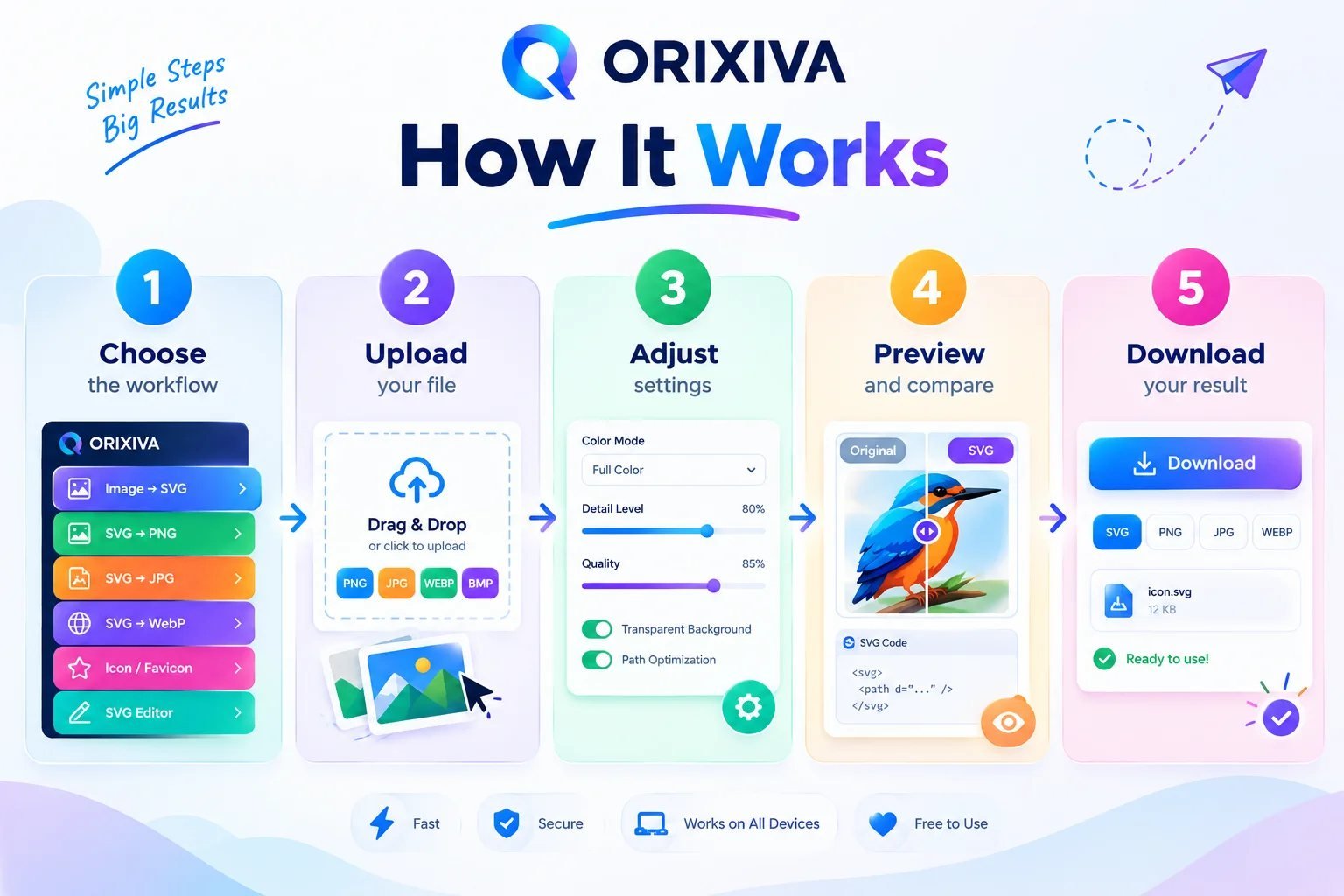
The SVG converter traces your image in five steps. The “How It Works” graphic above the article shows the same flow.
- Choose the workflow. Open the Convert tab and select “Image → SVG (real tracing)”.
- Upload your image. Click Choose File or drag a PNG, JPG or WebP file onto the upload area.
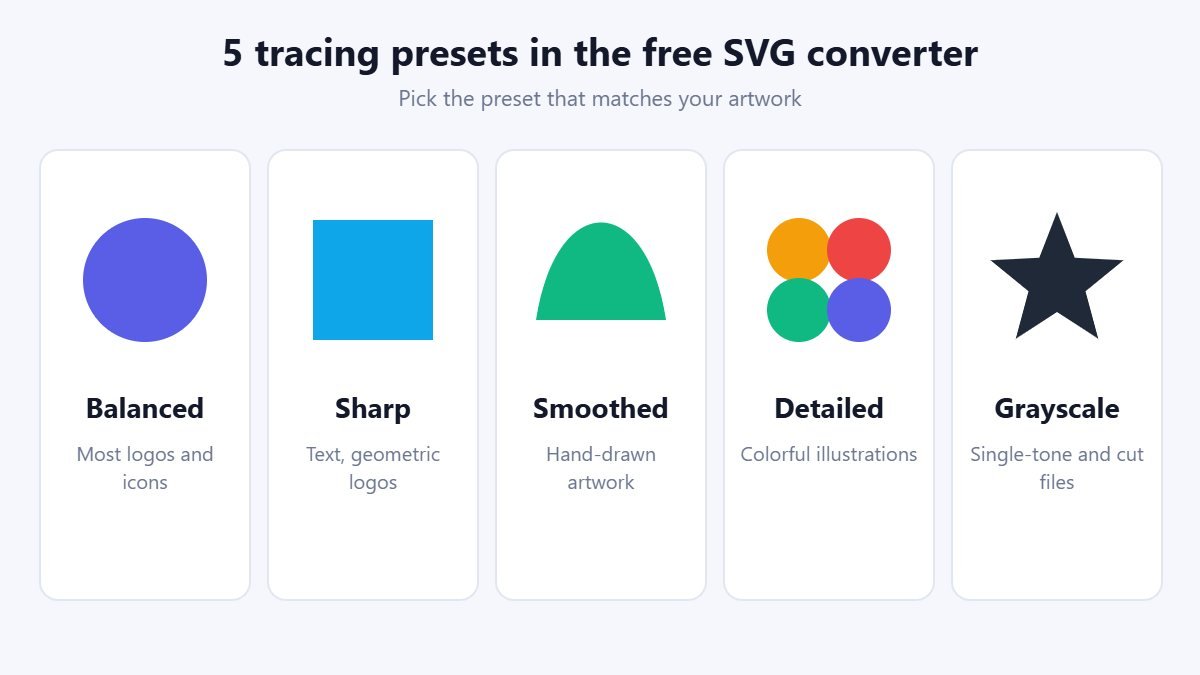
- Pick a preset. Balanced suits most logos. Sharp keeps hard corners, Smoothed softens edges, Detailed keeps more colors and small shapes, and Grayscale gives a single-tone result. Fine-tune the number of colors, detail, smoothing and noise filter if needed.
- Compare the preview. Check the original and the vector side by side. Try another preset if edges look rough or too many shapes appear.
- Download the SVG. Save the file, or open it in the Edit or Optimize tab to refine it further.
How to convert SVG to PNG, JPG or WebP
- Select “SVG → Image” in the Convert tab of the SVG converter and upload your SVG file.
- Choose the output format: PNG for transparency, JPG for the smallest photos, or WebP for modern websites.
- Set the width, height and quality, and choose a transparent background if you need one. Because SVG is a vector, you can export at a large size without losing sharpness.
- Download the image and use it anywhere SVG is not accepted, such as social media or email.
How to make a favicon and ICO file
A favicon is the small icon shown in browser tabs and bookmarks. The Favicon / ICO tab of the SVG converter builds a complete set from one SVG or image.
- Upload a square logo or icon in SVG, PNG or JPG format.
- Choose Contain or Cover and an optional background color.
- Click Generate Icon Pack. The studio prepares 16, 32, 48, 64, 128 and 256 px versions.
- Download the PNG and ICO files plus the HTML snippet, then add the files and link tags to your site.
SVG vs PNG vs JPG vs WebP
| Format | Type | Best for | Transparency | Scales without blur |
|---|---|---|---|---|
| SVG | Vector | Logos, icons, illustrations, cut files | Yes | Yes |
| PNG | Raster, lossless | Screenshots, graphics with sharp edges | Yes | No |
| JPG | Raster, lossy | Photos where small size matters | No | No |
| WebP | Raster, lossy or lossless | Web images that must load fast | Yes | No |
As a rule of thumb, use the SVG converter for anything with flat colors and clear shapes, and keep photos as JPG or WebP. Tracing a detailed photo creates thousands of paths, which makes the SVG heavy and slow.
Tips for the best tracing results
- Start big and clean. A sharp image of at least 500 px with few colors traces far better than a small, blurry one.
- Remove the background first. A plain or transparent background gives cleaner outlines. Our background remover can help.
- Match the preset to the artwork. Use Sharp for text and geometric logos, Smoothed for hand-drawn art and Detailed for multi-color illustrations.
- Optimize after tracing. Run Safe Optimize to remove extra markup, then check the before-and-after size in the report.
- Check the code. The File Analyzer counts elements; a simple logo should not need thousands of paths.
- Keep the original. Any SVG converter only approximates a raster image, so store your source file in case you want to trace again with other settings.
Who uses this SVG converter?
- Web designers and developers who need crisp icons, favicons and sprites that load quickly.
- Small business owners turning an old PNG logo into a vector for print, signs and merchandise.
- Crafters preparing simple artwork as SVG cut files for cutting machines.
- Students and teachers learning how vector graphics work by editing shapes and code side by side.
- Marketers who export SVG brand assets to PNG or WebP for social media and email.
Privacy, security and limits
This SVG converter processes files entirely in your browser using JavaScript, the HTML canvas and the ImageTracer library. Your images are not uploaded to or stored on Orixiva’s servers. Batch ZIP files are created on your device with JSZip.
Uploaded SVG files are sanitized before they are shown: scripts, iframes, embedded objects and similar active content are removed, which protects you from malicious SVG files. SVG files up to 10 MB are supported. The output follows the W3C SVG 2 specification, and you can learn more about the format on MDN Web Docs.
Keep these limits in mind: tracing is an approximation and works best on logos and flat artwork; very large or detailed images can take longer on older phones; and you must have the right to use and modify the images you convert.
Common SVG converter problems and how to fix them
The traced SVG has rough or jagged edges
The source image is probably small or compressed. Use a larger original, or switch the SVG converter to the Smoothed preset and raise the smoothing slider.
There are too many tiny shapes
Noise and JPG artifacts become shapes. Increase the noise filter, lower the number of colors, then run Safe Optimize to clean the code.
Colors look different from the original
Tracing groups similar colors together. Raise the color count or use the Detailed preset, then use Color Tools to replace any color that is still off.
The SVG file is very large
Photos and gradients create thousands of paths. For photos, keep a JPG or WebP; for artwork, simplify the image first and optimize the SVG afterwards.
The exported PNG has a white background
Turn on Transparent background before exporting, and choose PNG or WebP. JPG does not support transparency.
An SVG will not open
The file may be broken XML or larger than 10 MB. Paste its code into the Validator in the Optimize tab to see the exact error.
How we test this SVG converter
The SVG converter is built and maintained by the Orixiva team. We test it with logos, icons, line art, screenshots and photos in PNG, JPG and WebP, with transparent and solid backgrounds, and with SVG files from popular design apps, including files with hidden layers, metadata and embedded scripts. We check that tracing produces real paths, that exports keep the chosen size and transparency, and that the sanitizer removes active content. If you find a file that converts badly, please describe it in the comments so we can reproduce and fix the problem.
SVG terms explained
- Vector
- An image made of mathematical shapes and paths that stay sharp at any size.
- Raster
- An image made of a grid of pixels, such as PNG, JPG and WebP. It blurs when enlarged.
- Tracing (vectorizing)
- Turning a raster image into vector paths by detecting areas of color.
- viewBox
- The SVG attribute that defines the coordinate area of the drawing, which lets it scale cleanly.
- Path
- The basic SVG shape, described by a series of drawing commands such as move, line and curve.
- Sprite
- One SVG file holding many icons as symbols, so a website loads them in a single request.
- ICO
- The classic favicon file format, which can hold several icon sizes in one file.
- Sanitizing
- Removing scripts and other active content from an SVG so it is safe to open and publish.
Related free tools on Orixiva
- Free online file converter for PDF, Word, Excel, images and video.
- Image background remover with a quick mode and an AI mode.
- Free developer tools: 38 JSON, API and code utilities in one workflow.
- All free tools on Orixiva.
Share your result
Converted a logo, built a favicon pack or cleaned up an icon set? Tell other users in the comments below which preset worked best for your artwork and any tips you discovered. If a file did not convert the way you expected, describe the image type and settings so we can look into it. Comments are reviewed before they appear.
Frequently asked questions
Is this SVG converter free?
Yes. Every tool in the SVG converter studio is free, with no sign-up, no watermark and no daily limit.
How do I convert PNG to SVG?
Open the Convert tab, choose “Image → SVG”, upload the PNG, pick a tracing preset, compare the preview and download the SVG.
Can I convert JPG to SVG?
Yes. JPG and JPEG files are traced the same way as PNG. Images with a plain background give the cleanest result.
Is the result a real vector?
Yes. The studio traces your image into genuine SVG paths. It does not just wrap the pixels in an SVG file.
How do I convert SVG to PNG?
Choose “SVG → Image”, upload the SVG, select PNG, set the size and download. You can also choose JPG or WebP.
Are my files uploaded to a server?
No. The SVG converter handles conversion, editing, optimization and ZIP creation in your browser, so your files stay on your device.
Which tracing preset should I use?
Start with Balanced. Use Sharp for text and geometric logos, Smoothed for hand-drawn art, Detailed for colorful illustrations and Grayscale for single-tone results.
How do I make a favicon from a logo?
Upload the logo in the Favicon / ICO tab, click Generate Icon Pack and download the PNG sizes, the ICO file and the HTML snippet.
Can I convert many files at once?
Yes. The Batch tab converts multiple files to PNG, JPG, WebP or optimized SVG and downloads them together as a ZIP.
How do I reduce the size of an SVG file?
Use the Optimize tab. Safe optimization is the best first step; Aggressive saves more but should be checked visually.
Can I edit an SVG online?
Yes. The Edit tab lets you add and arrange shapes and text, change colors, manage layers and edit the SVG code directly.
What is an SVG sprite?
A single file holding many icons as symbols. The SVG Sprite tab builds one from several icons and gives you the code to use them.
Can I use the SVG for cutting machines?
Simple, high-contrast artwork traced with the Sharp or Grayscale preset usually works well. Check the paths in your cutting software before cutting.
Is it safe to open SVG files from the internet?
SVG files can contain scripts. The studio sanitizes every SVG it opens, removing scripts and embedded content, and the File Analyzer reports its elements, colors and duplicate IDs.
Does it work on my phone?
Yes. The SVG converter works in modern mobile browsers on Android and iPhone, though very large images convert faster on a computer.
Ready to convert? Scroll up to the SVG converter, choose a tab and drop in your file. Your first SVG takes less than a minute.