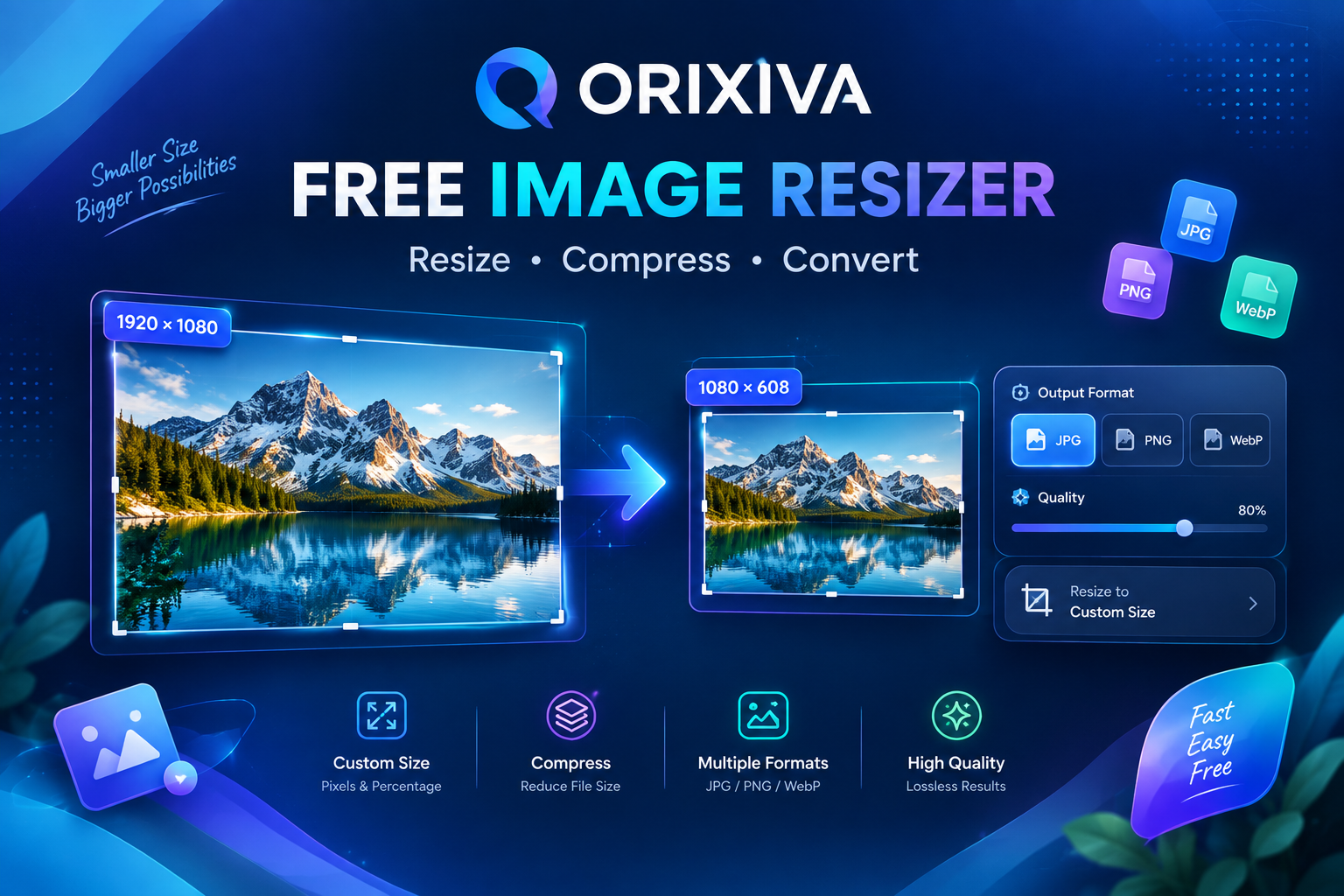
Social media image resizer presets with exact pixel dimensions
Orixiva Fast Image Resizer

Resize, compress & convert — directly in your browser.

Private & browser-based

Resize images in seconds

Drop images here or choose files. Set exact dimensions, preserve quality, convert formats, and process multiple images at once.

JPGPNGWebPAVIF*Batch resizeNo upload
No image —

Live preview

Original
Select an image to preview.
Image preview
Original—
Output—
Estimated size—
Resize modeChoose how pixels are mapped
DimensionsOriginal ratio
px
px
Lock aspect ratio Keep proportions automatically.
Scale100%
Quick presetsOne-click common sizes
Output formatFast client-side encoding
Preserve transparency For PNG/WebP transparent images.
Quality88%
Smaller file Higher detail
JPEG backgroundUsed when transparency is off
Smart file-size targetOptional
KB max
Fast path: resizing happens locally with native browser image decoding and canvas encoding. Nothing is sent to Orixiva.
Ready.
Batch queue 0 files
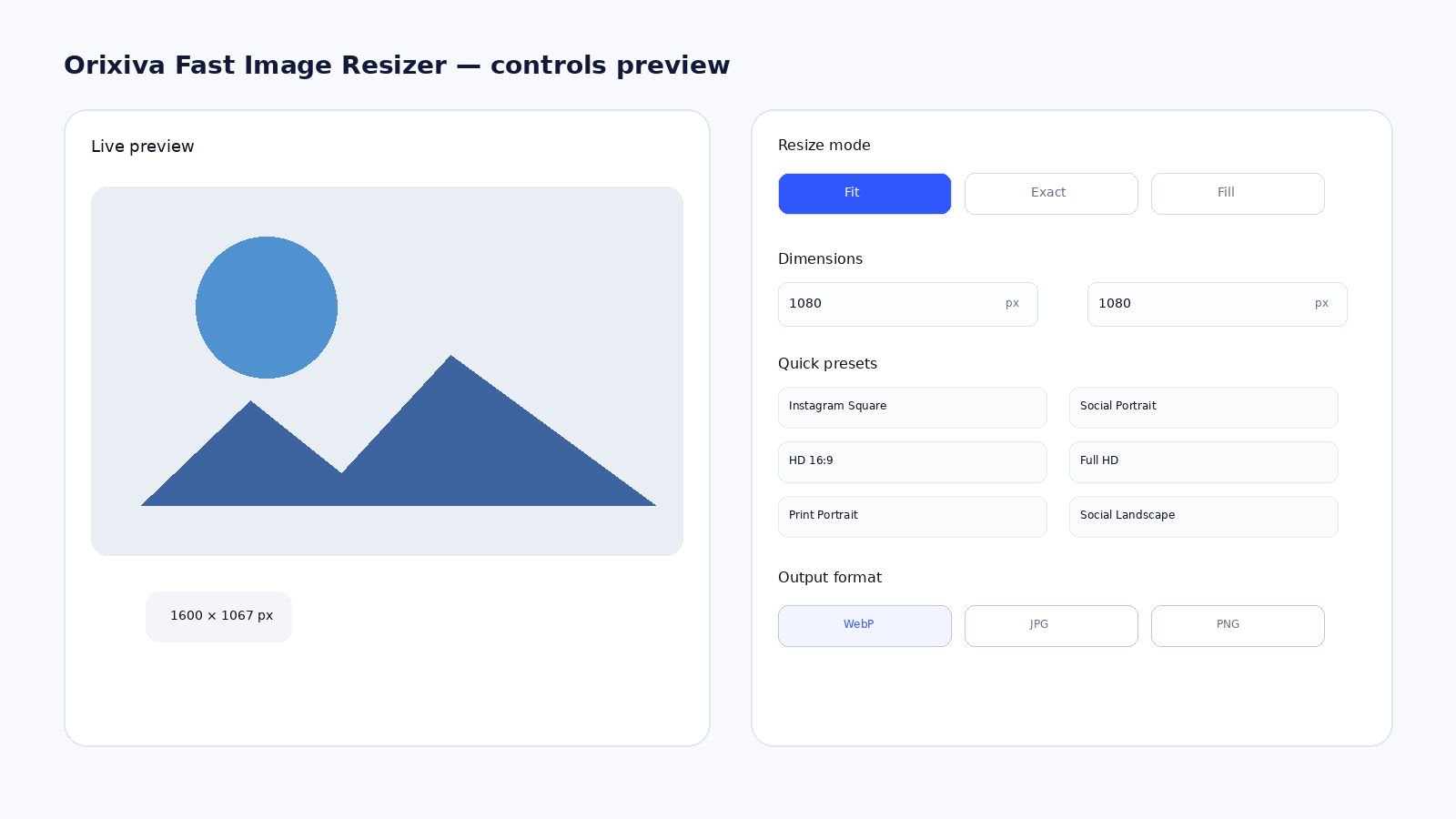
Orixiva image resizer controls for exact pixels, presets and formats

Free Image Resizer Online – Resize, Compress & Convert Images

Free Image Resizer Online — Fast, Private & Precise

Resize images online with Orixiva’s fast, browser-based image resizer. Set exact pixel dimensions, scale by percentage, keep the aspect ratio, choose Fit/Exact/Fill, convert between JPG, PNG and WebP, adjust quality, and optionally target a maximum file size in KB. Your image is processed on your device instead of being sent to an Orixiva upload server.

How to Resize an Image in 3 Steps
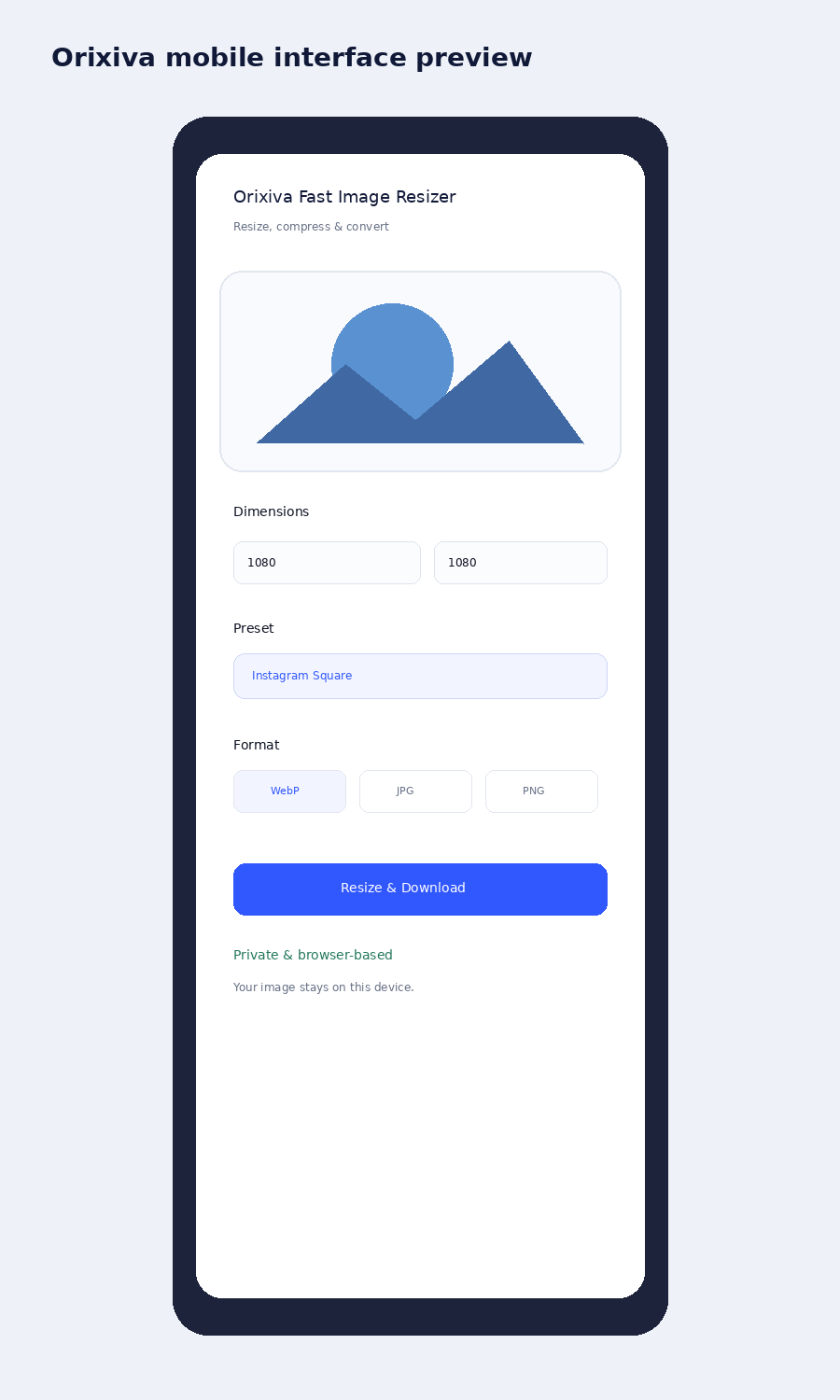
Orixiva mobile image resizer interface preview

1. Add your images:
Drop one or more JPG, PNG or WebP files into the tool (AVIF works in browsers that support it). You can add a whole batch at once.

2. Set the size and format:
Type exact pixels, scale by percentage or pick a preset such as Instagram Square or Full HD. Choose Fit, Exact or Fill, then WebP, JPG or PNG and the quality you want.

3. Resize and download:
Click “Resize & Download”. Everything is processed on your device in seconds.

What is an image resizer?

An image resizer changes the pixel width and height of a picture. Orixiva lets you resize by exact pixels or by percentage, choose Fit, Exact or Fill, and convert the result to WebP, JPG or PNG.

How do I resize an image online for free?

Add your image, choose a resize mode, type the width and height or pick a preset, select the output format and quality, then click Resize & Download. It is free, with no sign-up.

Does Orixiva upload my image?

No. Orixiva decodes, resizes and re-encodes your image inside your browser. Your files never leave your device, so the tool is safe for private photos and documents.

Image Resizer Features

  • Exact dimensions: enter the width and height you need in pixels, or scale by percentage.
  • Aspect-ratio lock: keep proportions so photos are never stretched by accident.
  • Three resize modes: Fit, Exact or Fill for different layouts.
  • Format and quality control: export to WebP, JPG or PNG with a quality slider.
  • Private processing: decoding, resizing and encoding all happen in your browser.
  • One-click presets: 1080×1080, 1080×1350, 1200×628, 1280×720, 1920×1080 and 1200×1500.
  • Batch queue: resize many images with the same settings.
  • KB target: set a maximum file size and the tool tries to stay under it.

Fit, Exact or Fill: Which Resize Mode Should You Use?

The resize mode decides what happens when the size you type does not match the shape of your photo. Choosing the right one stops stretched faces and cut-off products.

Fit

Scales the image to fit inside your width and height without changing its shape. One side may end up smaller than you typed. Best when you must stay under a size limit.

Exact

Forces the image to exactly the width and height you enter. If the shape is different, the picture is stretched or squashed. Use it only when the ratio already matches.

Fill

Outputs exactly the size you enter and trims the extra edges, so nothing is stretched. Best for square or fixed-size slots such as profile pictures and thumbnails.

Common Image Sizes for Social Media and the Web

These sizes are built into the tool as one-click presets. Pick the preset, choose a format and download.

PresetSize (pixels)Typical use
Instagram Square1080 × 1080Instagram and Facebook feed posts
Social Portrait1080 × 1350Portrait (4:5) feed posts
Social Landscape1200 × 628Link previews and shared posts
HD 16:91280 × 720YouTube thumbnails and slides
Full HD1920 × 1080Website banners and wallpapers
Print Portrait1200 × 1500Portrait prints and posters (4:5)

Platforms change their recommended sizes from time to time, so check the platform's help page if an upload looks cropped.

WebP vs. JPG vs. PNG: Which Format to Choose

FormatFile sizeTransparencyBest for
WebPSmallestYesWebsites and blogs: fast pages with good quality
JPGSmallNoPhotos that must open everywhere, such as email and older apps
PNGLargestYesLogos, screenshots, text and cutouts with transparent backgrounds

How to Make an Image Smaller in KB

  • Reduce the pixel size first. Halving the width and height cuts the pixel count by about 75%, which is usually the biggest saving.
  • Switch to WebP or JPG. Photos saved as PNG are often several times larger than the same image in WebP.
  • Lower the quality slider. For photos, 75 to 88% usually looks the same to the eye but is much lighter.
  • Use the KB target. Enter a maximum size, for example 200 KB for a form upload, and the tool will try to stay under it.
  • Turn off transparency for photos. If the image has no transparent areas, JPG with a white background is smaller.

More Questions About Resizing Images

Can I resize many images at once?

Yes. Add several images to the batch queue and they are all resized with the same settings. Each image downloads as its own file.

Will resizing reduce image quality?

Making an image smaller keeps it sharp. Making it much larger than the original cannot add new detail, so it may look soft. For photos, a quality setting between 80 and 90% is a good balance.

Is there a file size limit?

Each image can be up to 40 MB, and the output can be up to 16,000 pixels on its longest side.

Is the Orixiva image resizer free?

Yes. It is free to use with no sign-up and no watermark on your images.

Does it work on a phone?

Yes. The tool works in modern mobile browsers. Very large batches may take longer on phones because all processing happens on the device.

Related Free Tools