Try our free AI tools – no sign-up needed!

Image Metadata & Privacy Studio
See hidden EXIF, GPS, IPTC & XMP data, then remove or edit it, without re-compressing your photos.
🔒 Offline in your browser✔ Lossless cleaning
Drop photos to reveal their hidden data
JPG, PNG, WebP (read & clean) · GIF (read) · one or many files · your originals are never changed
Orixiva Image Metadata & Privacy Studio · cleaning edits the file structure directly, so image quality is never reduced · files stay on your device.
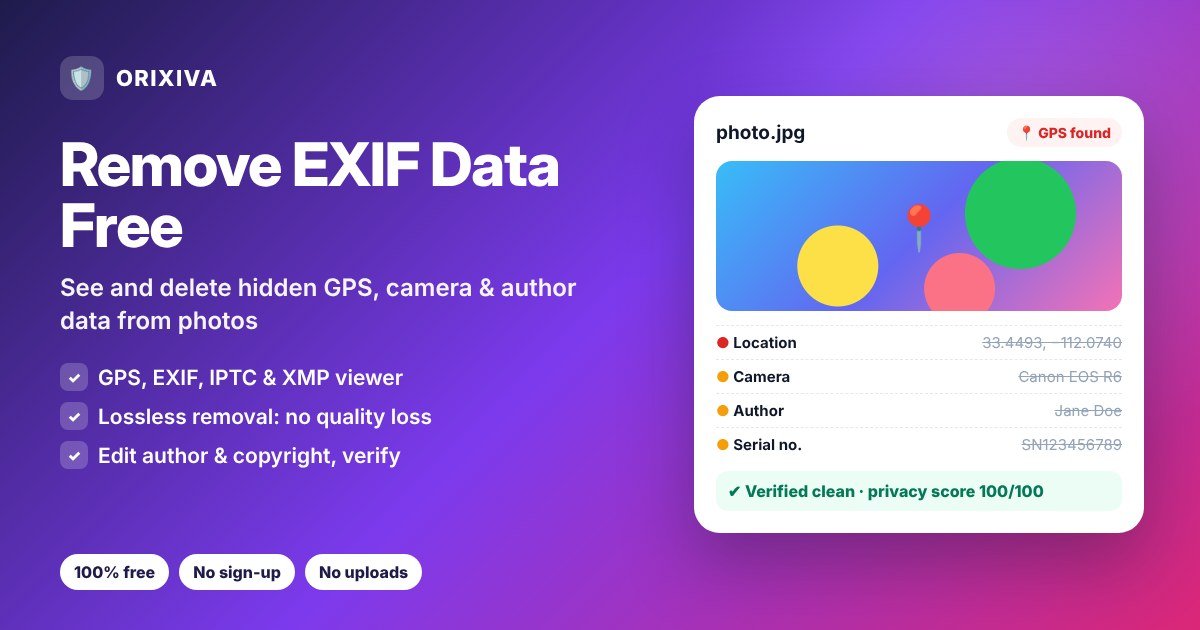
Quick answer: to remove EXIF data, drop your photo into the tool above, keep Remove all metadata selected and click Clean selected photo. You get a cleaned copy with the GPS location, camera details, dates and author names removed, and the tool re-scans the new file to confirm it. Image quality does not change, and your original stays untouched.
What is EXIF data?
EXIF (Exchangeable Image File Format) is information that cameras and phones save inside every photo, next to the picture itself. It records how the photo was taken: the camera or phone model, lens, exposure, date and time, and often the exact GPS location. Editing apps add more, such as the software used and, in some cases, the author's name. You can read about the format in the EXIF overview on Wikipedia.
Photos can also carry two other kinds of metadata. IPTC stores captions, keywords, credits and copyright, mainly for news and stock photos (see the IPTC Photo Metadata Standard). XMP stores editing history and descriptions from programs such as Lightroom and Photoshop. This tool reads all three, plus text chunks inside PNG files.
Why you should remove EXIF data before sharing
Most people never see EXIF data, but anyone who receives the original file can read it with free tools. That can reveal more than you intend:
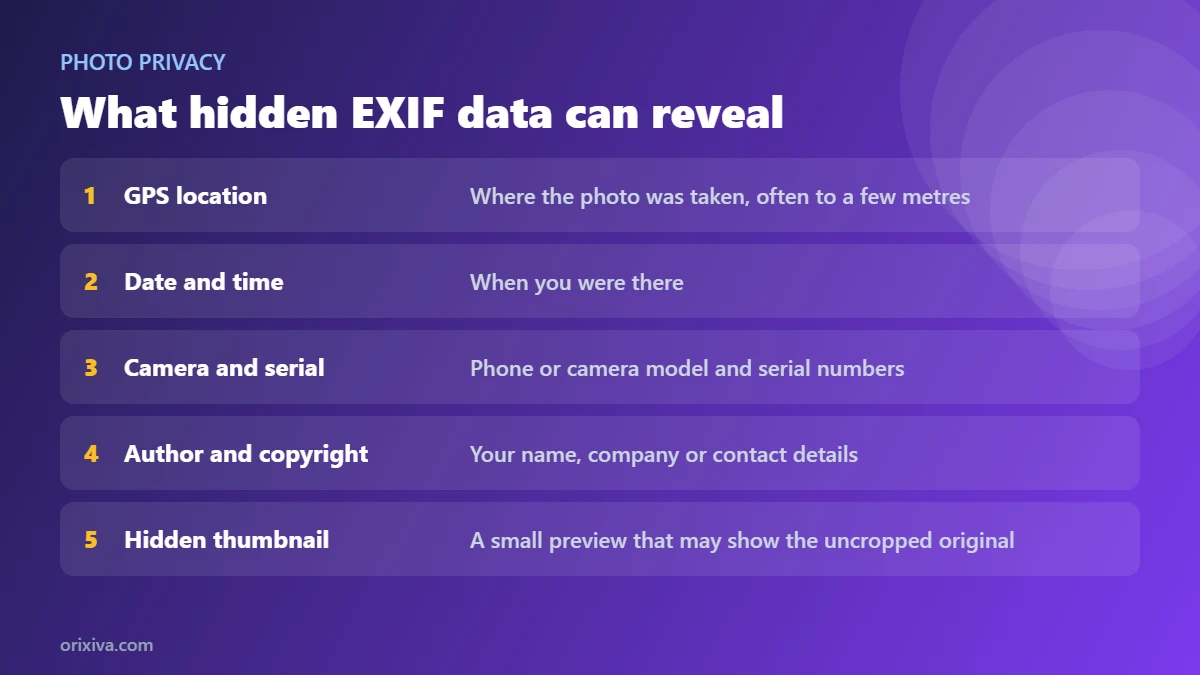
- Your location. A photo taken at home can contain your home's coordinates, often accurate to a few metres.
- Your routine. Dates and times show when you were somewhere.
- Your identity. Author fields, copyright notes and camera owner names can include your full name or company.
- Your device. Camera and lens serial numbers can link different photos to the same person.
- The uncropped original. Some files keep a small hidden thumbnail that is not always updated after cropping, so a part you removed may still be visible.
Many large social networks strip some metadata when you upload a photo, but you cannot rely on that everywhere. Files sent by email, as documents in chat apps, through cloud links, on marketplaces or on your own website often keep their metadata. The only way to be sure is to remove EXIF data yourself before you share.
How to remove EXIF data from a photo
- Add your photos Drop one or more photos, or a whole folder, onto the tool. JPG, PNG and WebP files can be read and cleaned; GIF files can be read.
- Check what they reveal Each photo gets a privacy score from 0 to 100 and a list of risks. If a GPS location is found, the coordinates are shown with a link to open them on OpenStreetMap.
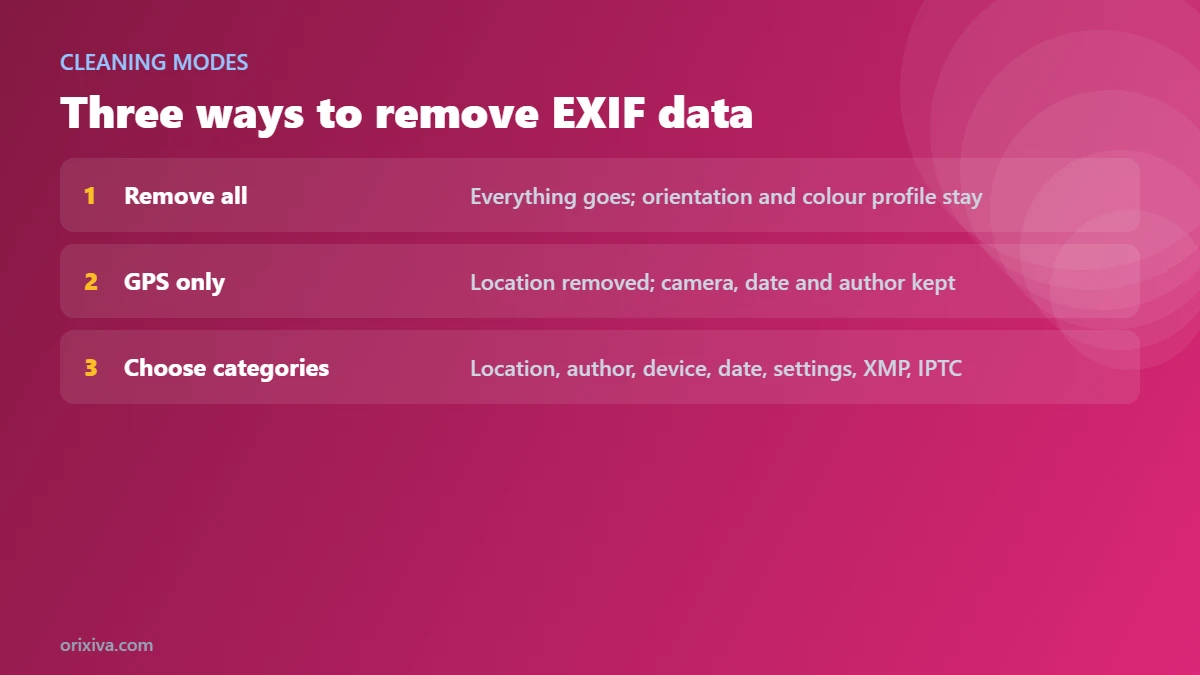
- Choose a cleaning mode Remove all metadata, remove only the GPS location, or choose categories such as author, device, date and camera settings.
- Clean and download Click Clean selected photo for one file, or Clean all photos (ZIP) for the whole batch. A cleaning report is included in the ZIP.
- Check the verification The tool scans each cleaned copy again and lists any fields that remain, so you know the GPS data is really gone.
Three ways to clean photo metadata
| Mode | What is removed | What is kept | Best for |
|---|---|---|---|
| Remove all metadata | EXIF, GPS, IPTC, XMP, comments, text, hidden thumbnail | Orientation and colour profile, so the photo looks the same | Sharing online, selling items, sending to strangers |
| Remove GPS location only | GPS coordinates in EXIF and XMP | Camera, date, author and copyright | Photographers who want to keep credits and camera data |
| Choose what to remove | Any mix of location, author, device, date, camera settings, XMP, IPTC and comments | Everything you leave unticked | Precise control, e.g. keep the date but remove the device |
In every mode, hidden thumbnails and maker notes are always removed, because they can contain the uncropped original or device identifiers.
Features of the Orixiva EXIF remover
Full EXIF viewer
See every field, grouped into Image, Photo, GPS, Interoperability and Hidden thumbnail, with sensitive fields highlighted.
GPS location check
Shows the latitude, longitude and altitude found in EXIF or XMP, with a link to the exact spot on OpenStreetMap.
Privacy score
A score from 0 to 100 and a plain-English list of risks: location, names, serial numbers, dates, device and thumbnails.
Lossless cleaning
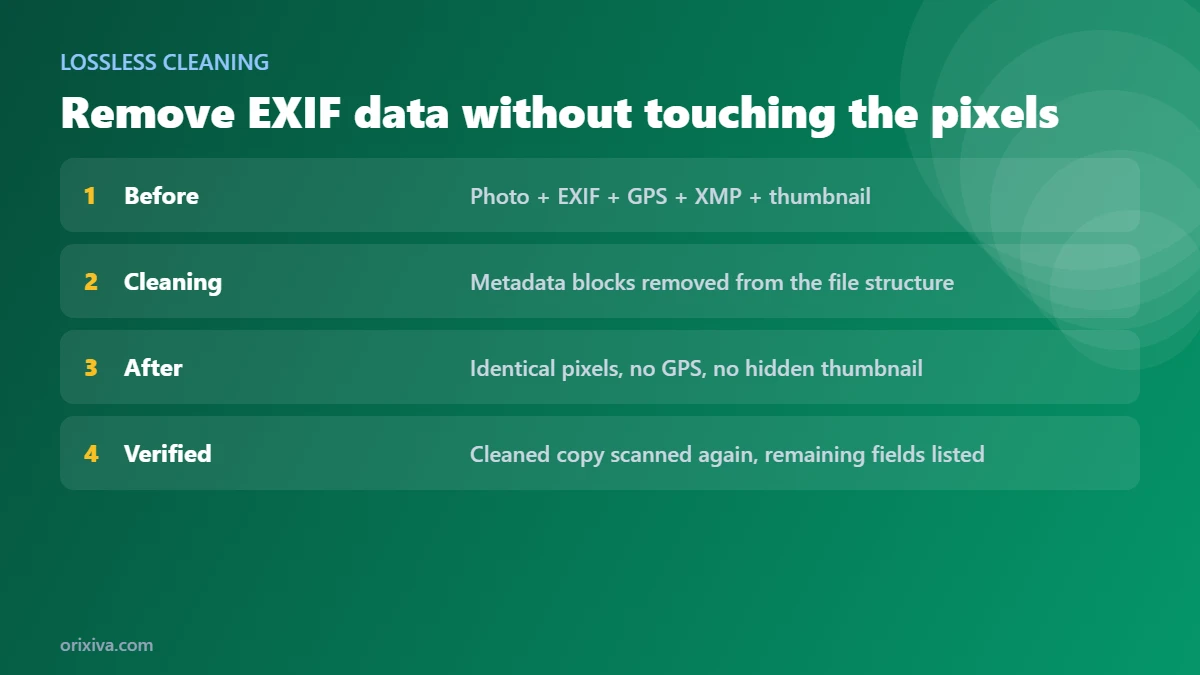
JPG, PNG and WebP files are cleaned by editing the file structure directly. The image is not re-compressed, so quality is identical.
Edit metadata
Write your own author, copyright, description, date taken and software, or fill them from the selected photo first.
Verification
Every cleaned copy is scanned again and the remaining fields are listed, so you can prove the location has gone.
Batch and folders
Clean a whole folder in one click. You get a ZIP with every cleaned photo and a CSV cleaning report.
IPTC, XMP and PNG text
Reads captions, credits, keywords, editing history and PNG text chunks, with a raw XMP view for experts.
Search and export
Search inside the metadata, and export it as JSON or CSV for records or investigations.
Private by design
Nothing is uploaded. The tool runs in your browser and keeps working even if you lose your internet connection after the page loads.
How to view EXIF data online
To check a photo's metadata without changing it, simply add it to the tool. You will see the file details, the privacy score and risks, a location card if GPS data exists, and every field in expandable groups. Use the search box to find a field such as DateTimeOriginal or Model. If the file contains a hidden thumbnail, it is shown so you can see what it reveals.
Nothing is changed until you click a clean button, and even then your original file stays as it was; you download a cleaned copy with a new name such as photo-clean.jpg.
How to stop your phone adding location to photos
Cleaning photos after the fact works, but you can also stop new photos from saving a location:
- iPhone: open Settings, then Privacy & Security, then Location Services, then Camera, and choose Never. When sharing from the Photos app, you can also tap Options and turn off Location for that share.
- Android: open the Camera app settings and turn off the option for location tags or saving location. The exact name depends on your phone maker.
- Cameras: turn off GPS or the phone-pairing location feature in the camera menu.
Older photos still contain their locations, so clean them with this tool before you share them.
How to add copyright and author to your photos
Metadata is not only a risk; it can also protect your work. Open Edit metadata, type your name in Author / Artist and a notice such as © 2026 Your Name in Copyright, then tick Write these values. Combine it with Remove all metadata to share a photo that carries your credit but no location or device data.
Practical uses
Selling online
Photos of items for sale are often taken at home. Remove EXIF data before posting them to marketplaces or classified sites.
Journalists, activists and researchers
Remove locations, device serial numbers and names before publishing sensitive images, and export the metadata as JSON for your records.
Photographers and designers
Keep camera details but remove GPS from client deliveries, and add copyright notices to every file in a batch.
Website owners
When you remove EXIF data, image files also get a little smaller. For even smaller files, compress them with the free image compressor, or process a whole folder with the bulk image resizer, both of which can remove metadata too.
Parents and families
Before sharing school, sports or holiday photos in group chats or public albums, remove EXIF data or at least the location so strangers cannot see where your children live or study.
Supported formats and limits
| Format | View metadata | Clean or edit |
|---|---|---|
| JPG / JPEG | EXIF, GPS, IPTC, XMP, comments, ICC, thumbnail | Yes, lossless |
| PNG | EXIF (eXIf), XMP, text chunks, ICC, time stamp | Yes, lossless |
| WebP | EXIF, XMP, ICC | Yes, lossless |
| GIF | Comments and XMP | Converted to PNG or JPG to clean |
| HEIC, AVIF, BMP, TIFF | Basic file details | Converted to JPG or PNG to clean, where your browser can open the file |
Maker notes (private camera data) and hidden thumbnails are removed rather than copied, because their internal structure cannot be kept safely. Text you write into metadata is saved as UTF-8; some older Windows tools may show special characters such as © differently.
More free image tools
- Free image compressor: reduce photos to 20 KB, 50 KB or 100 KB.
- Bulk image resizer: resize, convert and rename hundreds of photos.
- AI background remover: transparent PNG cutouts.
- Image resizer: change the size of a single image.
- All free tools on Orixiva.
Share your experience
Were you surprised by what your photos contained? Tell us which fields you found through the contact page, but please do not send the photos themselves.
Remove EXIF data FAQ
Is it free to remove EXIF data with this tool?
Yes. Viewing, cleaning and editing metadata is free, with no sign-up, no watermark and no limit on the number of photos.
Are my photos uploaded?
No. The tool reads and cleans your photos inside your browser. Nothing is sent to a server, and your original files are never changed.
Does removing EXIF data reduce image quality?
No. For JPG, PNG and WebP, the tool removes metadata by editing the file structure, without re-compressing the image. The pixels stay exactly the same.
How do I remove the GPS location from a photo?
Choose Remove GPS location only to keep everything else, or Remove all metadata for full privacy, then click Clean selected photo. The verification message confirms that no GPS data remains.
How can I check if a photo has location data?
Add the photo to the tool. If it contains GPS coordinates, a red “Location found” card appears with the exact coordinates and a map link.
What metadata does a photo contain?
It depends on the device and apps used, but often the camera or phone model, lens and settings, date and time, GPS location, software, and sometimes author, copyright and a hidden thumbnail.
Do Instagram, Facebook or WhatsApp remove EXIF data?
Many large platforms strip some metadata from uploaded images, but behaviour varies and can change, and files sent as documents or links often keep it. Removing EXIF data yourself before sharing is the safest option.
Can I remove metadata from many photos at once?
Yes. Add several photos or a whole folder, choose a mode and click Clean all photos (ZIP). The ZIP includes every cleaned photo and a CSV report.
Will my photo appear sideways after cleaning?
No. The orientation setting is kept by default, so the photo displays the right way up. You can turn this off under Options.
What is the colour profile, and should I keep it?
An ICC colour profile tells screens how to show the colours. Keeping it, the default, makes the photo look the same everywhere. It contains no personal information.
Can I edit EXIF data, such as the date or author?
Yes. Open Edit metadata, enter the author, copyright, description, date taken or software, tick Write these values and clean the photo. Empty fields are removed.
What is the privacy score?
It starts at 100 and goes down for each risk found, such as an exact location, personal names, serial numbers or hidden thumbnails. A score of 100 means no personal metadata was found.
What is a hidden thumbnail?
A small preview image stored inside some photos. Editing apps do not always update it, so it can show parts of a photo you cropped out. The tool always removes it when cleaning.
Can I remove EXIF data from PNG and WebP files?
Yes. Both are cleaned losslessly, including EXIF, XMP and PNG text chunks.
Can I remove metadata from HEIC iPhone photos?
HEIC files can only be opened in browsers that support them, mainly Safari, and they are converted to JPG or PNG to clean them. You can also set your iPhone camera to “Most Compatible” to save JPG photos.
Can I export the metadata?
Yes. Use the JSON or CSV buttons to save every field of the selected photo, including the privacy risks and GPS coordinates.
Does it work offline?
Once the page has loaded, the tool does not need an internet connection, because all processing happens in your browser.
Does it work on phones?
Yes. It works in modern mobile browsers. Folder selection is available on desktop; on phones, select several photos instead.
Protect your privacy now. Scroll up, add your photos and remove EXIF data in one click. Then explore more free online tools and free AI tools on Orixiva.