Try our free AI tools – no sign-up needed!

Free Online Video Editor With No Watermark
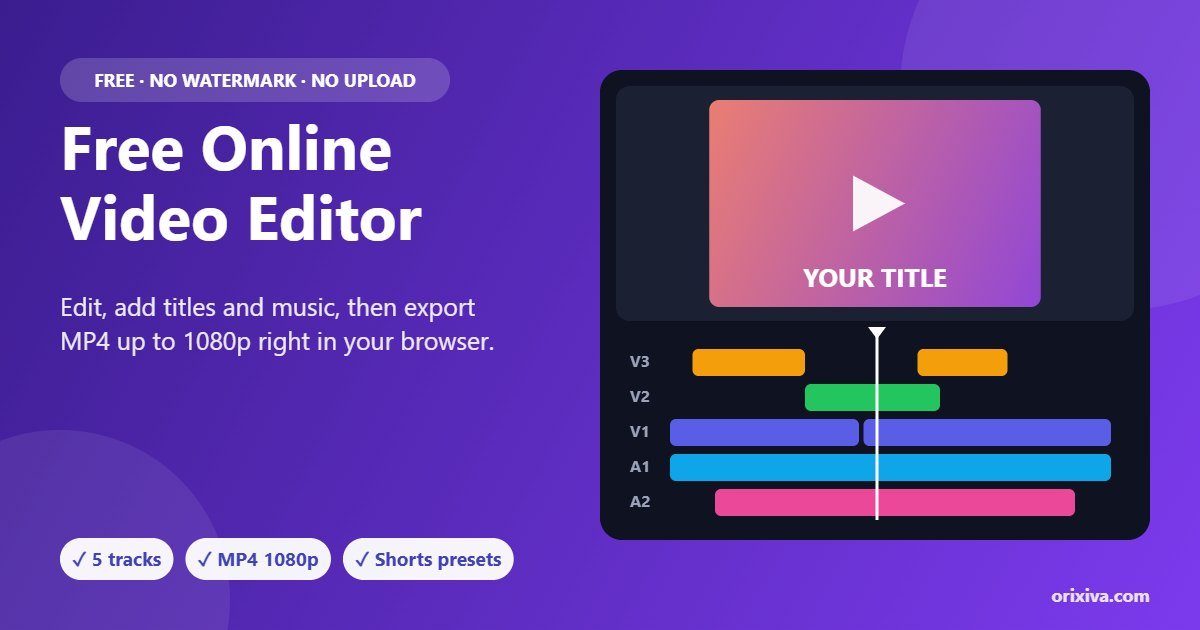
Orixiva Studio is a free online video editor that runs entirely in your web browser. Trim and split clips, stack video, titles and music on five tracks, add transitions, colour looks, green screen and captions, then export an MP4 or WebM file up to 1080p. There is no sign-up, no watermark on your export and no upload: your footage stays on your own device.
Quick answer: To edit a video online for free, open the editor above, drop in your video, trim or split it on the timeline, add titles or music, choose a look, then click Export, pick a preset such as "YouTube 1080p" or "Shorts / Reels / TikTok" and press Start video export. The finished MP4 downloads straight to your device.
- 5timeline tracks
- 1080pMP4 or WebM export
- 0watermarks or uploads
- 50undo steps + autosave
What is a browser video editor?
A browser video editor is a full editing workspace that loads as a web page instead of an installed program. This free online video editor uses features built into modern browsers: the video and audio decoders that play your files, the HTML canvas that draws every frame, the Web Audio API that mixes sound, and the MediaRecorder API that turns the finished timeline into a video file. Because all of that happens on your computer or phone, nothing is uploaded and you do not need an account.
The trade-off with any free online video editor is that your device does the work. Short social videos, tutorials, vlogs and presentations are perfect for a free online video editor; very long 4K projects are still better suited to desktop software.
Features of the free online video editor
Every feature below is part of the free online video editor and works the same way on Windows, Mac, Linux and Chromebook.
1
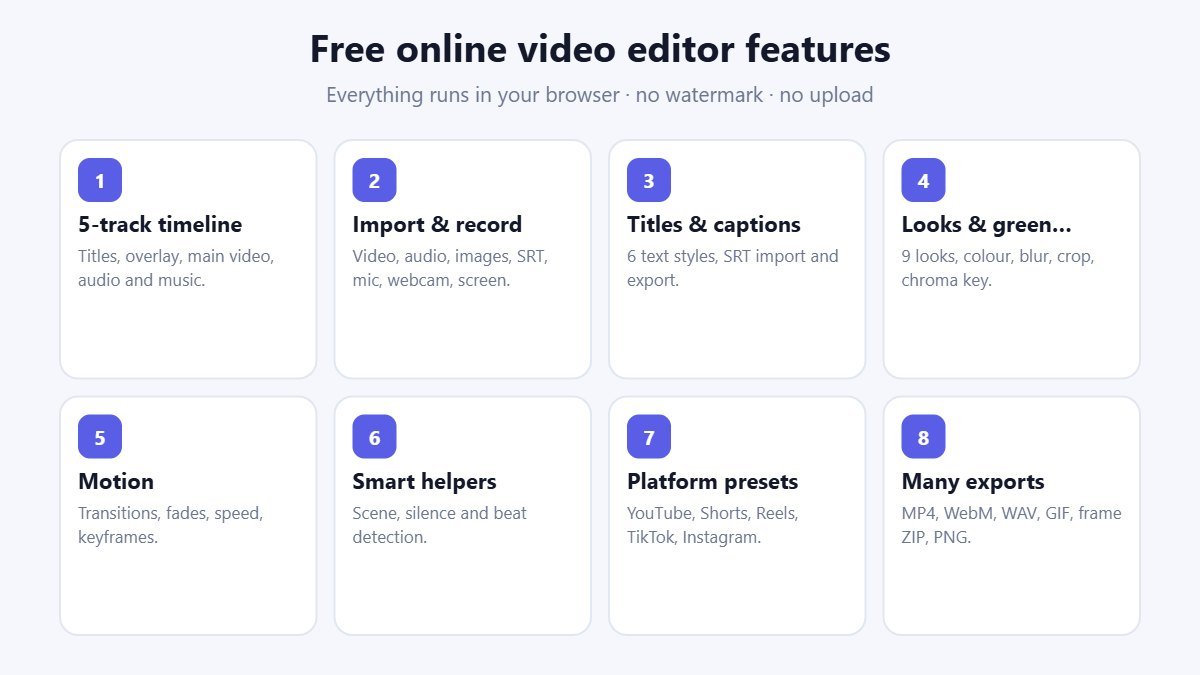
Five-track timeline
Titles (V3), overlay (V2), main video (V1), audio (A1) and music (A2). Drag clips to move them, drag the edges to trim, split at the playhead, duplicate, delete or ripple delete.
2
Import anything common
Video, audio, images and SRT or VTT subtitle files. Drag and drop or browse; the first clip lands on the timeline automatically and the + button adds more.
3
Record in the browser
Capture your microphone, webcam or screen directly into the media library, ready to edit. Great for tutorials and voice-overs.
4
Titles and captions
Add text with six style presets (title card, lower third, subtitle, social caption, quote and highlight), or import and export SRT captions.
5
Looks, effects and green screen
Nine one-click looks such as Cinematic, Vivid and Black & white, plus brightness, contrast, saturation, blur, blend modes, crop and chroma key for green-screen footage.
6
Motion and timing
Transitions (fade, cross-dissolve, slide, zoom, blur), fades in and out, speed from 0.25× to 3×, and keyframes for position, scale, rotation and opacity.
7
Smart helpers
Scene detection, silence detection and beat markers find cut points for you, and safe guides keep text inside the visible area on phones.
8
Exports for every platform
MP4 (H.264) or WebM up to 1080p, platform presets, WAV audio, GIF, a frame ZIP and single-frame PNG snapshots.
How to edit a video online, step by step
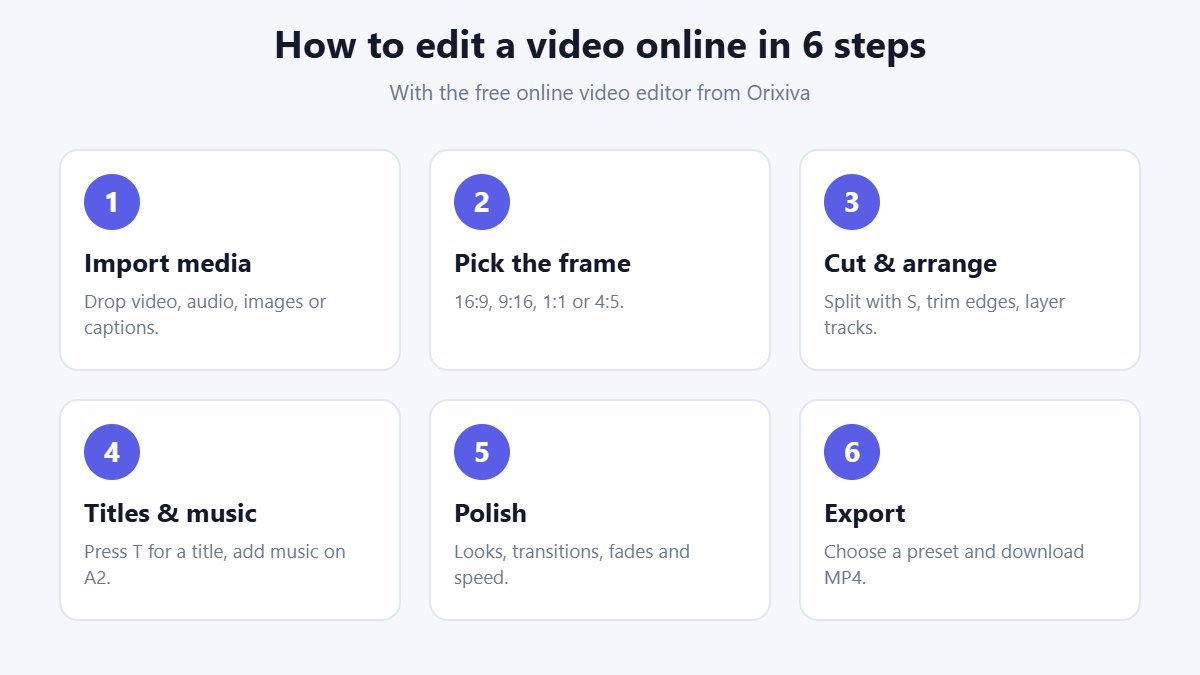
- Import your media. Drop video, audio, images or captions onto the media library, or click Browse files. Your first clip is added to the timeline for you.
- Choose the frame shape. Pick 16:9 for YouTube, 9:16 for Shorts, Reels and TikTok, 1:1 for square posts or 4:5 for the Instagram feed.
- Cut and arrange. Move the playhead, press S to split, drag clip edges to trim, and drag clips between tracks to layer them.
- Add titles and music. Press T for a title and pick a style preset, then add music on the A2 track and lower its volume under speech.
- Polish the look. Select a clip, choose a look preset, add a transition and fade, and check the result with Space.
- Export. Click Export, choose a preset and press Start video export. Keep the tab open until the download starts.
Export presets for YouTube, Shorts, Reels and TikTok
The Export Center in this free online video editor can set everything for you. Each preset changes the frame shape, resolution, frame rate and quality together, and selects MP4 when your browser supports it.
| Preset | Frame | Resolution | Frame rate | Best for |
|---|---|---|---|---|
| YouTube 1080p | 16:9 | 1920 × 1080 | 30 fps | Tutorials, vlogs, reviews |
| YouTube 720p | 16:9 | 1280 × 720 | 30 fps | Faster exports and drafts |
| Shorts / Reels / TikTok | 9:16 | 1080 × 1920 | 30 fps | Vertical short-form video |
| Instagram feed | 4:5 | 1080 × 1350 | 30 fps | Feed posts that fill more of the screen |
| Square post | 1:1 | 1080 × 1080 | 30 fps | Facebook, LinkedIn and carousel posts |
| Quick draft | Current | 480p | 24 fps | Checking an edit quickly |
The free online video editor records the timeline in real time, so a 60-second video takes about 60 seconds to export. MP4 (H.264) is the safest choice for YouTube, Instagram and WhatsApp; WebM files are smaller and work well on the web.
Make a YouTube Short in five minutes
Short vertical videos are the fastest way to grow on YouTube, Instagram and TikTok, and the free online video editor is built for them. Here is a simple routine you can repeat every week.
- Pick one idea. A tip, a before-and-after, or a quick answer to a question your audience asks. Aim for 20 to 45 seconds.
- Record or import. Film on your phone in vertical mode, or use the Webcam or Screen button to record straight into the editor.
- Cut the pauses. Run Silence detect in the free online video editor, then split at the markers and delete the gaps so every second keeps moving.
- Add a hook and captions. Put a bold Social caption title in the first two seconds and add Subtitle-style captions, because many people watch without sound.
- Export for Shorts. Choose the "Shorts / Reels / TikTok" preset. The free online video editor switches the frame to 9:16 and exports a 1080 × 1920 MP4 you can upload to all three platforms.
Save the project file before you export. Next week you can open it, swap the clips and text, and reuse the same layout in minutes.
Keyboard shortcuts
Shortcuts make the free online video editor much faster to use. Press ? inside the editor to see this list at any time.
| Key | Action |
|---|---|
| Space | Play or pause |
| S | Split the selected clip at the playhead |
| Delete | Delete the selected clip |
| ← / → | Move one frame |
| Home / End | Jump to the start or end |
| T / M | Add a title / add a marker |
| Ctrl + Z / Ctrl + Y | Undo / redo |
| Ctrl + S | Save the project file |
| ? | Show all shortcuts |
Free online video editor vs desktop software
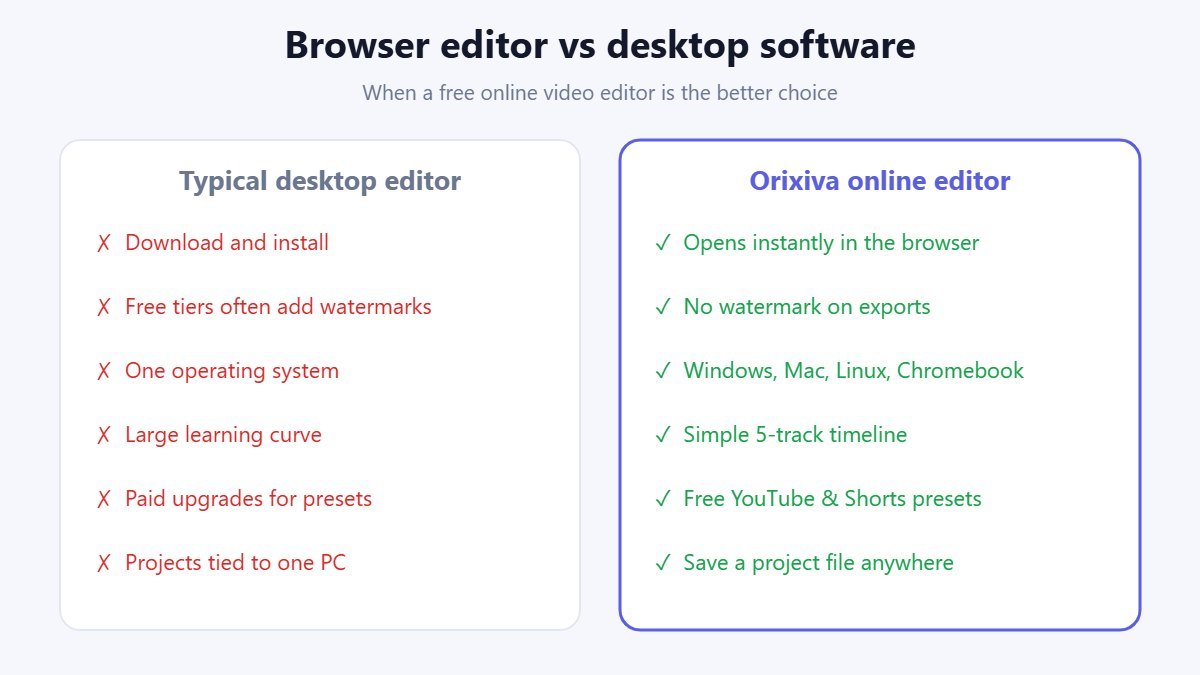
| Orixiva free online video editor | Typical desktop editor | |
|---|---|---|
| Install | None, opens in the browser | Download and install |
| Price | Free, no watermark | Free tiers often add watermarks; paid plans |
| Your files | Stay on your device | Stay on your device |
| Best project size | Short and medium videos | Long and 4K projects |
| Export speed | Real time | Often faster than real time |
| Works on | Windows, Mac, Linux, Chromebook, Android | Usually one operating system |
Tips for smooth editing and export
These habits make the free online video editor faster and more reliable on any device.
- Use MP4 (H.264) source files. They decode smoothly in every major browser. Very large HEVC or ProRes files may not play.
- Lower the preview quality on slower devices. Set Preview to Balanced or Performance while editing; the export still uses the resolution you choose.
- Keep the tab in front during export. Browsers slow down background tabs. The editor now keeps going if the window loses focus, but the fastest export is in the foreground.
- Save a project file. Autosave keeps your work in this browser, but clearing site data removes it. Press Ctrl + S for a backup you can reopen anywhere.
- Use safe guides for vertical video. Keep captions away from the very top and bottom, where platform buttons appear.
- Find cuts automatically. Silence detection marks pauses in speech, and beat markers help you cut music videos on the beat.
Common problems and fixes
My video will not import
The browser cannot decode that format. Convert it to MP4 (H.264) with our free file converter and import it again.
The export has no sound
Make sure "Include audio tracks" is ticked in the Export Center and that the clip and track are not muted.
Playback stutters
Lower the preview quality, close other heavy tabs, and avoid stacking many blurred or keyed clips at once.
I only see WebM, not MP4
MP4 recording depends on the browser. Current Chrome and Edge support it; on other browsers export WebM and convert it afterwards.
My project disappeared
Private windows and cleared site data remove browser storage. Reopen your saved project file and re-import the media it lists.
Text is cut off on phones
Turn on Safe guides and keep titles inside them, or use the Subtitle or Lower third style presets.
Who uses this free online video editor?
- Creators cutting YouTube videos, Shorts, Reels and TikToks without a watermark.
- Teachers and trainers recording screen tutorials with a webcam overlay and captions.
- Small businesses making product clips and ads in the right size for each platform.
- Students editing class projects on a school laptop or Chromebook where installing software is not allowed.
- Podcasters turning audio and a still image into a shareable video, or exporting a clean WAV.
Privacy, storage and limits
This free online video editor processes everything locally. Your clips are read by your browser, drawn on a canvas and recorded with the browser's own MediaRecorder API; audio is mixed with the Web Audio API. Nothing is sent to Orixiva's servers. Autosave uses the browser's IndexedDB storage on your device only.
Limits of the free online video editor to keep in mind: export runs in real time; MP4 support depends on your browser (see browser support for MediaRecorder); GIF export covers up to 8 seconds; the frame ZIP saves one frame per second for up to 180 seconds; and very large or high-bitrate files can be slow on older phones.
Video editing terms explained
These are the words you will see on the buttons and panels of the free online video editor.
- Timeline
- The horizontal workspace where clips are arranged in time from left to right.
- Playhead
- The vertical line that marks the current frame. Splits and new clips happen here.
- Track
- A row on the timeline. Higher video tracks appear on top of lower ones.
- Aspect ratio
- The frame shape, such as 16:9 for YouTube or 9:16 for vertical video.
- Keyframe
- A saved value at a point in time. The editor animates smoothly between keyframes.
- Chroma key
- Removing one colour, usually green, so the footage behind shows through.
- Bitrate
- How much data is used per second of video. Higher bitrate means better quality and bigger files.
- H.264
- The most widely supported video codec, used in MP4 files.
How we test the free online video editor
The Orixiva team tests the free online video editor with MP4, WebM and MOV clips, MP3 and WAV audio, PNG and JPG images and SRT captions, on desktop and mobile browsers. We check that playback keeps real time, that exports match the timeline length, and that MP4 files open in common players. Recent testing found and fixed a timing bug that made playback and export run slowly when the browser drew fewer frames. If something does not work for you, please describe your browser and file in the comments so we can reproduce it.
Related free tools on Orixiva
- Free online file converter for video, audio, images and documents.
- Image background remover for thumbnails and overlays.
- SVG converter and icon studio for logos and graphics.
- Free SEO tools to get your video page found.
Share your edit
Made something with the free online video editor? Tell other creators in the comments which preset, look or shortcut helped most, or describe a feature you would like next. If an import or export failed, include your browser and the file type so we can look into it. Comments are reviewed before they appear.
Frequently asked questions
Is the free online video editor really free?
Yes. Every feature is free, there is no sign-up, and no watermark is added to your export.
Are my videos uploaded to a server?
No. Editing and export happen in your browser, and autosave stores your project only on your device.
Can I export MP4?
Yes, in browsers that support MP4 recording, such as current Chrome and Edge. Other browsers export WebM, which you can convert to MP4 afterwards.
What resolution can I export?
360p, 480p, 720p or 1080p, at 24, 30 or 60 frames per second.
How do I make a vertical video for TikTok or Reels?
Choose the "Shorts / Reels / TikTok" export preset. It switches the frame to 9:16 and exports 1080 × 1920.
Why does export take as long as the video?
The editor records the finished timeline in real time to keep sound and picture in sync, so a one-minute video takes about one minute.
Can I add music and voice-over?
Yes. Import audio onto the A1 or A2 track, or record your microphone directly, then adjust volume and fades per clip.
Can I add subtitles?
Yes. Import an SRT or VTT file, or add text clips with the Subtitle style. You can also export your captions as SRT.
Does it support green screen?
Yes. Select a clip on an upper track, enable chroma key and pick the key colour and tolerance.
Can I undo mistakes?
Yes. Up to 50 undo steps are kept. Press Ctrl + Z to undo and Ctrl + Y to redo.
Will I lose my work if I close the tab?
Your project autosaves in this browser. For a safe backup, save a project file with Ctrl + S.
Does it work on my phone?
The free online video editor works in modern mobile browsers, but a computer gives a larger timeline and faster exports.
Can I make a GIF?
Yes. Use Export GIF in the Export Center for clips up to 8 seconds.
Can I record my screen?
Yes. Use the Screen button to capture a window or your whole screen, then edit the recording on the timeline.
What file types can I import?
Common video (MP4, WebM, MOV), audio (MP3, WAV, M4A, OGG), images (PNG, JPG, WebP, GIF) and SRT or VTT captions, as long as your browser can decode them.
Ready to edit? Scroll up to the free online video editor, drop in a clip and press Space to play. Your first export is only a few clicks away.