Try our free AI tools – no sign-up needed!



How to Calculate Dates, Work Hours, Running Pace, and Sleep Times
Need to find your exact age, count days between dates, plan working days, check shift hours, or prepare for a race? This simple guide explains which calculator to use, how the maths works, and what to check before you trust the result.
Quick answer: Choose the calculator that matches your question. Use Date Difference to compare two dates, Working Days to skip weekends and holidays, Time Duration to total hours, and Running Pace to estimate pace, speed, or finish time. The Orixiva Date, Time & Everyday tool brings these jobs together in one browser-based place.
1. How to calculate dates: choose the right calculator
You do not need to learn every formula before starting. First, decide what you want to know. Then select the matching calculator and enter only the details it asks for.
How old am I?
Age
Age
How far apart are dates?
Date difference
Date difference
What date comes next?
Add / subtract
Add / subtract
Skip weekends or holidays?
Working days
Working days
How long did I work?
Time duration
Time duration
How much time remains?
Countdown
Countdown
How fast am I running?
Running pace
Running pace
When should I sleep?
Sleep schedule
Sleep schedule
Use the labels as a quick guide. If your question involves a public holiday, local work policy, or medical concern, check the relevant local rules too.
Calendar planning
Find an age, count date gaps, or move a date forward or backward.
Work and deadlines
Count workdays, calculate a shift, and see how long remains until an event.
Running and training
Convert distance and time into pace, speed, finish time, and split estimates.
Sleep planning
Estimate possible bedtimes or wake-up times from selected sleep-cycle settings.
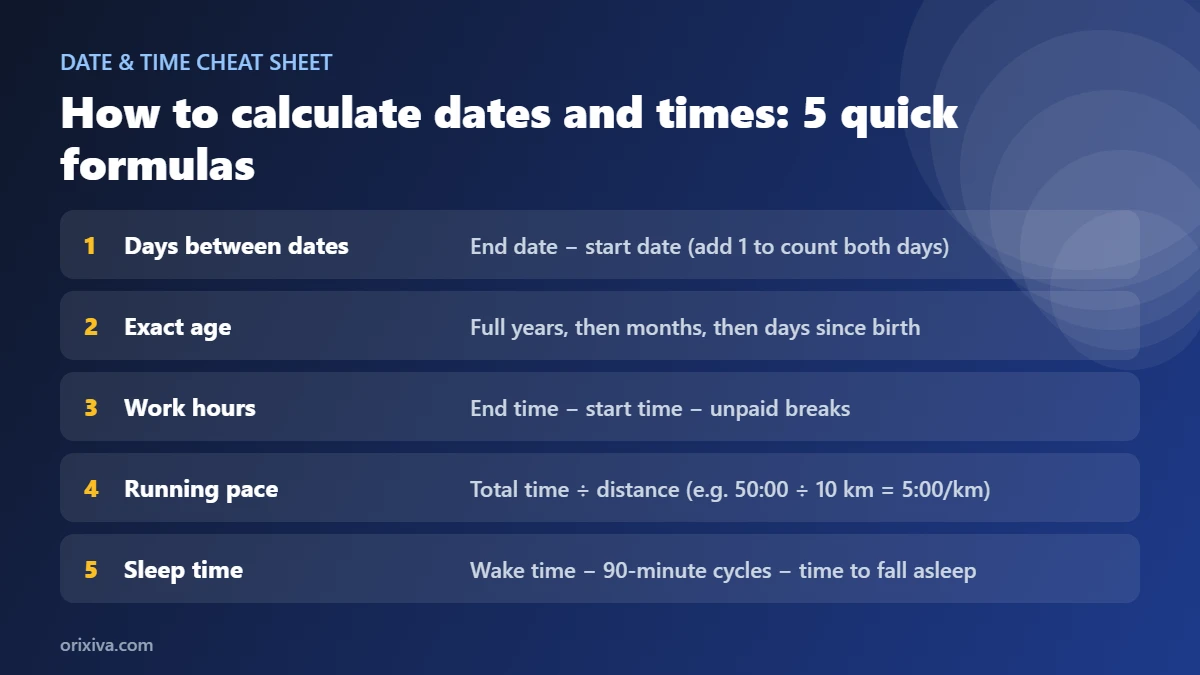
2. How does an online date and time calculator work?
A calculator follows a clear process: it reads your inputs, checks that they make sense, applies a calculation rule, and displays the answer. A helpful tool also explains the result, so you can see how it was reached.
1. Enter details
2. Check the inputs
3. Apply the rule
4. Read the result
Orixiva's Date, Time & Everyday tool is designed to run its calculations in your browser and does not call an external calculation API. The tool also offers actions such as copying a result, downloading a text result, printing, and exporting recent calculation history as a CSV file. The most useful feature depends on the task you are doing.
Good habit: Check the date format, selected counting rule, units, and weekend settings before using an answer in a work schedule, application, training plan, or deadline.
3. Age calculator: find your exact age
An age calculator works out the time between a date of birth and a selected date. It can show your age in years, months, and days. In this tool, you can also check an age on a past or future date, calculate total completed months and days, and view the next birthday countdown.
How to calculate age
- Enter your date of birth.
- Choose the date on which you want to know your age. The current date is provided as a starting value.
- If you need hour-and-minute detail, enter the birth time and the time on the selected date.
- Select how a 29 February birthday should be observed in a non-leap year: 28 February or 1 March.
- Select Calculate and review the completed age, total days, last birthday, and next birthday.
Worked example: From 15 June 2000 to 19 October 2026, the calendar age is 26 years, 4 months, and 4 days. Choose your own “age on” date for a current result. Read the answer as years, months, and days—not just the year difference.
Age calculation flowchart
Birth date
Age-on date
Optional time
Leap-day rule
Age and next birthday
When is an exact age calculator useful?
- Checking how old you are today or on a specific date.
- Finding how many days old you are.
- Planning a birthday event or counting days until your next birthday.
- Comparing dates for personal records. For official identity, school, visa, or legal forms, follow the rules of the organisation requesting the information.
The result is a calendar calculation, not proof of identity or legal eligibility. If an official form uses a special age rule, follow that form's instructions.
4. Date difference calculator: count days between two dates
A date difference calculator answers questions such as “How many days are between these dates?”, “How many full weeks is that?”, or “How many weekdays fall in this period?” Orixiva also reports a calendar difference in years, months, and days, total months elapsed, full quarters, weekend days, weekdays, and leap days in the selected range.
Exclusive or inclusive counting?
The counting rule matters. With exclusive counting, the end date is not included in the day total. With inclusive counting, both the start date and the end date are counted. For example, Monday to Wednesday is two elapsed days when the start is not counted, but three calendar dates when both ends are included.
Start + end date
Choose counting rule
Count calendar days
Review days, weeks, weekdays, weekends
| Your question | What to check | Why it matters |
|---|---|---|
| How many days have passed? | Exclusive count | Measures elapsed days between the dates. |
| How many calendar dates are in the period? | Inclusive count | Counts both the first and last date. |
| How many workdays are in the range? | Use the Working Days calculator for custom weekends and holidays. | A simple Monday-to-Friday count may not match every country or workplace. |
| How many months or years apart? | Read the calendar breakdown and total months. | Months have different lengths, so months are not always 30 days. |
Worked example: From 1 March 2026 to 10 March 2026, exclusive counting gives 9 elapsed days. Inclusive counting gives 10 calendar dates because both 1 March and 10 March are included.
If the start date is later than the end date, this calculator swaps the dates and explains that it did so. Check the displayed earlier and later dates if the order matters to your task.
5. Add / Subtract Days: move dates forward or backward
A date calculator can help answer “What date is 90 days from today?”, “What was the date 30 days ago?”, or “What date is one month after the start date?” Orixiva's date shifter supports calendar mode and business-day mode. It also lets you apply the same shift to more than one date.
Calendar shifts and business-day shifts are different
Calendar mode
Add or subtract whole years, months, weeks, and days. Use the month-end rule to decide what happens when the target month is shorter.
Business-day mode
Move forward or backward by working days while skipping the selected weekend pattern. For holiday-aware calculations, use the Working Days tool.
What happens at the end of a month?
A date such as 31 January creates a special case when adding one month, because February may not have 31 days. The tool gives you three rules:
- Clamp: use the last valid day of the target month. For example, 31 January plus one month becomes the last day of February.
- Roll over: allow extra days to roll into the following month. Under this tool's rule, 31 January plus one month rolls into March.
- Strict: reject the shift if the same numbered day does not exist in the target month.
Before you calculate: Decide whether your deadline uses calendar days or business days. A 10-calendar-day shift can end on a weekend; a 10-business-day shift skips the selected weekend days.
Date-shift flowchart
Start date
Calendar or business mode?
Choose offset
Month-end rule if needed
New date
6. Working days calculator: exclude weekends and holidays
A working days calculator counts days that your selected calendar treats as working days. This is useful for project deadlines, delivery planning, study plans, payroll checks, and work schedules. The right weekend differs by country, business, and shift pattern, so the tool lets you choose which days are weekends.
How to count business days
- Choose whether to count working days between two dates or move by a number of working days.
- Set the weekend days. You can select the days that are not working days rather than assume every country follows Saturday and Sunday.
- Add individual holidays in
YYYY-MM-DDformat. - Add recurring annual holidays in
MM-DDformat if they repeat on the same calendar date each year. - Choose whether the start date, end date, both, or neither should be counted (for range mode).
- Calculate and review working days, weekends, and holidays excluded.
Set date range
Choose weekend
Skip weekend dates
Skip listed holidays
Total working days
Important: Holidays are not automatically downloaded from a government calendar. You must enter the holidays that apply to your location, school, employer, or project. The result is only as complete as the dates and weekend rules you supply.
Examples of weekend settings
| Pattern example | How it can be used | What you must confirm |
|---|---|---|
| Saturday + Sunday | Common Monday-to-Friday schedules | Check your organisation's actual calendar. |
| Friday + Saturday | Some workplaces or schedules | Set the pattern only if it matches your calendar. |
| Sunday only or Friday only | Schedules with one regular weekly non-working day | Check any rotating or extra days off. |
| Custom weekend selection | Other work patterns | Leave at least one day selected as a working day. |
7. Time duration calculator: work hours, overnight shifts, and overtime
A time duration calculator adds time intervals and helps you estimate the net hours in a shift. The Orixiva calculator supports overnight work, optional start and end dates, extra intervals, unpaid breaks, paid breaks recorded as part of the worked interval, rounding, overtime, an overtime multiplier, and an optional hourly rate for an estimated pay figure.
How to calculate hours between two times
- Enter the start time and end time. If the shift crosses midnight, an earlier end time is treated as the next day when dates are not supplied.
- For dates spanning multiple days, enter both the start date and end date.
- Add other time intervals using a format such as
13:00-17:30, one interval per line. - Enter unpaid breaks in minutes. Enter paid breaks separately for clarity.
- Choose whether to round to 5, 10, or 15 minutes, or not to round. Then choose nearest, round up, or round down.
- Set the overtime threshold and multiplier. Add an hourly rate only if you want the tool to estimate pay.
Net time = total time in all intervals − unpaid breaks
Overtime = time above your selected overtime threshold
Estimated pay = regular hours × rate + overtime hours × rate × multiplier
Worked example: A shift from 21:00 to 06:00 lasts 9 hours before breaks. If you enter a 30-minute unpaid break, the net duration is 8 hours and 30 minutes before any optional rounding.
The estimated-pay result is a simple calculation based on the rate and multiplier you enter. It does not include taxes, benefits, allowances, local employment rules, or other payroll adjustments unless you account for them separately.
Work-hours calculation flowchart
Start and end
Add intervals
Subtract unpaid breaks
Optional rounding
Regular + overtime
Optional pay estimate
Workplace check: Overtime rules differ across employers and countries. Use the calculator for a transparent estimate, then confirm the rules in your contract or official payroll guidance.
Rules on what counts as paid working time differ by country. In the United States, the Department of Labor explains the basics in its fact sheet on hours worked. Check your own contract and local law before you rely on a timesheet total.
8. Days Until Date: countdowns for exams and events
A countdown calculator measures the time between now and a target date and time. It can be useful for exams, launches, trips, application deadlines, birthdays, appointments, and personal goals.
How to create a countdown
- Enter a short event name, such as “Exam” or “Project deadline”.
- Choose the target date and time.
- Calculate to view the remaining days and a live countdown. If the target has passed, the result shows overdue time.
- Use Save countdown to keep the event in this browser. Saved events can be removed later.
Name the event
Set date + time
Compare with now
Live countdown
Optional save
The tool's countdown is based on your browser's local time. The business-days-remaining figure uses Monday to Friday and is not a custom holiday calendar. If the deadline belongs to another time zone, check that zone before relying on the exact hour or minute.
9. Running pace calculator: pace, speed, distance, and race time
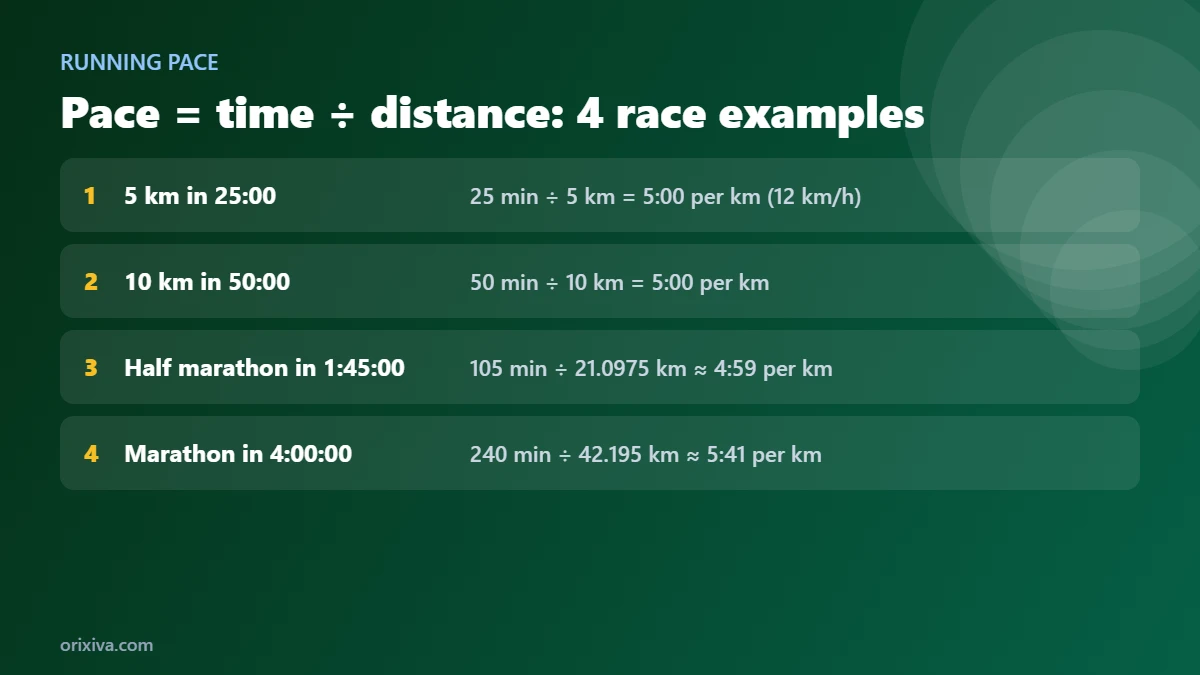
A running pace calculator helps runners plan a training session or estimate a race finish. Pace is the amount of time needed to cover one unit of distance. Speed is distance travelled per unit of time. The tool supports kilometres and miles, plus common race distances and custom distances.
Three common pace formulas
Pace = total time ÷ distance
Finish time = pace × distance
Distance = total time ÷ pace
For example, if a runner covers 5 km in 30 minutes, the average pace is 6 minutes per kilometre. The calculator can also estimate finish time from a pace, estimate distance from time and pace, convert between pace units, show speed in km/h and mph, and display a split table.
Illustrative only: in pace notation, a lower minutes-per-kilometre number means a faster pace. The bars are a visual guide, not measured performance data.
Race distances supported
- 1 kilometre and custom distances
- 5K and 10K
- Half marathon (21.0975 km)
- Marathon (42.195 km)
Running pace flowchart
Choose: pace, time, or distance
Enter the two known values
Select km or miles
Result + speed + splits
Race results are estimates based on the inputs. Real race performance can change because of terrain, weather, elevation, training, pacing, and other conditions. The split table displays up to 60 distance units.
10. Sleep schedule calculator: plan bedtime or wake-up time
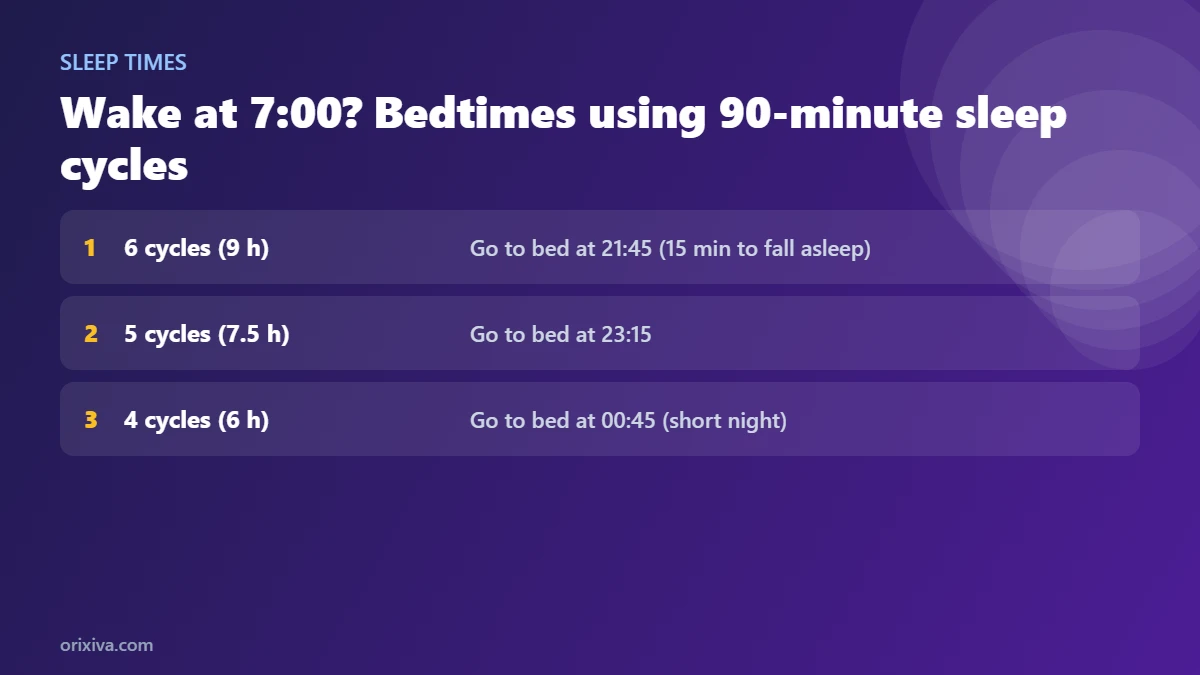
A sleep schedule planner estimates possible bedtimes or wake-up times from a selected sleep-cycle length and the time it may take you to fall asleep. In Orixiva, you can start from a bedtime and find wake-up options, or start from a required wake-up time and work backward to possible bedtimes.
How the sleep planner works
- Choose whether you know your bedtime or your wake-up time.
- Enter the time and your estimated time to fall asleep.
- Select a cycle length of 80, 90, 100, or 110 minutes.
- Optionally enter a desired number of sleep hours.
- Compare the suggested times for different cycle counts.
Bedtime or wake time
Add sleep latency
Select cycle length
Compare options
Choose a realistic routine
Worked example: If bedtime is 22:30, you estimate 15 minutes to fall asleep, and you select five 90-minute cycles, the estimated wake-up time is 06:15 the next day. This is a simple planning example, not a promise that you will sleep continuously for that period.
The planner can show options for three to seven cycles and visually mark rows within its selected 7–9.5-hour range. Sleep cycles vary among people and from night to night. This calculator is a planning estimate, not a medical tool and not a substitute for advice from a qualified health professional.
11. Accuracy, privacy, and common mistakes
Check these details before you trust a result
Dates and counting rules
Confirm the date format, inclusive or exclusive counting, and whether a date is being counted as a full day.
Weekends and holidays
Choose the actual weekend pattern and enter relevant holidays. Never assume every country uses the same work calendar.
Time and overnight shifts
Use start and end dates for a multi-day shift. Make sure every interval is entered in a valid 24-hour time format.
Units and rounding
Keep kilometres and miles consistent, review rounding mode, and separate a raw duration from a rounded payroll estimate.
Does the calculator upload my entries?
The calculator code provided for this tool performs its calculations in the browser and does not send calculator inputs to an external calculation API. Some settings and saved countdowns can be stored in your browser's local storage. Avoid entering highly sensitive information into any website, and remember that normal website hosting or analytics may operate separately from the calculator code.
What the calculator should not replace
- Official instructions for legal age, visas, exams, or application deadlines.
- Your employer's official payroll policy and local employment law.
- An official holiday calendar when a deadline depends on public holidays.
- Personal medical advice for sleep problems, fatigue, or training-related health concerns.
When you share or store dates, the international ISO 8601 format (YYYY-MM-DD) avoids confusion between day-first and month-first styles. Using it is one of the simplest ways to make sure everyone knows how to calculate dates from the same starting point.
12. Help other readers: share a question or practical tip
Have you used a date calculator to plan an exam, compare work shifts, prepare for a race, or organise a family event? Share a practical example or ask a clear question in the comments below this article. Your explanation may help someone who has the same problem.
Useful comment ideas
- Explain which calculator you used and what kind of problem it helped you solve.
- Share a general example with made-up dates or rounded numbers so that you do not reveal private details.
- Point out a confusing label, a missing weekend pattern, or a step that could be clearer.
- Ask a question that other readers can answer without needing your private information.
Protect your privacy: Do not post your full date of birth, identity numbers, private payroll details, address, or health information. Comments are reader contributions, not official legal, payroll, medical, or financial advice. Comments should be reviewed before publication to remove spam and personal information.
Ready to calculate your dates and times?
Use the Orixiva calculator directory to open the Date, Time & Everyday tool. Choose a function, enter your details, and review the calculation steps with the result.
Explore free calculator tools →

[…] How to calculate running pace and sleep times […]
[…] The age calculator gives exact age on any date, total days and your next birthday, and our guide on how to calculate dates covers date differences and working days in […]
[…] Real months have 28, 29, 30 or 31 days, and years have 365 or 366. A converter needs one fixed value, so the Orixiva time converter uses the Gregorian calendar averages: 30.436875 days per month and 365.2425 days per year. That is ideal for estimates (“about how many months is 1,000 days?”) but not for exact calendar dates. For “what date is 90 days from today?” or “how many days between two dates?”, use the date and time calculators, and see our guide on how to calculate dates, work hours and running pace. […]