Try our free AI tools – no sign-up needed!
Image Dimension Analyzer
Check image dimensions, aspect ratio, DPI, print size and file details, then measure, test platform sizes and get resize code.
🔒 Runs in your browser📐 Pixel-accurate
Drop images to check their dimensions
JPG, PNG, WebP, GIF, AVIF, SVG, BMP, TIFF, HEIC · one or hundreds of files · paste with Ctrl+V · nothing is uploaded
Images are analysed on your device and never uploaded. URLs are fetched directly by your browser from that website. · More free Orixiva tools
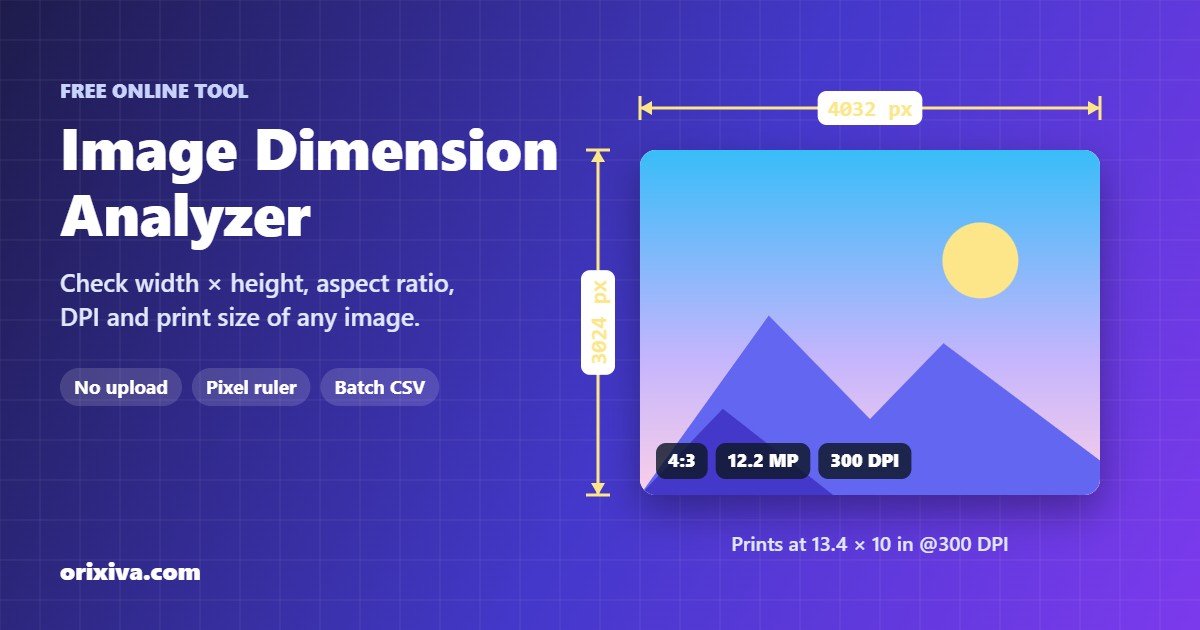
Quick answer: to check image dimensions online, drop your photo into the image dimension analyzer above. It instantly shows the width × height in pixels (for example 3024 × 4032 px), the aspect ratio (3:4), megapixels, DPI and the largest size you can print at 300 DPI. Nothing is uploaded, and you can analyse hundreds of images at once and export the results as a CSV file.
What is an image dimension analyzer?
An image dimension analyzer is a tool that reads a picture file and tells you how big it really is. The most important numbers are the width and height in pixels, because they decide how sharp the image looks on a screen and how large you can print it. A good image size checker also shows the aspect ratio (the shape of the image), the resolution in DPI, the file size in KB or MB, and the real file format.
The Orixiva image dimension analyzer goes further than a basic image size finder. It reads the information stored inside the file itself, so it can spot problems that a quick look misses: a phone photo that is stored sideways and rotated by an EXIF tag, a PNG file that is really a JPEG, a picture that was cropped after it was taken, or a DPI value that would make it print too small. It works with JPG, PNG, WebP, GIF, AVIF, SVG, BMP, TIFF and, where your browser supports it, HEIC.
Everything happens on your own device. Your images are never sent to a server, which makes this image resolution checker fast and private. Read more about how our client-side processing works.
How to check image dimensions online
- Add your images Drop one or more photos onto the image dimension analyzer, click Choose images, choose a whole folder, paste a screenshot with Ctrl+V, or paste the URL of an image on the web.
- Read the overview The width, height, aspect ratio, megapixels, file size, format, DPI and orientation appear at once, together with plain-English tips such as “too large for the web” or “contains GPS location”.
- Measure if you need to Open the Measure tab to draw a ruler or a box on the image, read pixel coordinates, pick colours and show a grid or rule-of-thirds guide.
- Check where it fits The Size check tab compares your image with recommended sizes for Instagram, YouTube, Open Graph, print and more, and shows whether you need to crop, add bars or use a larger image.
- Resize or export Use the aspect ratio calculator and copy the HTML and CSS, or open All images to sort every file by size and download the results as CSV or JSON.
Features of the Orixiva image size checker
Exact width and height
Pixel dimensions read from the file header, corrected for EXIF rotation, with the stored size shown when the two differ.
Aspect ratio finder
Shows the simplified ratio such as 16:9 or 3:2, the decimal value, and the closest standard ratio when the numbers are uneven.
DPI and print size
Reads DPI from JFIF, EXIF, PNG and TIFF data and shows the print size in inches and centimetres at 72 to 600 DPI.
File and encoding details
Real format, extension check, bit depth, colour mode, JPEG quality estimate, chroma subsampling, progressive or interlaced, colour profile and animation frames.
Pixel ruler and box tool
Measure lengths, angles and areas in px, %, inches, cm or mm, with zoom up to 6400%, a pixel grid and a magnifying loupe.
Colour picker and palette
Pick any pixel's HEX and RGB value, and see the average colour, main colours, transparency and brightness.
Platform size check
Over 30 recommended sizes for social media, websites, video, online shops, print, app icons and passport photos, with a crop preview.
Resize and code helper
Aspect ratio calculator, print size calculator, plus copy-ready <img>, srcset and CSS aspect-ratio code.
Batch analysis
Analyse hundreds of images or a whole folder, sort and filter them, find images with the same size, and export CSV or JSON.
Private by design
No upload, no account and no tracking of your images. The image dimension analyzer keeps working even if your connection drops.
Pixels, DPI and file size explained
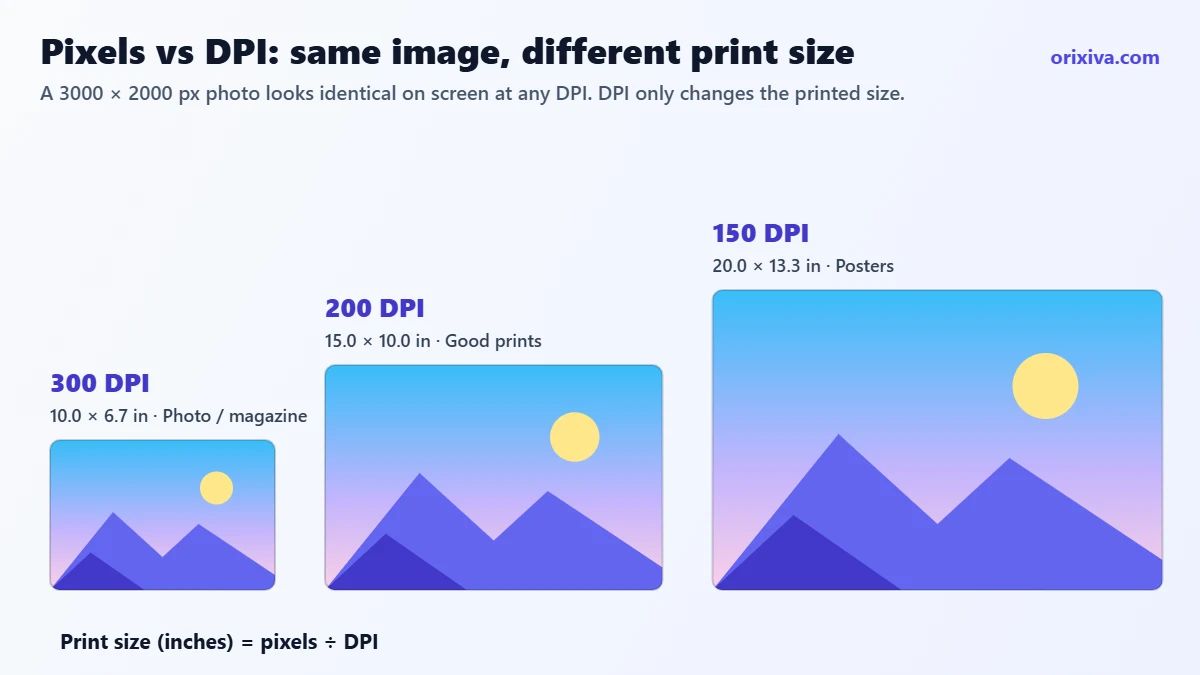
Three different numbers are often called “image size”, and mixing them up causes most upload and print problems:
- Pixel dimensions (for example 1920 × 1080 px) are the real size of the image. They decide how much detail it holds and how large it can appear on a screen. When you check image dimensions, this is the number that matters most.
- DPI or PPI (dots or pixels per inch) is only a note inside the file that tells printers how many pixels to place in each inch of paper. It does not change how the image looks on a screen. A 1920 px wide image looks the same at 72 DPI and at 300 DPI on a website.
- File size (for example 450 KB) is how much storage the file uses. It depends on the pixel dimensions, the format and the compression. Two images with the same dimensions can have very different file sizes.
Megapixels are simply width × height divided by one million: a 4000 × 3000 photo has 12 megapixels. To make a file smaller without changing its dimensions, use the free image compressor. To change the dimensions themselves, use the image resizer.
Aspect ratio calculator and common ratios
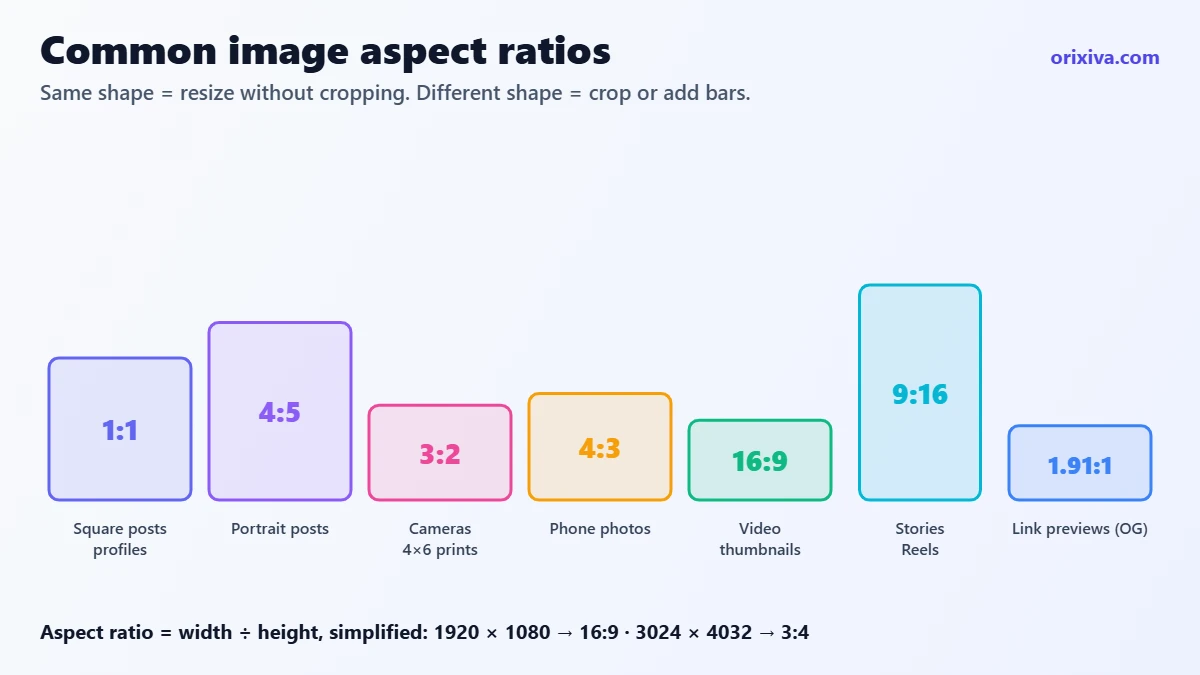
The aspect ratio describes the shape of an image: its width divided by its height. A 1920 × 1080 image and a 1280 × 720 image have different sizes but the same 16:9 shape. The image dimension analyzer finds the ratio by dividing both numbers by their greatest common divisor, so 3024 × 4032 becomes 3:4. When the result is uneven, such as 641 × 481, it shows the nearest standard ratio instead (about 4:3).
| Ratio | Example size | Typical use |
|---|---|---|
| 1:1 | 1080 × 1080 | Square social posts, profile pictures, product photos |
| 4:5 | 1080 × 1350 | Portrait posts on Instagram and Facebook |
| 3:2 | 6000 × 4000 | Most DSLR and mirrorless cameras, 4 × 6 inch prints |
| 4:3 | 4032 × 3024 | Most phone cameras, tablets, presentations |
| 16:9 | 1920 × 1080 | Video, YouTube thumbnails, laptop and TV screens, blog headers |
| 9:16 | 1080 × 1920 | Stories, Reels, TikTok and other vertical video |
| 1.91:1 | 1200 × 630 | Open Graph link previews on social networks |
To resize without stretching, keep the ratio the same. In the Resize & code tab, the built-in aspect ratio calculator updates the height when you type a new width (and the other way round), and warns you when rounding or enlarging would affect quality.
How big can I print my image?
Divide the pixel dimensions by the DPI you want. At 300 DPI, which is standard for photo prints and magazines, a 3000 × 2400 px image prints at 10 × 8 inches. At 150 DPI, which is fine for posters seen from a distance, the same image prints at 20 × 16 inches.
| Print size | Pixels needed at 300 DPI | Pixels needed at 150 DPI |
|---|---|---|
| 4 × 6 in (10 × 15 cm) | 1200 × 1800 | 600 × 900 |
| 5 × 7 in (13 × 18 cm) | 1500 × 2100 | 750 × 1050 |
| 8 × 10 in (20 × 25 cm) | 2400 × 3000 | 1200 × 1500 |
| A4 (21 × 29.7 cm) | 2480 × 3508 | 1240 × 1754 |
| A3 (29.7 × 42 cm) | 3508 × 4961 | 1754 × 2480 |
The image dimension analyzer prints this table for every image, and the print calculator in the Resize & code tab tells you whether your photo is large enough for any custom size, or which DPI it would reach.
Check image sizes for social media and websites
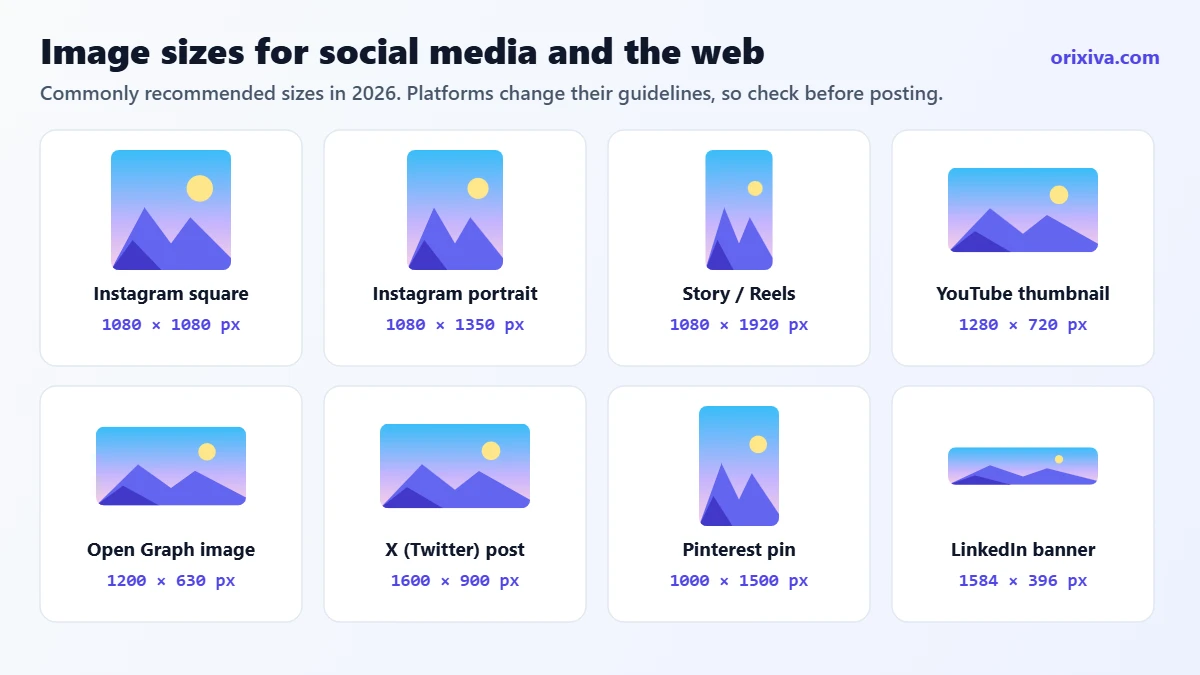
Uploading the wrong shape is the main reason images look cropped or blurry online. The Size check tab compares your image with over 30 recommended sizes and tells you, for each one, whether it is an exact match, has the same aspect ratio, needs a crop (and how much of the picture you keep), or is too small. Switch between Fill (crop) and Fit (add bars) to see both options, click a row for a crop preview, and enter any custom size to check it as well.
For websites, Google recommends large, high-quality images and descriptive alt text in its image SEO best practices, and images at least 1200 px wide for Discover. Always add width and height to your images so browsers can reserve space while the page loads; web.dev explains why in its guide to avoiding layout shifts. The image dimension analyzer writes that code for you, including a responsive srcset. If you need all those sizes, create them in one go with the bulk image resizer.
Measure distances and colours in an image
Sometimes you need more than the overall size: the width of a logo inside a screenshot, the height of a button in a design, or the exact colour of a background. The Measure tab turns the image dimension analyzer into an on-screen pixel ruler:
- Ruler: drag between two points to get the length, horizontal and vertical distance, and angle. Hold Shift to snap to 45° steps.
- Box: drag a rectangle to read its width, height, position, area and aspect ratio.
- Colour: click any pixel to save its HEX and RGB value; a magnifier shows the pixels around your cursor.
- Units: switch between pixels, percent, inches, centimetres and millimetres at any DPI.
- Guides: show a pixel grid, the rule of thirds or centre lines, and zoom from 1% to 6400%.
Every measurement is listed under the image, so you can copy them all at once for a design brief or a bug report.
Other ways to check image dimensions
You can also find the pixel size of a picture without any extra tool, although you get less detail:
- Windows: right-click the file, choose Properties, open the Details tab and look under Image for the dimensions and resolution.
- Mac: select the file in Finder and press Cmd+I, or open it in Preview and choose Tools → Show Inspector.
- iPhone: open the photo in the Photos app and swipe up or tap the info button to see the resolution and megapixels.
- Android: in Google Photos, open the photo and swipe up to see the details, including the size in pixels.
- Browser: open an image in its own tab; many browsers show the dimensions in the tab title.
These built-in methods do not show the aspect ratio, the print size, the real format or EXIF rotation, and they handle one file at a time. That is where an image dimension analyzer saves time.
Who uses an image dimension analyzer?
Bloggers, SEOs and web developers
Check image dimensions before uploading, find images that are far larger than the layout needs, and copy the HTML with width, height and srcset. Our free SEO tools and developer tools cover the rest of the page.
Online sellers
Make sure product photos meet marketplace minimums, such as at least 1000 px on the longest side for zoom on Amazon, and keep a whole catalogue consistent by sorting every image by size in the All images tab.
Designers and social media managers
Confirm that banners, thumbnails and stories have the right shape before you publish, and measure elements inside mock-ups with the pixel ruler.
Students, job seekers and applicants
Online forms often ask for a photo or signature with exact pixel dimensions. Check yours here, then reduce the file size with the image compressor if the form also has a KB limit.
Photographers and print shops
See how large each photo can be printed at 300 DPI, spot images that were cropped too much, and check the camera, lens and date stored in the file.
Privacy, accuracy and limits
The image dimension analyzer reads your files in your browser and does not upload, store or share them. When you analyse an image from a URL, your browser downloads it directly from that website. Some websites block this, and then only the pixel dimensions can be shown; download the image and drop it in for the full analysis.
Dimensions are read from the file header and checked against the decoded image, so they are exact. The JPEG quality value is an estimate based on the file's compression tables. Colour statistics are calculated from a reduced copy of the image, so they are close but not exact. HEIC and TIFF files can be read for their size even when your browser cannot display them, but the preview, colours and measuring tools need a browser that can open them. If a photo contains its GPS location, you can remove it with the EXIF data remover.
Image dimension analyzer FAQ
How do I check the dimensions of an image online for free?
Drop the image into the Orixiva image dimension analyzer. It shows the width and height in pixels straight away, together with the aspect ratio, megapixels, file size and DPI. It is free and needs no sign-up.
Is my image uploaded to a server?
No. The image is analysed by your browser on your own device and is never uploaded or stored.
What is the difference between image dimensions and file size?
Dimensions are the width and height in pixels, such as 1920 × 1080. File size is the storage space the file uses, such as 350 KB. Compression can change the file size without changing the dimensions.
How do I find the aspect ratio of an image?
Divide the width and height by their greatest common divisor. The tool does this for you: 1920 × 1080 becomes 16:9 and 3024 × 4032 becomes 3:4. For uneven sizes it shows the closest standard ratio.
Does DPI affect image quality on screen?
No. Screens only use the pixel dimensions. DPI tells a printer how many pixels to fit into each inch, so it only affects the printed size.
How do I check the DPI of an image?
Add the image to the image dimension analyzer. The DPI card shows the value stored in the file and where it came from (JFIF, EXIF, PNG or TIFF data). If no DPI is stored, apps usually assume 72 or 96 DPI.
How large can I print my photo?
Divide the pixel dimensions by 300 for photo quality. A 3600 × 2400 px image prints at 12 × 8 inches at 300 DPI. The print table and calculator in the tool do this for any size.
Why does my photo show a different width and height than expected?
Phone photos are often stored sideways with an EXIF orientation tag that tells apps to rotate them. The tool shows both the stored size and the size as it is displayed, so you know which one a website will see.
Can I check the size of many images at once?
Yes. Add hundreds of images or a whole folder. The All images tab lists every file with its dimensions, ratio, size and DPI, lets you sort and filter them, and exports the list as CSV or JSON.
Can I check the dimensions of an image from a URL?
Yes. Paste the image address and click Analyze URL. If the website allows direct access you get the full report; otherwise you still see the pixel dimensions.
Can I measure part of an image in pixels?
Yes. In the Measure tab, use the ruler for distances and angles or the box tool for areas. You can switch the units to %, inches, cm or mm.
How do I find the colour code of a pixel?
Choose the colour tool in the Measure tab and click the pixel. Its HEX and RGB values are saved in the list below the image, ready to copy.
What image size is best for a website?
Usually 1200–1920 px wide for large images and 800–1200 px for images inside an article, saved as WebP or JPG and kept under a few hundred KB. Use a srcset so phones download smaller versions.
Which formats does the image dimension analyzer support?
JPG, PNG, WebP, GIF (including animated), AVIF, SVG, BMP and TIFF. HEIC photos from iPhones are measured from the file header, and previewed in browsers that support them, such as Safari.
How do I know if my image is big enough for Instagram or YouTube?
Open the Size check tab. Each platform size is marked as an exact match, same ratio, crop needed or too small, with a preview of the crop.
Does it work on iPhone and Android?
Yes. The tool works in modern mobile browsers, including touch measuring with pinch-to-zoom. Choosing a whole folder is available on desktop browsers.
Is there a limit on file size or the number of images?
There is no fixed limit. Very large images use more memory, so older phones may be slower with photos over about 50 megapixels.
Ready to check your images? Scroll up to the image dimension analyzer and drop in your photos. Then shrink them with the image compressor, resize them in bulk, or browse all free online tools on Orixiva.