Try our free AI tools – no sign-up needed!


Can Someone Find Your Location From a Photo? How to Remove GPS Data
Worried about a photo you are about to share? The free EXIF remover shows whether it contains your location and removes it in one click.
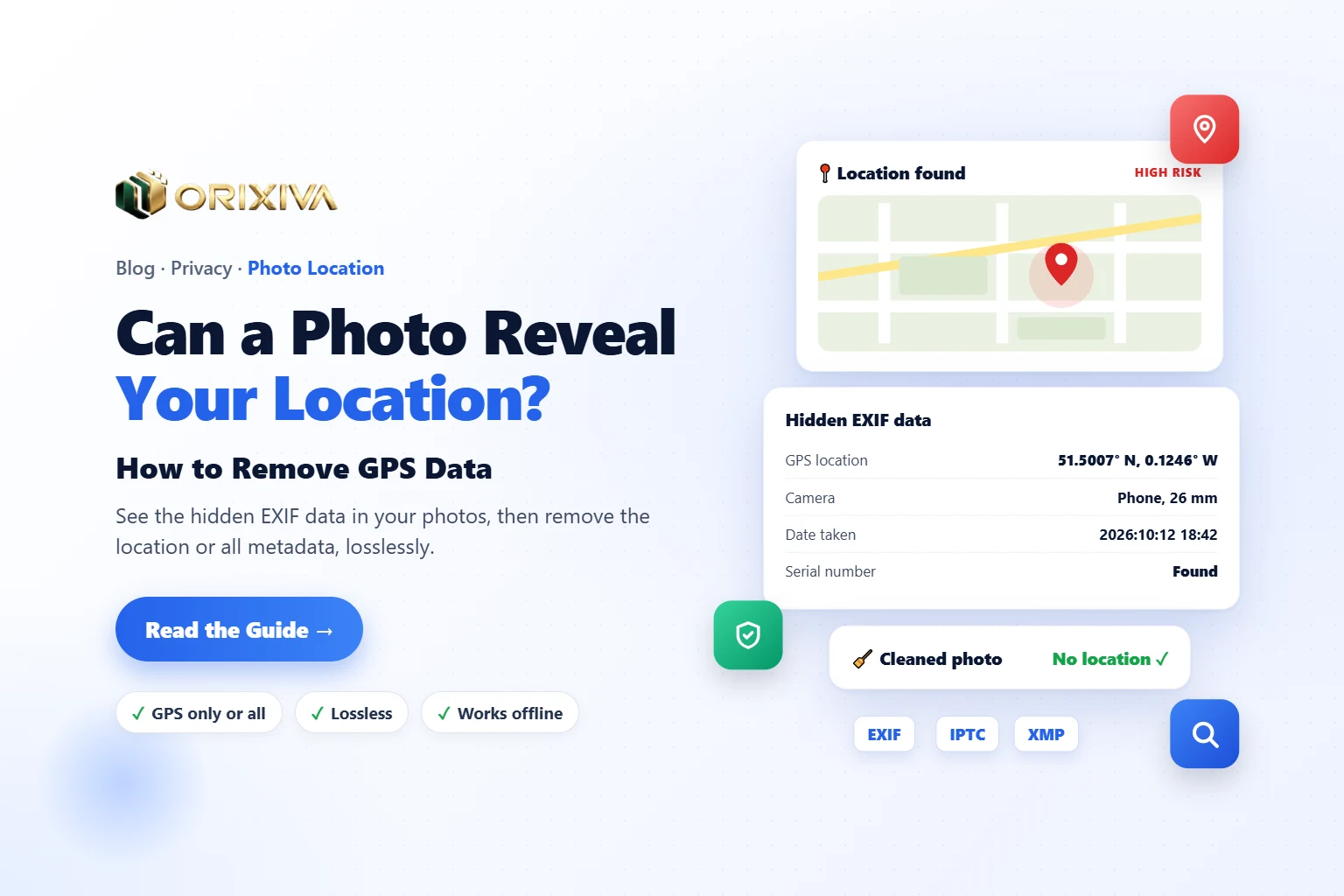
Jump to the free tool ↓Short answer: yes, sometimes. Most phone cameras can save the exact place a photo was taken inside the file itself, often accurate to a few metres. If you send that original file to someone, they can open it and see your home, school or office on a map. The fix is simple: remove GPS data before you share.
This guide explains what hidden photo data (called EXIF data) contains, when your location is really exposed and when it is not, and five easy ways to clean your photos, including the free Orixiva EXIF remover, which works offline in your browser and never re-compresses your pictures.
Key takeaways
- Photos can carry GPS coordinates, the date and time, and your phone model in hidden EXIF data.
- Big social networks usually strip this data from the public copy, but email, cloud links, “send as file” and your own website usually keep it.
- Check a photo before sharing: if it shows a location, remove it.
- “Remove GPS location only” keeps useful details like the date; “Remove all metadata” is the most private.
- Turning off location for your camera app stops new photos from saving it at all.
What is EXIF data, and what does it reveal?
EXIF (Exchangeable Image File Format) is a small block of information saved inside JPG and many other image files. Your camera writes it automatically. Other kinds of hidden data, called IPTC and XMP, can add captions, author names and editing history. Together they are called metadata.
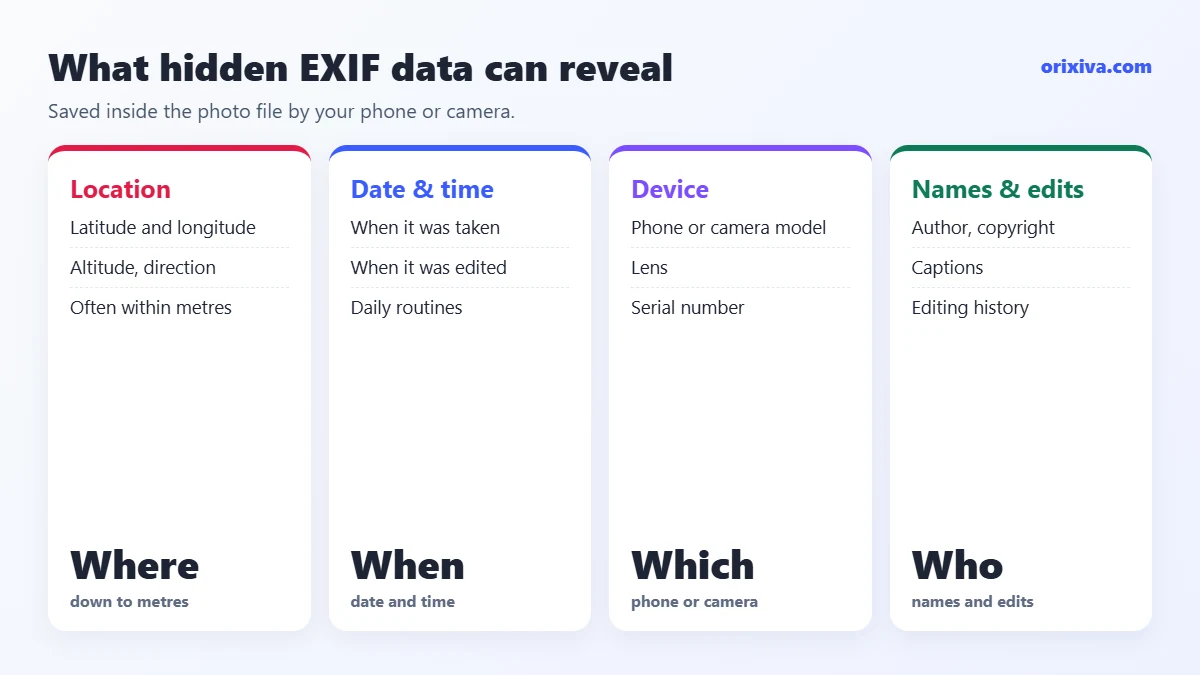
Location
Latitude, longitude and sometimes altitude and direction. Six decimal places locate a point to about 10 cm, enough to find a house.
Date and time
When the photo was taken and edited, which can reveal routines like when you are usually at home.
Device
Phone or camera make and model, lens, and sometimes a serial number that links photos to one device.
Names and edits
Author, copyright, captions, editing software and history (for example from Lightroom).
Some files also hide a small preview image (a thumbnail). In rare cases it can still show the original, uncropped picture after you cropped something out. A good EXIF data cleaner removes it.
When can someone find your location from a photo?
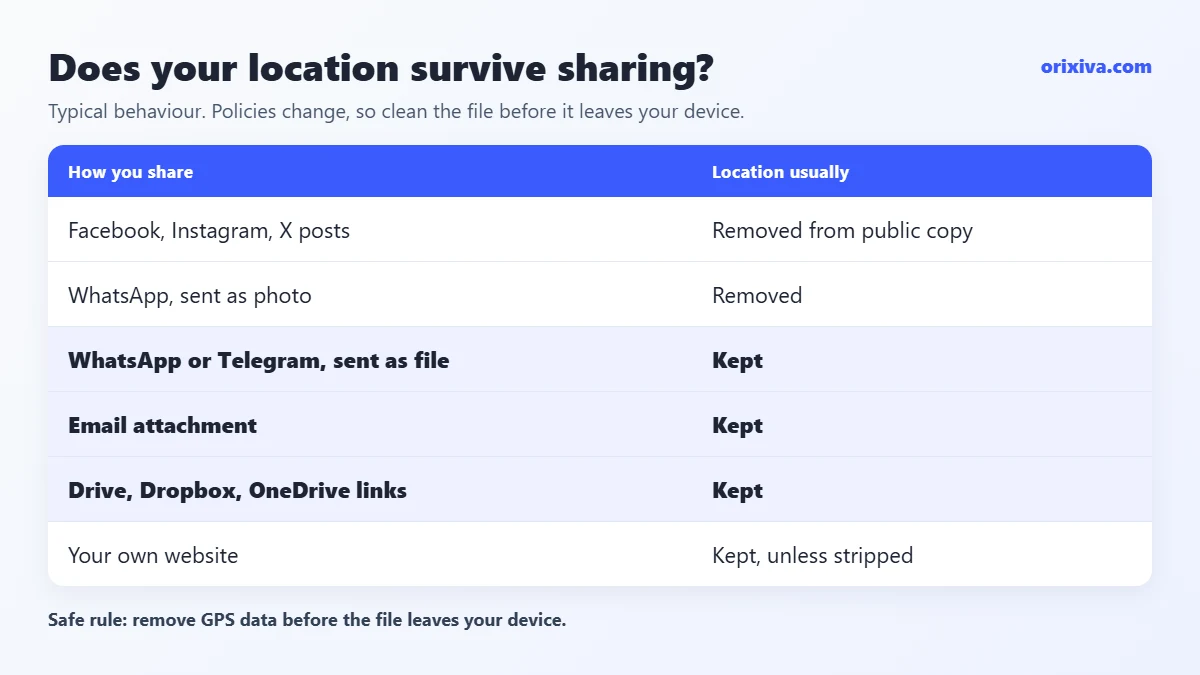
It depends on how the photo travels. Many large platforms remove location from the public copy when you upload; many direct ways of sending a file keep everything. Policies change, so treat this as a guide, not a guarantee.
| How you share | Location usually… | Notes |
|---|---|---|
| Facebook, Instagram, X posts | Removed from the public copy | The platform itself may still read and keep it |
| WhatsApp, sent as a photo | Removed | The photo is also compressed |
| WhatsApp or Telegram, sent as a file/document | Kept | The original file is delivered unchanged |
| Email attachment | Kept | Whoever receives it can read everything |
| Google Drive, Dropbox, OneDrive links | Kept | Anyone with the link gets the original |
| Your own website or blog | Kept | Unless your site or a plugin strips it |
| Marketplace and forum uploads | Varies | Many smaller sites keep the original |
Based on published tests of common platforms. Check your own case: the only safe rule is to clean the file before it leaves your device.
Who is most at risk?People selling items from home on marketplaces, sharing photos of their children, posting rental listings, reporting from sensitive places, or anyone dealing with a stalker or an ex-partner. If any of these apply, remove all metadata every time.
How to check if a photo has your location
You do not need special software. Drop the photo into the EXIF remover. If the file contains coordinates, a red “📍 Location found in this photo · High risk” card appears, with a button to open the spot in OpenStreetMap. That is exactly what a stranger would see.
Below it, All metadata lists every field (camera, dates, GPS, IPTC, XMP), which you can save as JSON or CSV. Quick checks without a tool:
- iPhone: open the photo in Photos and swipe up. A map means the location is saved.
- Android (Google Photos): open the photo, swipe up or tap ⋮, and look for a map or place name.
- Windows: right-click the file, choose Properties → Details, and look for GPS.
- Mac: open in Preview, press Command-I, and look for a GPS tab.
How to remove GPS data from photos (step by step)
The Orixiva tool edits the file structure directly, so the picture itself is not re-saved or compressed: quality stays exactly the same. It works with JPG, PNG and WebP (GIF can be checked but not cleaned).
- Open the tool and add photos. Go to the free EXIF remover and drop one or many photos, or press Choose a folder. Your originals are never changed.
- Look at the privacy card. If “Location found” appears, the photo would reveal where it was taken.
- Pick how much to remove. Choose Remove GPS location only to keep the camera, date and author, or Remove all metadata for maximum privacy.
- Or choose categories. Under Choose what to remove, tick exactly what to delete: location, author, camera and serial numbers, date and time, camera settings, XMP, IPTC, comments.
- Keep the photo looking right. Leave Keep orientation and Keep colour profile (ICC) on, so photos do not turn sideways or change colour.
- Clean and download. Press 🧹 Clean selected photo, or 🧹 Clean all to get a ZIP. Cleaned files get a name suffix, so you can tell them apart.
- Check again. Drop the cleaned file back into the tool. The location warning should be gone.
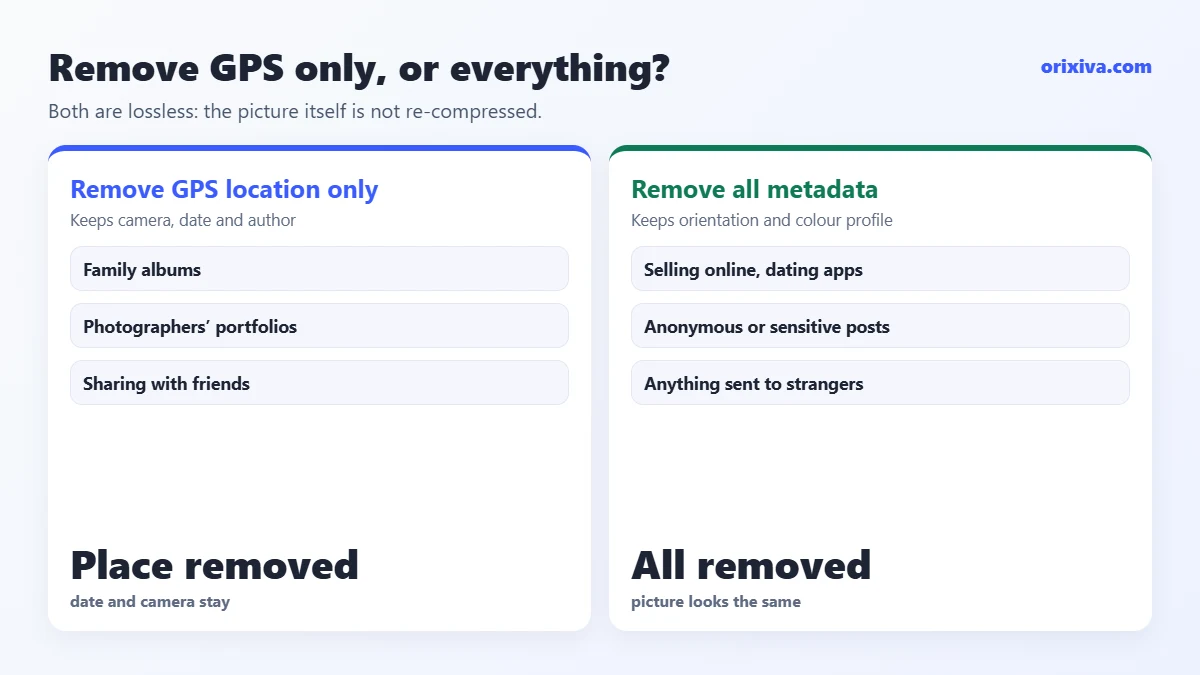
GPS only or remove all metadata?
Remove GPS location only
Best for photographers and family albums: dates, camera settings and copyright stay, only the place is gone.
Remove all metadata
Best for selling, dating apps, anonymous posts and anything sensitive. Orientation and colour profile are kept so the picture looks the same.
The hidden thumbnail and maker notes are always removed, because they can contain the uncropped original or device IDs. You can also write new values (author, copyright, description, date) with the optional ✏️ Edit metadata panel, for example to add your copyright before posting work online.
A 30-second routine before you share a photo
You do not need to become a privacy expert. Build one small habit and you will remove GPS data before it ever becomes a problem:
- Ask where the photo is going. A public post, a marketplace, a stranger or an email? Anything outside your close family deserves a check.
- Look at the picture. House numbers, school logos, car plates, letters on the table? Crop them out.
- Check the hidden data. Drop the file into the EXIF remover and look for the location card.
- Clean it. Choose Remove GPS location only for friends, or Remove all metadata for strangers.
- Send the cleaned copy. Share the new file, not the original from your gallery.
Common ways photo location leaks happen
These everyday situations are where EXIF data most often travels further than people expect:
Selling from home
Photos of a sofa for sale, sent by email or as a file in a chat, can carry the photo location of your living room.
Family photos in shared albums
Cloud album links often deliver the original files, including where the children play every day.
Work and freelance files
Photos sent to clients reveal home-office addresses, and editing history can expose software, names or older versions.
Your own website
Images uploaded to a blog or portfolio are served as they are, so visitors can download the exif data with them.
In each case, the safe habit is the same: remove EXIF data first, then share.
Remove EXIF data for business, real estate and journalism
For businesses, metadata is both a risk and a tool. Estate agents and rental hosts often remove GPS data from interior photos until a viewing is booked. Journalists and activists remove all metadata to protect sources and locations. Photographers and designers, on the other hand, want to keep their copyright and contact details in every file.
The Orixiva EXIF remover covers both: use Choose what to remove to delete location, camera serial numbers and editing history, then use ✏️ Edit metadata to write your name and copyright into the cleaned file. Do it once for a whole folder and download the ZIP.
Does WhatsApp remove location from photos?
When you send a picture the normal way, as a photo, WhatsApp compresses it and removes the EXIF data, including GPS, from the copy the other person receives. When you send the same picture as a document (to keep full quality), the original file is delivered as it is, with the photo location still inside.
The same pattern applies to many apps: “photo” mode usually re-processes the image, while “file”, “document” or “original quality” modes keep everything. If you want full quality and privacy, remove GPS data first, then send the cleaned file as a document. Because the Orixiva tool cleans losslessly, you keep every pixel and lose only the hidden data.
How to remove location from photos on iPhone and Android
iPhone
- One photo: open it in Photos, swipe up, tap the location, choose Adjust → No Location.
- When sharing: in the share sheet, tap Options at the top and turn off Location. This only affects that share.
Android
- Google Photos: open the photo, tap ⋮, and choose Remove location (wording varies by version).
- Samsung Gallery: open the photo, tap Details, then remove location.
Phone options handle location, but not serial numbers, author names or editing history. The Orixiva EXIF remover runs in Safari and Chrome on phones too, and can clean a whole batch.
How to remove EXIF data on Windows and Mac
Windows: select the photos, right-click → Properties → Details → Remove Properties and Personal Information. Choose “Create a copy with all possible properties removed”. It is built in, but it does not show you a map or tell you what was there.
Mac: Preview’s Inspector (Command-I) can show the GPS tab, but macOS has no simple built-in “remove all” for photos. A browser tool or a utility like ImageOptim does the job.
Advanced users can use the free command-line program ExifTool, for example exiftool -gps:all= photo.jpg. It is powerful but easy to get wrong.
How to stop your camera saving location
Cleaning files works, but the easiest protection is not saving the location in the first place.
- iPhone: Settings → Privacy & Security → Location Services → Camera → Never.
- Android: open the Camera app settings and turn off Location tags (sometimes called “Save location”), or remove the Camera app’s location permission in Settings → Apps.
You lose the handy map view in your gallery, so some people prefer to keep location on and clean photos before sharing instead.
What removing EXIF data cannot hide
Metadata is only half the story. People can still guess a location from what the picture shows:
- street signs, house numbers, car number plates and shop names;
- a view from a window, a famous building or a mountain shape;
- school uniforms, name badges and parcels with labels;
- reflections in mirrors, glasses and windows.
Before posting, look at the whole photo once with a stranger’s eyes. Crop or blur anything that gives away where you live, then remove the metadata.
Two tools, one stepNeed a smaller file as well? The free image compressor and the bulk image resizer also remove metadata (or keep it without GPS) while they shrink your photos. The EXIF remover is the one to use when you want to see exactly what is inside and keep the image quality untouched.
Your turn: Did you ever find a location hidden in a photo you had already shared? Tell us in the comments where it happened (the type of app or site, not the place), so other readers know what to watch for.
Check and clean your photos now, free
See every hidden detail in your photos, then remove GPS data or all metadata in one click. Lossless, offline in your browser, and your originals stay untouched.
Open the free EXIF remover → Need another privacy or image tool? Search on orixiva.comPhoto location and EXIF questions people often ask
Can someone find my location from a photo I sent?
Yes, if you sent the original file by email, cloud link or “as a document”, and the camera saved GPS data. Open the photo in an EXIF viewer to check, and remove GPS data before sending next time.
Do Instagram and Facebook remove location from photos?
They usually strip GPS from the public copy that others download, but the platform may still read it when you upload. If you do not want the platform to have it either, remove it before uploading.
Does a screenshot contain location data?
Usually not. Screenshots normally have no GPS, but they can include a date, device details and whatever is visible on screen.
Does removing EXIF data reduce photo quality?
Not with a lossless tool. The Orixiva EXIF remover edits the file structure without re-compressing, so the pixels stay exactly the same.
How accurate is the GPS location in a photo?
Often within a few metres outdoors with a good signal; indoors it can be less precise. Either way, it is usually enough to identify a building.
Can I remove EXIF data from many photos at once?
Yes. Add several photos or a whole folder, choose what to remove, and press Clean all to download them as a ZIP.
Can I add my copyright to a photo instead?
Yes. Use the Edit metadata panel to write author, copyright, description and date into the cleaned file. It works for JPG, PNG and WebP.
Can deleted location data be recovered from a cleaned photo?
No. Once removed from the file, it is gone from that copy. Your original photo on your phone still has it, so share the cleaned copy.
Do iPhone and Android photos save location by default?
Usually yes, if you allowed the camera to use your location when it first asked. Check one photo: if a map appears when you swipe up, new photos are saving it.
Do photos from a DSLR or mirrorless camera have GPS?
Only if the camera has built-in GPS or is paired with a phone app that adds location. Many cameras still save the model, lens and a serial number, which a cleaner can remove.