Try our free AI tools – no sign-up needed!

How to Check Image Size, Aspect Ratio and DPI (5 Easy Ways)
Need the numbers now? The free image dimension analyzer shows pixel size, aspect ratio, DPI and print size for any photo in one second.
Jump to the free tool ↓“Image must be 1080 × 1350.” “Upload at 300 DPI.” “Use a 16:9 thumbnail.” Before you can fix an image, you need to know what you have. This guide shows you how to check image size in pixels, find the aspect ratio, read the DPI, and work out how big you can print, on any phone or computer.
You will also learn what these numbers really mean (DPI is the most misunderstood of all) and how to check everything at once with the free Orixiva image dimension analyzer, which runs in your browser without uploading your files.
Key takeaways
- Image size can mean two things: pixel dimensions (like 1920 × 1080) and file size (like 350KB). Most rules mean pixels.
- The aspect ratio is width divided by height, simplified: 1920 × 1080 is 16:9.
- DPI only matters for printing. On screens, only the pixels count.
- Print size = pixels ÷ DPI. A 3000 × 2400 photo prints at 10 × 8 inches at 300 DPI.
- You can check image dimensions on any device in seconds; a dedicated tool also shows ratio, DPI and print size together.
Image size, aspect ratio and DPI: what they mean
Image dimensions
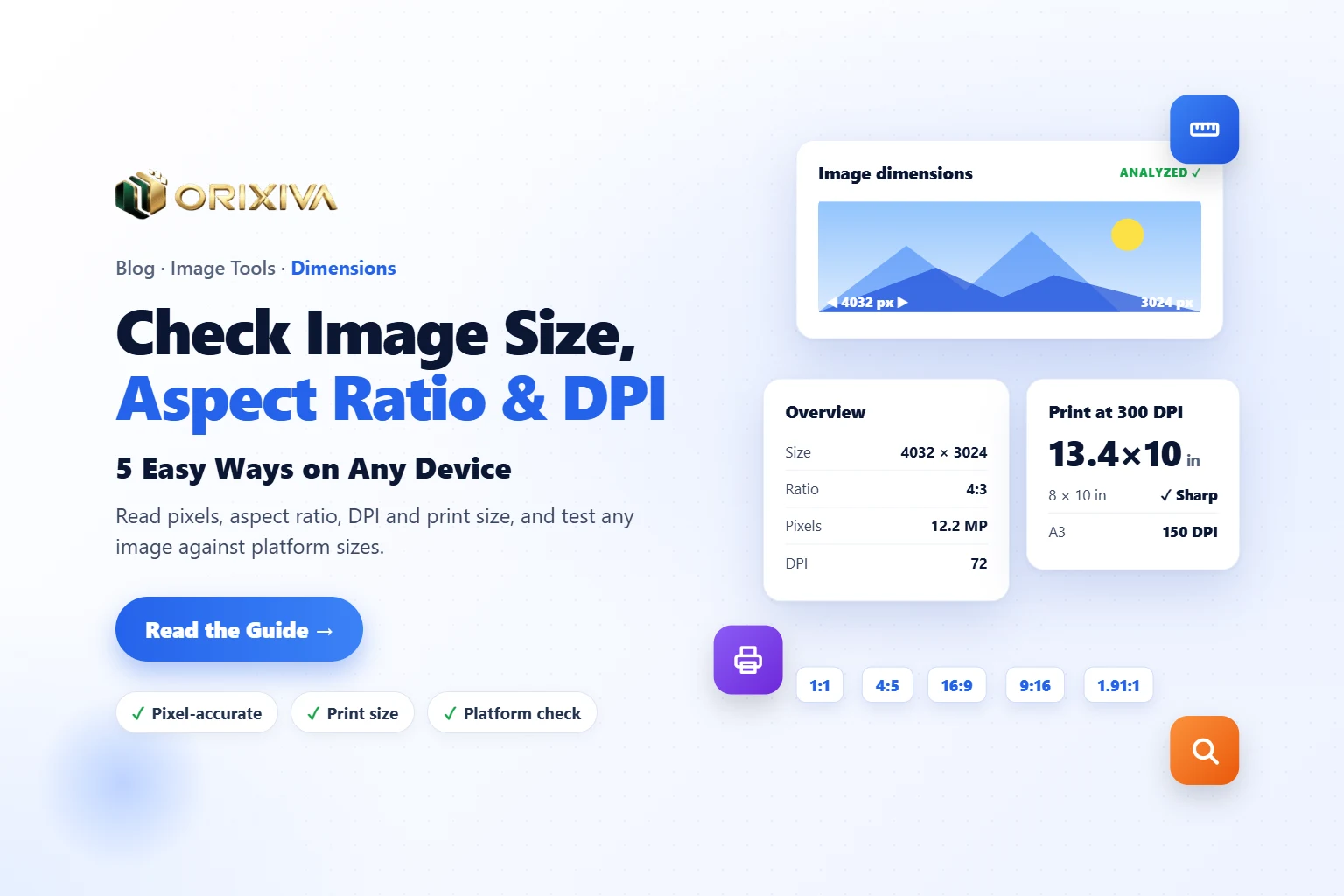
Width × height in pixels, for example 4032 × 3024. Multiply them for megapixels: about 12.2 MP. This decides how sharp the image can be.
File size
How much storage the file takes, in KB or MB. It depends on dimensions, format, quality and metadata, not on dimensions alone.
Aspect ratio
The shape: 1:1 is square, 4:5 is a tall portrait, 16:9 is widescreen. Same ratio means the same shape at any size.
DPI / PPI
Dots (or pixels) per inch. A note telling printers how big to print. It does not change how the image looks on a screen.
When a website says “maximum image size 2MB”, it means file size. When it says “image size 1200 × 628”, it means dimensions. Knowing which one you are dealing with saves a lot of failed uploads.
How to check image size online (step by step)
This is the fastest way to see every number at once, for one image or hundreds.
- Open the analyzer. Go to the free image dimension analyzer. It accepts JPG, PNG, WebP, GIF, AVIF, SVG, BMP, TIFF and HEIC.
- Add your images. Drop files or a folder, click Choose images, paste with Ctrl+V, or paste an image address into Image URL and press Analyze URL. Nothing is uploaded.
- Read the Overview. Dimensions & ratio shows width, height, megapixels and the aspect ratio. Resolution & print size shows the DPI and how big it prints. File & encoding shows the format and file size.
- Measure inside the image (optional). Open Measure and use the 📏 ruler or ▭ box to measure any part in px, %, inches, cm or mm. The 💧 tool reads colours.
- Test it against a platform. Open Size check to see if the image fits common sizes, with a crop preview.
- Get resize numbers and code. Resize & code has an aspect ratio calculator, a print calculator, and ready HTML and CSS.
- Save or share the result. Press Copy summary, or Download report (JSON). For many files, All images exports a CSV.

How to check image dimensions on Windows, Mac, iPhone and Android
Built-in options show the pixels, but rarely the ratio or print size. Here is where to look:
| Device | Where to look | Shows |
|---|---|---|
| Windows | Right-click the file → Properties → Details | Dimensions, DPI, bit depth, camera |
| Mac | Select in Finder → Command-I (More Info), or Preview → Tools → Show Inspector | Dimensions; Inspector also shows DPI |
| iPhone | Photos → open the photo → swipe up or tap ⓘ | Dimensions, megapixels, file size |
| Android | Google Photos → open the photo → swipe up (or ⋮ → Details) | Dimensions, megapixels, file size |
| Any browser | Image dimension analyzer | All of the above plus ratio, print size, platform check |
How to find the aspect ratio of an image
Divide the width and height by their greatest common divisor (the biggest number that divides both). For 1920 × 1080, that number is 120, so 1920 ÷ 120 = 16 and 1080 ÷ 120 = 9: the aspect ratio is 16:9.
Worked exampleA phone photo of 4032 × 3024: both divide by 1008, giving 4:3. A crop of 1080 × 1350: both divide by 270, giving 4:5, the tall Instagram portrait shape. Odd sizes such as 1366 × 768 simplify to 683:384, which is hard to use, so the analyzer shows the nearest common ratio instead: ≈ 16:9.
How to resize without changing the aspect ratio
Keep the ratio and change one side: new height = new width × (old height ÷ old width). A 4032 × 3024 photo at 1200 px wide becomes 1200 × 900. The analyzer’s Aspect ratio calculator does this as you type: change the width, height or scale, and the other values follow.
How to check image DPI (and why it rarely matters)
DPI (dots per inch) and PPI (pixels per inch) are often used as the same thing. In a digital file, it is just a number stored in the metadata, such as 72 or 300. It tells a printer how many pixels to place in each inch of paper.
Here is the key point: changing the DPI number does not change the pixels. A 1200 × 800 image looks exactly the same on screen at 72 DPI or 300 DPI. Only the printed size changes: 16.7 × 11.1 inches at 72 DPI, or 4 × 2.7 inches at 300 DPI.
- For websites, social media and email: ignore DPI. Only pixel dimensions and file size matter.
- For printing: check that you have enough pixels for the print size at the DPI you need.
- When a form demands “300 DPI”: it usually means “enough pixels to print sharply”. Check the print size at 300 DPI in the analyzer.
To check image DPI, open Resolution & print size in the analyzer. On Windows, Properties → Details also shows “Horizontal resolution” and “Vertical resolution”.
How big can you print a photo?
Print size in inches = pixels ÷ DPI. Pixels needed = inches × DPI. At 300 DPI (photo and magazine quality):
Pixels needed for sharp prints
At 300 DPI. At 240 DPI, home prints still look good.
Print sizesAt 300 DPI. At 240 DPI, home prints still look good.
| Print size | Pixels at 300 DPI | Pixels at 150 DPI (posters) |
|---|---|---|
| 4 × 6 in (10 × 15 cm) | 1200 × 1800 | 600 × 900 |
| 5 × 7 in (13 × 18 cm) | 1500 × 2100 | 750 × 1050 |
| 8 × 10 in (20 × 25 cm) | 2400 × 3000 | 1200 × 1500 |
| A4 (8.3 × 11.7 in) | 2480 × 3508 | 1240 × 1754 |
| A3 (11.7 × 16.5 in) | 3508 × 4961 | 1754 × 2480 |
Large posters are viewed from further away, so 150 DPI is usually enough for them.
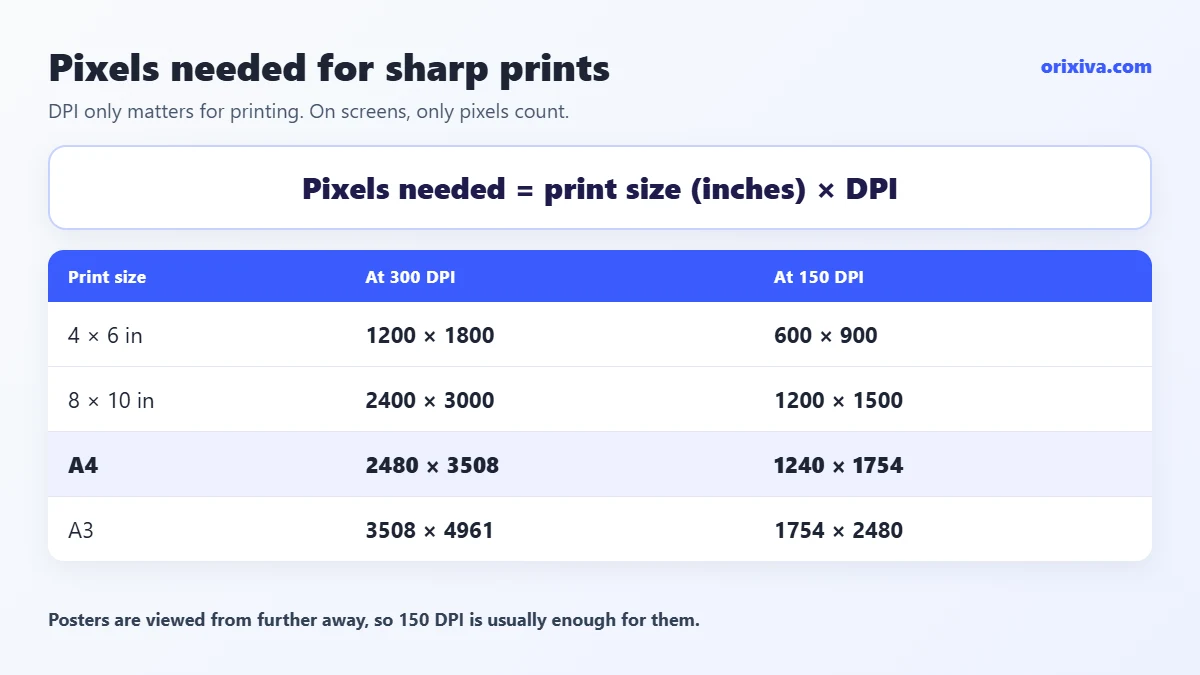
In the analyzer, Pixels needed for print works this out for you: type a print size in inches, cm or mm, choose 150, 240, 300 or 600 DPI, and it tells you if your image is big enough.
Will your image fit? Common platform sizes
Most failed uploads are a wrong shape, not a wrong size. These are widely used recommended sizes; platforms change their guidelines, so always check the latest help page before a big campaign. For example, YouTube’s thumbnail help page now asks for thumbnails “as large as possible” (it suggests 3840 × 2160 for videos) with a minimum width of 640 pixels; 1280 × 720 remains a safe, widely used size.
| Use | Size (px) | Aspect ratio |
|---|---|---|
| Instagram portrait post | 1080 × 1350 | 4:5 |
| Instagram square post | 1080 × 1080 | 1:1 |
| Stories, Reels, TikTok, Shorts | 1080 × 1920 | 9:16 |
| YouTube thumbnail | 1280 × 720 (up to 3840 × 2160) | 16:9 |
| Facebook and link previews (Open Graph) | 1200 × 630 | 1.91:1 |
| Full HD screen or video | 1920 × 1080 | 16:9 |
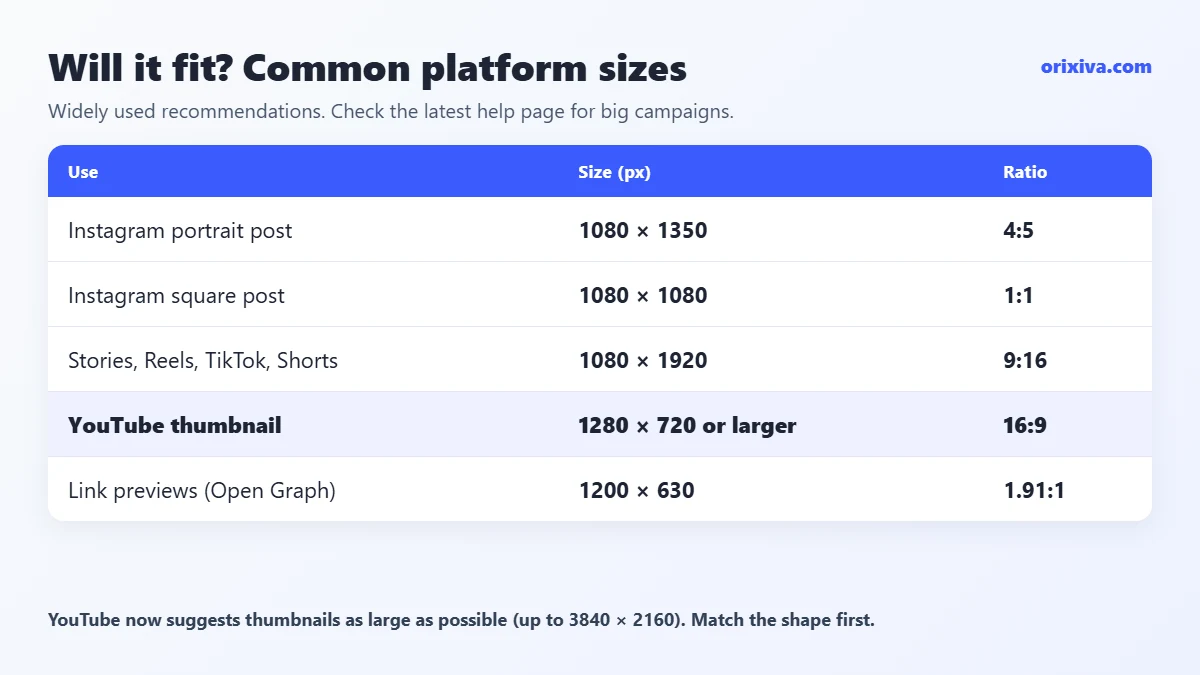
The analyzer’s Size check tab compares your image with sizes like these and shows two options: Fill (crop), where the edges are cut, and Fit (add bars), where the whole image shows with bars. Select a row to see the crop preview, or enter a custom width and height.
Image dimensions for websites (and the code to use)
On a website, an image should be about as wide as the space it fills, and no more. A 4000 px photo in a 800 px column wastes data and slows the page. Two habits help:
- Always set width and height in the HTML. It lets the browser reserve the space and prevents content jumping while the page loads (layout shift, measured as CLS). The analyzer’s HTML & CSS for this image writes the correct tag for you.
- Serve several sizes with srcset. The analyzer suggests a responsive srcset up to the original width. To create those files, use the bulk image resizer, which makes every size at once.
More image speed tips are in our on-page SEO checklist. If a file is still too heavy after resizing, the free image compressor can bring it under a target like 100KB.
Megapixels: how many do you really need?
Megapixels (MP) are width × height ÷ 1,000,000. More is not always better: it means larger files and slower pages. What you need depends on the job:
| Use | Typical image dimensions | Megapixels |
|---|---|---|
| Profile photo or thumbnail | 400 × 400 | 0.16 MP |
| Instagram portrait post | 1080 × 1350 | 1.5 MP |
| Full HD screen, blog hero | 1920 × 1080 | 2.1 MP |
| 4 × 6 in print at 300 DPI | 1200 × 1800 | 2.2 MP |
| A4 print at 300 DPI | 2480 × 3508 | 8.7 MP |
| Typical phone camera | 4032 × 3024 | 12.2 MP |
So a normal 12 MP phone photo is already enough for an A4 print. For screens, it is far more than needed, which is why resizing before upload matters.
Example: one photo, three destinations
You have a 4032 × 3024 (4:3) photo from a trip and want to print it at 8 × 10 inches, post it on Instagram and use it on your website. Here is how to check image size and plan each version:
- Print: 8 × 10 in at 300 DPI needs 2400 × 3000 px, a 4:5 shape. The photo has enough pixels, but it is 4:3, so you must crop. Pixels needed for print confirms it is big enough.
- Instagram: the portrait post is also 4:5 (1080 × 1350). Use Size check, choose Fill (crop) and look at the crop preview to make sure no heads are cut.
- Website: the content column is 1200 px wide. The aspect ratio calculator gives 1200 × 900 at the original 4:3 shape, and the HTML tab gives the image tag with width and height.
Three checks, one tool, and no guessing. Then create the files with the bulk resizer or an editor.
Why does my image look blurry after uploading?
When an upload looks soft or blocky, the image dimensions are usually the cause, not the camera. Common reasons:
- Too small for the space: a 600 px image stretched across a 1,200 px banner is enlarged by the browser and looks blurry. Check image size against the space it fills.
- Wrong shape: the platform crops and rescales an image whose aspect ratio does not match, often losing sharpness.
- Re-compressed by the platform: social networks compress big uploads again. Uploading at the recommended size gives them less reason to.
- High-density screens: phones and retina laptops show 2–3 device pixels per CSS pixel, so a 400 px wide slot looks best with an 800 px or larger image.
The analyzer’s Screen & colour section and Size check tab help you spot these problems before you upload.
Checking many images at once
Auditing a product folder or a website’s uploads? Drop the whole folder. The All images tab lists every file with its dimensions and ratio. Filter by orientation (landscape, portrait, square), show only images narrower than a width you set (handy for finding images too small for a theme), and see which images share the same dimensions. Export the table as CSV or JSON for a spreadsheet.
The analyzer also shows camera details and metadata. If a photo contains GPS location, the Open in EXIF remover link takes you straight to the EXIF remover to clean it.
Your turn: Which size rule confuses you most: DPI for printing, aspect ratios for social posts, or pixel limits on forms? Ask in the comments, and share any platform size that has changed recently to help other readers.
Check your image size now, free
Drop any image to see its dimensions, aspect ratio, DPI, print size and platform fit, then measure it or copy ready resize code. No sign-up, nothing uploaded.
Open the free image dimension analyzer → Looking for a different tool? Search on orixiva.comImage size questions people often ask
How do I check the size of an image in pixels?
On Windows use Properties → Details, on Mac use Command-I, on phones swipe up on the photo. Or drop it into the image dimension analyzer to see the pixels, ratio and DPI together.
How do I find the aspect ratio of an image?
Divide the width and height by their greatest common divisor. 1920 × 1080 becomes 16:9, and 1080 × 1350 becomes 4:5. The analyzer shows the simplified ratio, or the nearest common one for odd sizes.
How do I check the DPI of an image?
On Windows, look at Horizontal resolution in Properties → Details. In the analyzer, open Resolution & print size. Remember that DPI only affects printing.
Is 72 DPI bad for printing?
Not by itself. What matters is pixels. A 3000 × 2400 image marked 72 DPI still prints sharply at 10 × 8 inches if you set it to 300 DPI when printing.
Does changing DPI change the file size?
No. Changing only the DPI number does not change the pixels, so the file size stays almost the same. Resampling to more or fewer pixels is what changes the size.
What is the difference between image size and file size?
Image size usually means pixel dimensions, like 1200 × 800. File size is the storage space, like 180KB. Shrinking dimensions reduces file size, but so do quality, format and metadata.
Can I check the size of an image from a website?
Yes. Paste the image address into the Image URL box and press Analyze URL. Your browser fetches it directly; some sites block this, in which case download the image and drop it in.
Can I check image dimensions for many files at once?
Yes. Drop a folder into the analyzer. The All images tab lists every file, with filters and CSV or JSON export.
What image size should I use for a website?
Use about the width the image is shown at, often 1,200–1,920 px for full-width images and 800–1,200 px for images inside text. Add a version twice as wide for sharp results on phones, and compress it so most images stay under 200KB.
What size is a 4:3 or 16:9 image?
Any size with that shape. Common 4:3 sizes are 1024 × 768, 1600 × 1200 and 4032 × 3024; common 16:9 sizes are 1280 × 720, 1920 × 1080 and 3840 × 2160. Divide the width by the height: 4:3 gives 1.33 and 16:9 gives 1.78.