Try our free AI tools – no sign-up needed!

Smart Image Optimizer
Compress JPG, PNG, WebP & AVIF to an exact size, without sign-up or uploads.
🔒 Processed on your device⚡ Engine: checking…
Drop images here, click to choose, or paste (Ctrl+V)
JPG, PNG, WebP, AVIF, GIF, BMP · up to 40 images at once · files never leave your browser
Current goal: — · change settings
Results
No images yet. Add images to see the size saved, quality score and a before/after comparison.
Orixiva Smart Image Optimizer · all processing happens in your browser · nothing is uploaded or stored on a server.
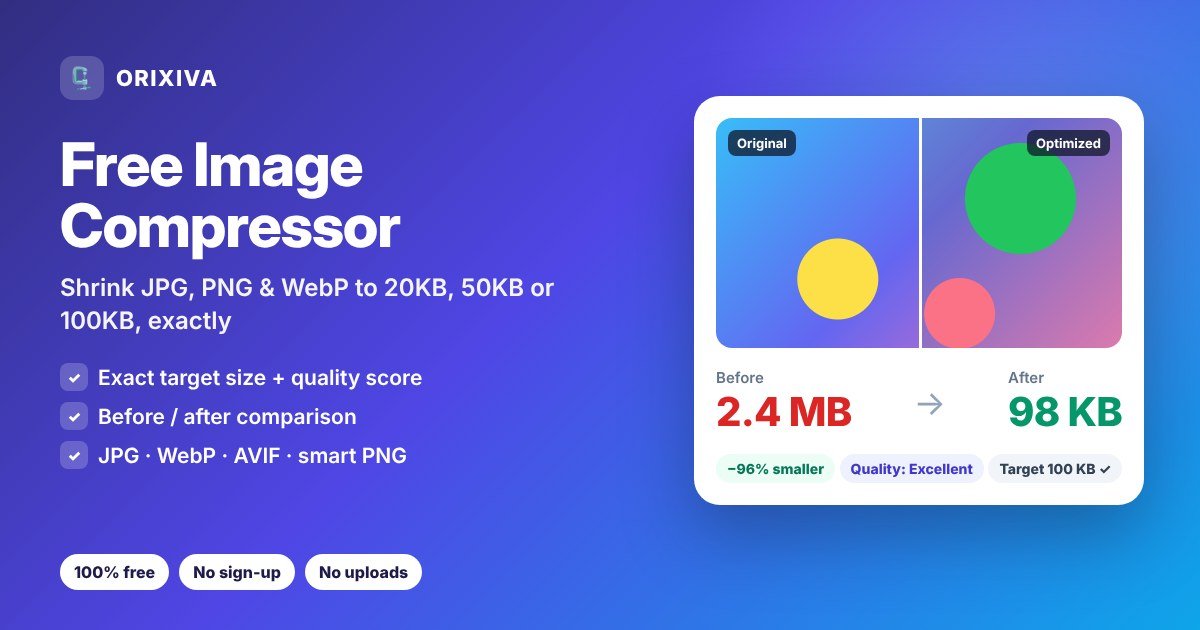
Quick answer: drop your photo into the free image compressor above, choose Exact file size, pick a target such as 100 KB, and download the result. The tool lowers quality step by step until the image fits, resizes it only if quality alone is not enough, and tells you honestly when a target cannot be reached.
What is a free image compressor?
An image compressor makes a picture file smaller so it uploads faster, loads faster and fits size limits on forms, email and websites. A good one does this while keeping the photo looking almost the same. The Orixiva free image compressor goes a step further: instead of guessing a quality slider, you tell it the maximum file size, and it finds the best quality that fits under that limit.
Everything happens on your own device. Your photos are processed by your browser and are never uploaded to a server, which is faster and more private than most online image compressors. You can read how this works on our client-side processing page.
How to compress an image to a specific size
- Add your images Drop up to 40 photos onto the tool, click Choose images, or paste a screenshot with Ctrl+V. JPG, PNG, WebP, AVIF, GIF and BMP files are accepted.
- Choose your goal Select Exact file size and pick 20 KB, 50 KB, 100 KB, 200 KB, 500 KB or 1 MB, or type any custom size in KB or MB. If you prefer, switch to Quality level and set a percentage instead.
- Pick a format and size Keep the same format, or convert to JPG, WebP, AVIF or PNG. You can also resize to a maximum width, fit a box, or scale by percentage.
- Check the result Each image shows the old and new size, the percentage saved, the final dimensions and a measured quality rating. Click Compare to open the before/after slider and zoom to 100% or 200%.
- Download Save one image, or click Download all (ZIP) to get every compressed file in one archive. Your original files are never changed.
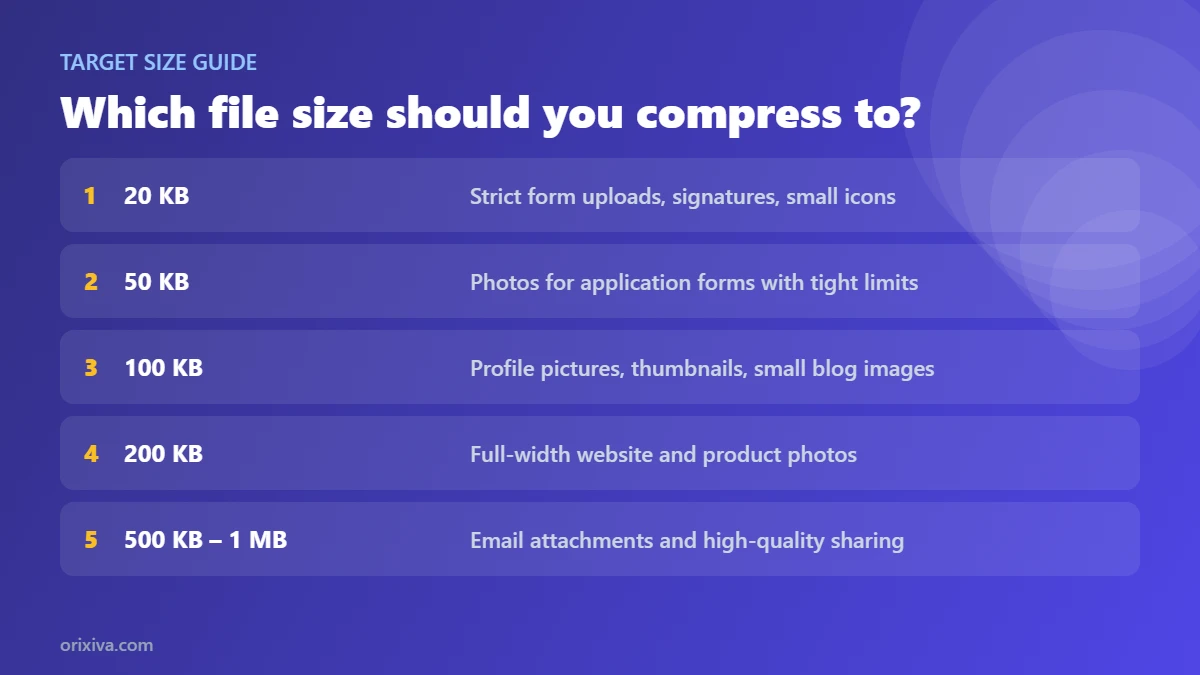
Compress image to 20KB, 50KB, 100KB or 200KB
Different uploads need different limits. These targets cover the most common requests:
| Target | Typical use | Tips for the best result |
|---|---|---|
| 20 KB | Strict online forms, scanned signatures, small icons | Allow resizing. A 20 KB photo usually works best at around 400–700 px wide. |
| 50 KB | Photos for application and registration forms | Crop to the face or document first, then compress. Use the Form upload preset. |
| 100 KB | Profile pictures, thumbnails, small blog images | WebP keeps more detail than JPG at the same size. |
| 200 KB | Full-width website photos and product images | Resize to 1200–1920 px wide; most screens do not need more. |
| 500 KB – 1 MB | Email attachments and high-quality sharing | Quality stays very high; mainly large camera files need resizing. |
To compress an image to 100KB, most photos only need a resize to around 1200 px plus a moderate quality setting. To compress an image to 20KB or another very small size, the free image compressor first searches for the highest quality that fits. If even its lowest allowed quality (40% by default) is too big, it reduces the dimensions in small steps. You can change both rules under Advanced settings: lower the quality floor, or turn off resizing if the pixel size must stay fixed.
Features of the Orixiva image compressor
Exact target size
Compress to any size in KB or MB. The result is always at or under your limit, or you get a clear message with the smallest size reached.
Smart quality search
The image compressor tests several quality levels for each photo and keeps the best one that fits, instead of using one fixed setting for every image.
Before/after comparison
Drag the slider, use the arrow keys, or zoom to 100% and 200% to check fine details such as text, hair and edges.
Measured quality rating
The free image compressor gives each result a rating from Excellent to Low, based on a real pixel comparison (PSNR) between the original and the compressed image.
Five output formats
JPG, WebP, AVIF (where your browser can create it), smart PNG with up to 256 colours, and lossless PNG.
Resize while compressing
Set a maximum width, fit inside a box, or scale by percentage. Quick buttons cover 1920, 1200, 1080 and 800 px.
Privacy controls
Remove all metadata, keep it without the GPS location, or keep everything. Removing it also makes files smaller.
Never bigger
If a file is already well optimised, the original pixels are kept instead of making a larger copy.
One-click presets
Website, Product photo, Social upload, Email attachment, Form upload (50 KB) and Private sharing.
Fast and private
Images are processed in parallel by Web Workers on your device. Nothing is uploaded, and your settings are remembered on this device.
Which format should you choose?
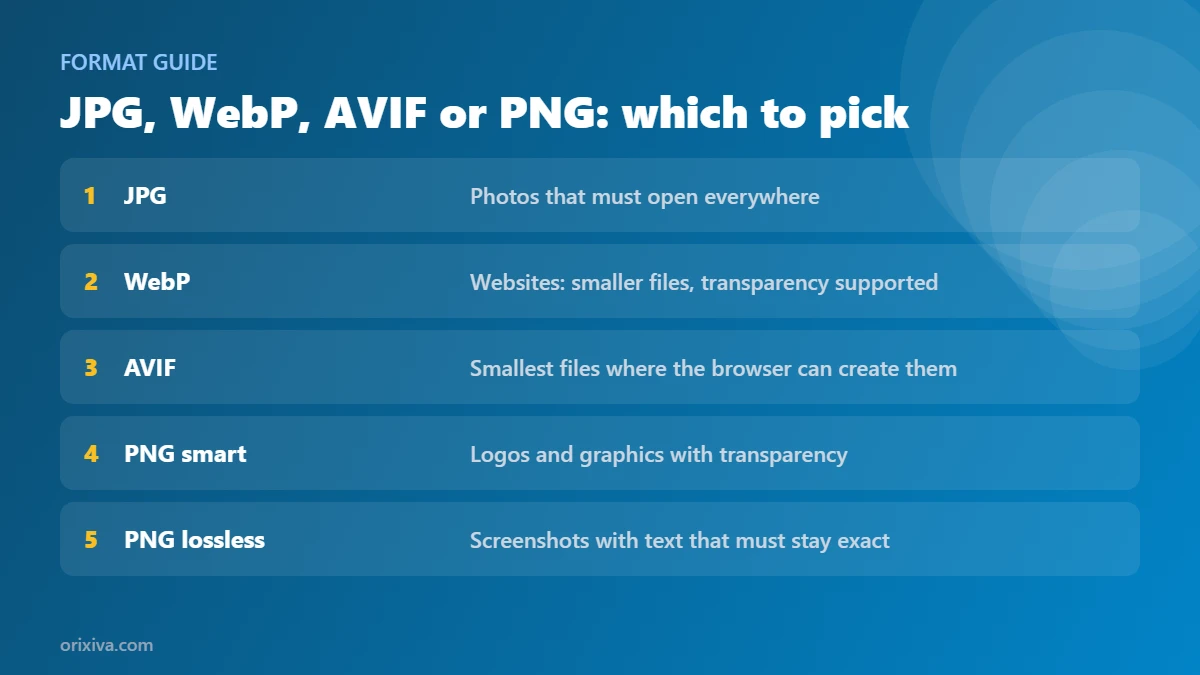
- JPG is the safe choice for photos that must open everywhere: forms, email, printers and older software. It does not support transparency, so transparent areas get the background colour you choose.
- WebP is usually the best choice for websites. It often gives a noticeably smaller file than JPG at similar visual quality and supports transparency. Google explains the benefits in its guide to serving images in WebP.
- AVIF can be smaller still. All current major browsers can display it, but not every browser can create it. If yours cannot, the tool tells you and uses WebP instead.
- PNG smart reduces the number of colours (up to 256) with optional dithering. It is ideal for logos, icons, charts and graphics with transparency, and often cuts PNG files by more than half.
- PNG lossless keeps every pixel exactly. Use it for screenshots with small text that must stay perfect, but expect larger files.
The MDN image file type guide compares these formats in more technical detail.
Practical ways to use the free image compressor
Online forms and applications
Job portals, universities and government sites often limit photos and signatures to 20 KB, 50 KB or 100 KB. Choose the matching target, keep the format as JPG unless the form says otherwise, and check the dimensions the form asks for. If the form requires an exact pixel size, set it in Resize and turn off Allow smaller dimensions under Advanced settings.
Faster websites and better SEO
Large images are one of the most common reasons pages load slowly, so reduce image size before you publish. Use the Website preset (WebP, 1920 px wide, metadata removed) before uploading to WordPress, Shopify or any CMS. Google's image SEO best practices also recommend optimised images and descriptive file names. Our free SEO tools can then check the rest of the page.
Online shops and product photos
The Product photo preset creates JPGs up to 2000 px on a white background, under 200 KB. Cut out the product first with the AI background remover, then compress it here for a clean, fast listing.
Email and messaging
Phone photos are often 3–8 MB each. To reduce image size for email, the Email attachment preset brings each one under 500 KB, so you can attach several photos without hitting mailbox limits.
Private sharing
Photos can contain the exact place they were taken. The Private sharing preset keeps the format and size but removes all metadata. To see exactly what a photo contains first, use the EXIF data remover.
How to reduce image size without losing quality
No image compressor can make a file smaller with zero change, except by removing hidden data. But you can make the change practically invisible:
- Resize first. A 6000 px camera photo shown at 1200 px wastes most of its pixels. Reducing dimensions saves far more than lowering quality.
- Use a modern format. WebP or AVIF keep more detail at the same file size.
- Keep quality between 70% and 85% for photos. Above that, files grow quickly with little visible gain.
- Remove metadata. EXIF data, thumbnails and colour notes can add tens of kilobytes.
- Check at 100% zoom. Use the comparison slider on faces, text and sharp edges, and trust the quality rating as a second opinion.
Want to change only the dimensions? The image resizer and our guide on resizing images without losing quality explain that side in detail.
Single images or a whole folder?
This free image compressor is built for a handful of images where you want to compare and fine-tune each result. It accepts up to 40 images at once. For hundreds of photos, whole folders, bulk renaming or responsive image sets, use the bulk image resizer, which shares the same compression engine.
| You need to… | Best tool |
|---|---|
| Hit an exact KB limit for a few photos | Free image compressor (this page) |
| Process a folder of 300 product photos | Bulk image resizer |
| See or remove GPS and camera data | EXIF data remover |
| Change only the width and height | Image resizer |
| Turn photos into an animation | Image to GIF maker |
| Convert PDFs, documents or other files | File converter |
Privacy, accuracy and limits
Your images stay on your device: the free image compressor does not upload them, store them or keep copies. When you close the page, the processed files are gone unless you downloaded them.
Some limits are worth knowing. AVIF output depends on your browser. HEIC photos from iPhones open only in browsers that can read them, such as Safari; elsewhere, export them as JPG first. Very large images (for example 50 megapixels) need more memory, so older phones may be slow. Animated GIFs are compressed as a single still image. Sizes are calculated with 1 KB = 1,024 bytes. A few forms count 1 KB as 1,000 bytes, so if a limit is very strict, choose a target slightly below it.
Share your tip
Which target size does your favourite website or form ask for? Tell us through the contact page and we may add it as a one-click preset. Please do not send personal photos.
Free image compressor FAQ
Is this image compressor really free?
Yes. The free image compressor has no fees, no watermark, no sign-up and no daily limit. You can compress up to 40 images at a time, as often as you like.
Are my images uploaded to a server?
No. Compression runs entirely in your browser on your own device. Your photos are not uploaded, stored or shared.
How do I compress an image to 20KB?
Choose Exact file size, click 20 KB, and leave Allow smaller dimensions on. The tool lowers quality first and reduces the dimensions only if needed, then shows the final size.
How do I compress a JPEG to 100KB?
Add the JPG, select 100 KB and keep the format as Same as original or JPG. Phone photos usually reach 100 KB at good quality once they are resized to around 1200 px wide.
How do I reduce a photo to 50KB for an online form?
Use the Form upload preset. It targets 50 KB as a JPG and fits the photo within 1200 px. Crop the photo to what the form needs first for the sharpest result.
Why can't my image reach the target size?
The target may be too small for the image at the lowest quality you allowed, or resizing is switched off. Lower the quality floor, allow resizing, or choose WebP. The tool always shows the smallest size it could reach.
Will compression reduce quality?
Lossy formats remove some detail, but at sensible settings the change is hard to see. Use the comparison slider and the quality rating to check. Lossless PNG and metadata removal do not change any pixels.
What does the quality rating mean?
It compares the compressed image with the original pixel by pixel and converts the difference into a score (PSNR). Excellent and Very good usually look the same as the original at normal viewing size.
Can I compress PNG images with transparency?
Yes. Choose PNG smart to keep transparency while reducing colours, or WebP, which also supports transparency. JPG does not support transparency, so transparent areas are filled with your chosen background colour.
Is WebP better than JPG?
For websites, usually yes: WebP files are often smaller at similar quality and support transparency. For forms, printers and older software, JPG is safer because it opens everywhere.
Can I convert images to AVIF?
Yes, if your browser can create AVIF files. If it cannot, the format list says so and the tool uses WebP instead, so you always get a working file.
Can I compress several images at once?
Yes, up to 40 at a time, and download them all as one ZIP. For hundreds of images or whole folders, use the Orixiva bulk image resizer.
Does it remove EXIF and GPS data?
By default, yes: metadata is removed, which makes files smaller and more private. You can also keep metadata, or keep it without the GPS location, under Advanced settings.
Why is my compressed file the same size as the original?
The file was already well optimised, so the tool kept the original pixels to avoid making it bigger. You will see the note “Already optimised”. Choose a smaller target or a different format to reduce it further.
Does it work on iPhone and Android?
Yes. The free image compressor works in mobile browsers such as Safari and Chrome. Very large photos are slower on older phones because all processing happens on the device.
Can I compress HEIC photos from my iPhone?
Only in browsers that can open HEIC files, such as Safari. In other browsers, set your iPhone camera to “Most Compatible” or export the photo as JPG first.
Can I compress an image for WhatsApp, Instagram or Facebook?
Yes. Use the Social upload preset, which creates a high-quality 1080 px wide JPG. Most social apps compress images again, so starting with a clean, right-sized file gives better results.
Is there a file size limit?
There is no fixed limit, but very large images need more memory. Most phone and camera photos work well. If a browser struggles, resize the image first or use a computer.
Ready to compress? Scroll up to the free image compressor, drop in your photos and choose your target size. For more tools, browse all free online tools and free AI tools on Orixiva.