Try our free AI tools – no sign-up needed!


How to Resize Multiple Images at Once: The Complete Bulk Resize Guide
Got a folder of photos to shrink? The free bulk image resizer handles hundreds at once, privately in your browser.
Jump to the free tool ↓Resizing one photo takes a minute. Resizing 300 product photos, a wedding album or a year of blog images one by one takes a whole day. The good news: you can resize multiple images in one go, with the same size, format and file names, in about the time it takes to make a cup of tea.
This guide shows four ways to do it (Windows, Mac, phone and browser), explains the resize modes in plain English, and walks through a full batch in the free Orixiva bulk image resizer, which also compresses, converts and renames your files without uploading them anywhere.
Key takeaways
- Decide three things before you start: the target size (in pixels), the output format, and how files should be named.
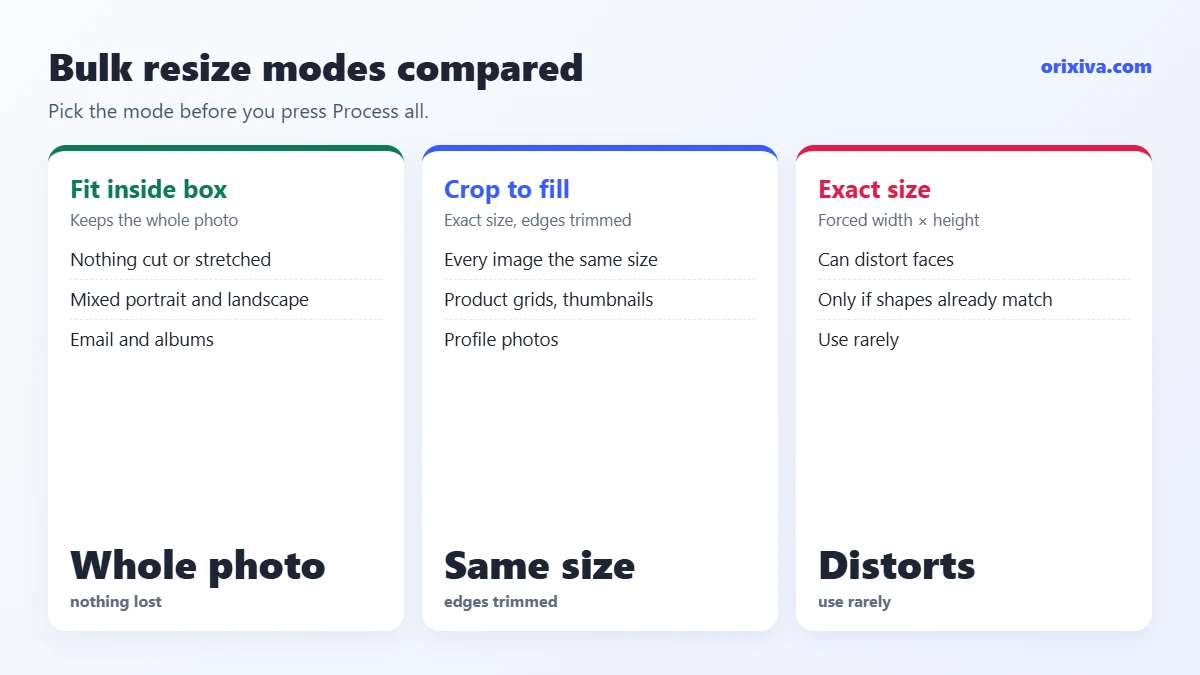
- “Fit inside a box” keeps every photo’s shape; “crop to fill” makes them all exactly the same size.
- Windows (PowerToys) and Mac (Preview) can batch resize, but cannot also compress to a KB limit, rename by pattern and report results in one step.
- A browser-based bulk image resizer does everything in one pass and keeps your photos on your device.
- Always work on copies and keep the originals.
Before you batch resize images: 3 quick decisions
Most failed batches come from starting without a plan. Answer these three questions first and the rest is easy.
What size?
Use the destination’s numbers: 1,920 px wide for a website hero, 1,200 px for blog images, 1,080 px for social posts, 1,600 px for email. If you are not sure, check the current sizes with an image dimension analyzer.
Which format?
WebP for your own website, JPG for email, marketplaces and anything that says “JPG only”, PNG for logos and graphics with transparency.
Which names?
“IMG_4821.jpg” tells nobody anything. Decide a pattern like “blue-sofa-01.webp” before you export, so you do not rename 300 files by hand later.
Bulk resize modes explained (fit, fill, width, scale)
Every bulk image resizer offers some version of these modes. Picking the wrong one is why photos come out stretched or cut off.
| Mode | What it does | Use it for |
|---|---|---|
| Fit inside box (keep ratio) | Shrinks each image until it fits inside, for example, 1600 × 1600. Nothing is cut or stretched. | Mixed portrait and landscape photos, email |
| Set width (keep ratio) | Every image gets the same width; height follows the shape. | Blog posts, website galleries |
| Scale by percentage | Makes everything, say, 50% smaller. | Quick reductions when exact sizes do not matter |
| Crop to fill (center) | Fills the exact box and trims the edges. | Product grids, thumbnails, profile photos |
| Exact size (stretch) | Forces the exact width and height, even if it distorts. | Rarely; only when shapes already match |
Do not enlargeMaking a small image bigger adds no detail; it only adds blur and file size. Keep “Allow enlarging small images” off unless a platform demands a minimum size.
How to resize multiple images at once in your browser (step by step)
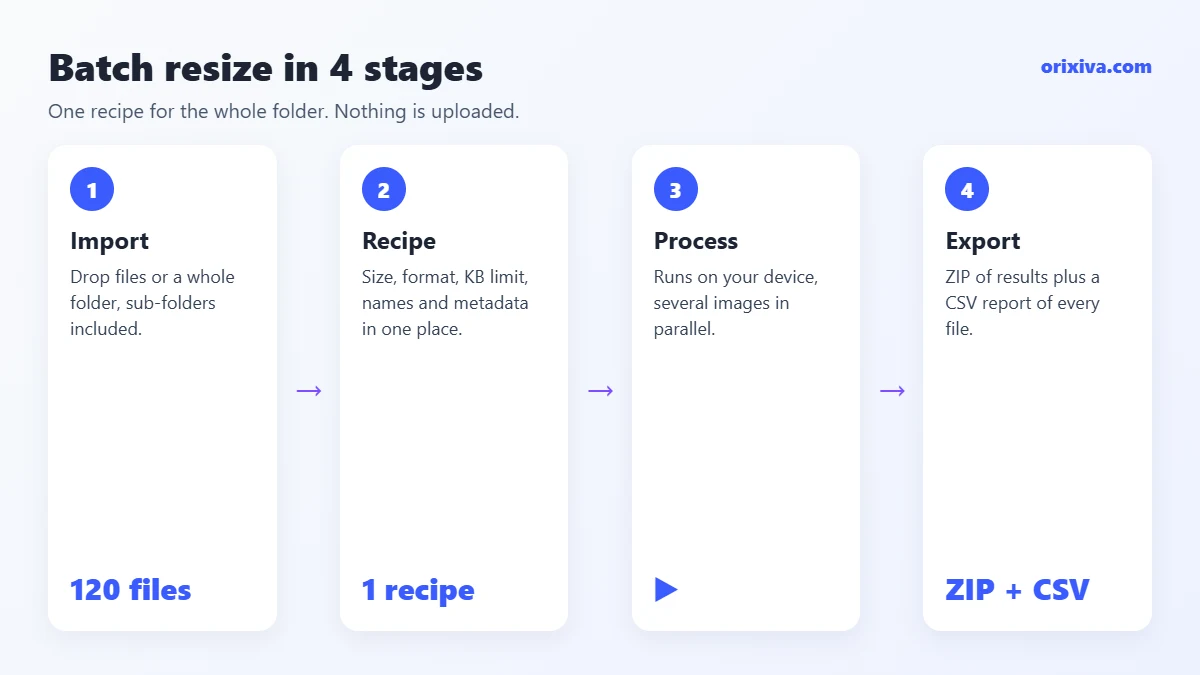
This method works on Windows, Mac, Linux and Chromebook, with no software to install. It uses the four stages of the free Orixiva bulk tool: Import, Recipe, Process and Export.
- Import your images or a whole folder. Open the bulk image resizer and drop files or a folder onto the page, or use Add a folder. Sub-folders are included. JPG, PNG, WebP, AVIF, GIF and BMP are supported.
- Run the audit (optional, recommended). Open 🔍 Audit & duplicates and press Run audit. It lists sizes, dimensions, formats, transparency and hidden GPS data, and finds exact duplicates so you do not process the same photo twice.
- Choose a recipe. Pick a ready recipe (Website images, WooCommerce products, Social upload, Email attachments or Private sharing) or choose Custom.
- Set the resize. Under Resize, choose a mode such as Fit inside box or Set width and type the size.
- Set format and file size. Under Compress & convert, choose the output format, then either a quality level or a Max size per image (KB). With a KB limit, each file is squeezed until it fits.
- Set the names. Under Rename & organise, type a pattern like
{name}-{w}and choose seo-friendly-slug. The preview shows the result. - Process and export. Press ▶ Process all, then ⬇ Download ZIP. Press 📊 Report (CSV) for a list of every file’s old and new size.
What the ready recipes do
- 🌐 Website images: WebP, up to 1,920 px wide, metadata removed, SEO-friendly names.
- 🛒 WooCommerce products: JPG on a white background, fitted to 1,200 × 1,200, under 200KB each, clean names.
- 📱 Social upload: 1,080 px wide, high-quality JPG, metadata removed.
- ✉️ Email attachments: each photo under 300KB and no larger than 1,600 px.
- 🔒 Private sharing: same size and format, all metadata and GPS removed, neutral names like photo-001.jpg.
Built your own settings? Press Save next to the recipe list and reuse them next time.
Bulk resize cheat sheet: which size for which job?
Not sure which numbers to type? These starting points work for most batches. Use them in the bulk image resizer, then adjust after a test run.
| Job | Resize mode and size | Format | Max size per image |
|---|---|---|---|
| Blog post images | Set width 1,200 px | WebP | 150–200KB |
| Website hero banners | Set width 1,920 px | WebP or AVIF | 250–400KB |
| Online shop products | Fit inside 1,200 × 1,200 (white background) | JPG | 200KB |
| Instagram and Facebook | Set width 1,080 px | JPG | No limit (high quality) |
| Email and WhatsApp albums | Fit inside 1,600 × 1,600 | JPG | 300KB |
| Thumbnails and avatars | Crop to fill 400 × 400 | WebP or JPG | 30–50KB |
Platforms change their guidelines from time to time, so check the latest numbers for anything important, such as marketplace listings.
Example: preparing 120 product photos for an online shop
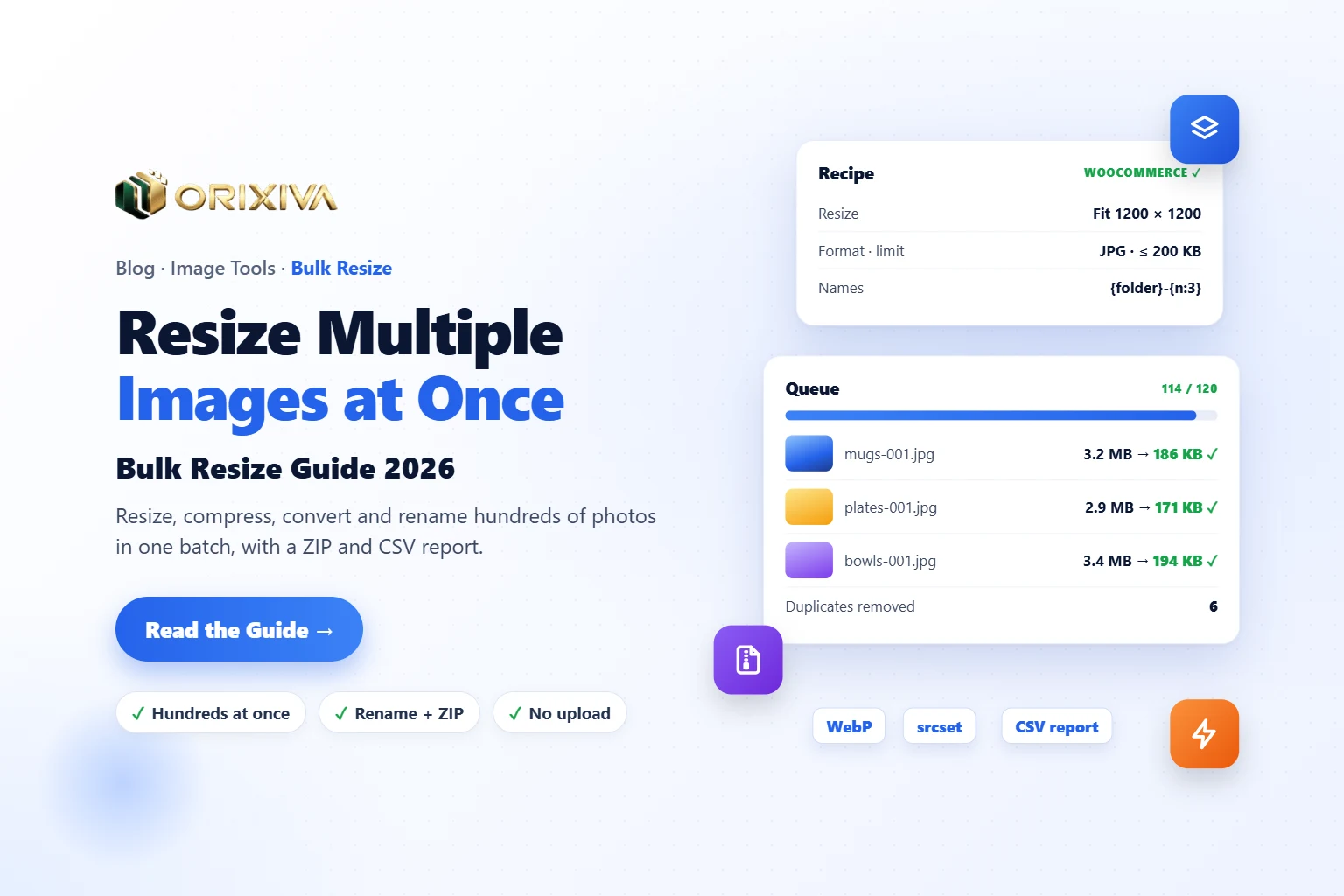
A small shop owner has 120 photos from a phone: 4,032 × 3,024 pixels, about 3 MB each, with names like IMG_5012.JPG, some portrait, some landscape, and a few taken twice. The goal is square-friendly product images under 200KB with clean names. Here is how the batch resize images job runs:
- Import: drop the folder (with sub-folders “mugs”, “plates” and “bowls”) into the bulk image resizer.
- Audit: the audit finds 6 exact duplicates and 14 photos with GPS location. Remove the duplicates from the queue.
- Recipe: choose 🛒 WooCommerce products: JPG on white, fit inside 1,200 × 1,200, under 200KB each, metadata removed.
- Names: pattern
{folder}-{n:3}with seo-friendly-slug gives mugs-001.jpg, plates-001.jpg and so on, and “Keep folder structure” keeps the three folders. - Process and export: 114 photos go from about 340MB to roughly 20MB in total, all under 200KB, ready to upload. The CSV report lists every old and new size.
The exact numbers depend on the photos, but the pattern holds: one recipe, one click, and no file opened by hand.
Bulk image resizer vs desktop apps
| Feature | Windows PowerToys | Mac Preview | Orixiva bulk image resizer |
|---|---|---|---|
| Resize many images at once | Yes | Yes | Yes |
| Max KB per image | No | No | Yes |
| Convert to WebP or AVIF | No | No | Yes (AVIF if your browser can encode it) |
| Rename with patterns | Limited | No | Yes, with tokens |
| Remove GPS and metadata | No | No | Yes |
| Duplicate finder and CSV report | No | No | Yes |
| Works on any device | Windows only | Mac only | Any modern browser |
How to resize multiple images on Windows
Windows has no batch resize built into File Explorer, but Microsoft’s free PowerToys Image Resizer adds one:
- Install PowerToys from the Microsoft Store and turn on Image Resizer.
- In File Explorer, select your photos, right-click and choose Resize with Image Resizer.
- Pick Small, Medium, Large or a custom size, and press Resize.
It is fast for simple jobs. It cannot compress to a KB limit, convert to WebP or AVIF, rename with patterns or find duplicates, so for web and upload work the browser method saves a second step.
How to resize multiple images on Mac
Preview, built into every Mac, can batch resize:
- Select the photos in Finder and open them together in Preview.
- In the sidebar, press Command-A to select all thumbnails.
- Choose Tools → Adjust Size, enter the width or height, keep “Scale proportionally” ticked, and press OK.
- Save with Command-S (this replaces the files, so work on copies).
Recent macOS versions also offer Quick Actions → Convert Image when you right-click files in Finder, with Small, Medium and Large sizes. Like PowerToys, neither option sets a maximum KB size or renames by pattern.
How to bulk resize photos on iPhone and Android
Phones have no built-in batch resize. You can install an app, or open the Orixiva bulk resize tool in Safari or Chrome and choose photos from your gallery. It works the same way as on a computer.
Phones have less memory than laptops, so run large jobs in parts of about 300–500 photos. In Metadata & advanced, set Parallel jobs to “1 (low memory)” if the browser struggles.
How long does it take to resize multiple images?
Because the work happens on your own device, speed depends on your computer or phone, not on an internet connection. As a rough idea, a recent laptop processes typical phone photos in a fraction of a second each, so a batch of 200 usually finishes in a minute or two. Converting to AVIF is slower than JPG or WebP, and very large images (over about 40 megapixels) need more memory.
Three ways to make a large bulk resize faster:
- Leave Parallel jobs on Auto on a computer, so several images are processed at the same time.
- Close heavy browser tabs before you press Process all.
- Split very big folders into parts of a few hundred images, especially on phones and tablets.
On Linux and Chromebook, which have fewer built-in options, the browser method is often the simplest way to batch resize images at all.
How to rename images in bulk while you resize
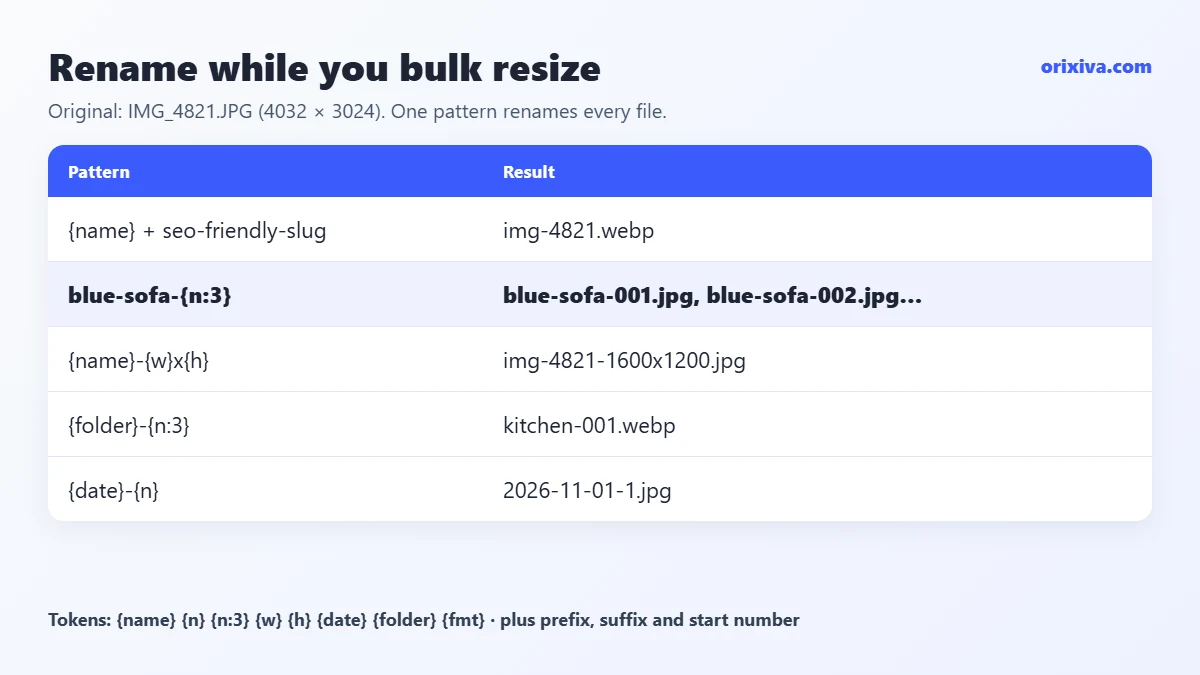
Good file names help people and search engines understand your images. The bulk tool builds names from tokens, so one pattern renames a whole batch.
Rename pattern examples
Original file: IMG_4821.JPG, 4032 × 3024
TokensOriginal file: IMG_4821.JPG, 4032 × 3024
| Pattern | Result | Good for |
|---|---|---|
{name} + seo-friendly-slug | img-4821.webp | Tidy, lowercase names |
blue-sofa-{n:3} | blue-sofa-001.jpg, blue-sofa-002.jpg… | Product photos |
{name}-{w}x{h} | img-4821-1600x1200.jpg | Keeping several sizes |
{date}-{n} | 2026-11-01-1.jpg (today’s date) | Dated exports and backups |
{folder}-{n:3} | kitchen-001.webp | Photos sorted in folders |
Add a prefix, suffix or start number, and tick “Keep folder structure inside the ZIP” to keep your sub-folders.
Bulk resize images for a website (and get srcset code)
Large images are one of the most common reasons pages load slowly. For a website, resize multiple images to the largest size they are shown at (often 1,200–1,920 px), convert them to WebP or AVIF, and remove metadata. Our on-page SEO checklist explains why image weight matters for Core Web Vitals.
Want sharp images on phones and big screens? Turn on Responsive image sets in the recipe. The tool then makes several widths of every image (by default 320, 640, 1,024 and 1,600 px) and writes ready <picture> and srcset HTML for each one. The snippets are copied from the 🧩 Responsive code tab and also saved in the ZIP as srcset-snippets.html. A JPG fallback set can be added for very old browsers.
Bulk resize mistakes to avoid
Overwriting your originals
Preview on Mac and some apps save over the original. Always keep the full-size files; you cannot get detail back once it is gone.
Stretching photos to one exact size
“Exact size” distorts faces and products. Use “Crop to fill” for equal tiles, or “Fit inside box” to keep the whole picture.
Ignoring the file size
A 1,920 px JPG can still be 1 MB. Set a quality level or a KB limit at the same time. For one-off jobs with strict limits, the free image compressor targets exact sizes like 20KB or 100KB.
Sharing location by accident
Phone photos often contain GPS coordinates. Keep metadata set to “Remove all”, or use the EXIF remover to check first.
Processing duplicates
Folders copied from phones often contain the same photo twice. The audit finds exact duplicates by fingerprint (SHA-256) and similar-looking images, so you can remove them before you start.
Your turn: How many photos do you resize in one go, and what for: a shop, a blog, an album? Share your favourite size and format in the comments to help other readers pick theirs.
Resize your photos in bulk now, free
Drop a folder, pick a recipe, and get a ZIP of resized, compressed and neatly named images with a CSV report. No sign-up, no watermark, nothing uploaded.
Open the free bulk image resizer → Looking for another image tool? Search on orixiva.comBulk resize questions people often ask
How do I resize multiple images at once for free?
Open the Orixiva bulk image resizer, drop your images or a folder, choose a recipe or a size, and press Process all. Download the results as a ZIP. It is free and works in your browser.
How many images can I resize at once?
Hundreds at a time on a computer. The real limit is your device’s memory, so on phones run about 300–500 photos per batch.
Will batch resizing reduce image quality?
Making images smaller always removes pixels, but at sensible sizes and quality 75–85 the difference is hard to see. Avoid enlarging small images and avoid very low quality settings.
Can I batch resize images to the same file size in KB?
Yes. Set “Max size per image (KB)”. The tool lowers quality, and size if needed, until each image fits the limit.
Are my photos uploaded to a server?
No. The bulk image resizer processes everything in your browser on your own device. Nothing is uploaded or stored.
Can I resize and convert JPG to WebP in bulk?
Yes. Choose WebP as the output format in Compress & convert. You can also convert to JPG, AVIF or PNG at the same time as resizing.
How do I keep my folders when I bulk resize?
Add a whole folder, then tick “Keep folder structure inside the ZIP” in Rename & organise. The ZIP will contain the same sub-folders.
What happens if some images fail?
Failed files are marked in the queue. Press “Retry failed” to try them again, for example after closing other tabs to free memory.
Can I bulk resize images to one aspect ratio, like square?
Yes. Choose “Crop to fill (center)” and enter equal width and height, for example 1,080 × 1,080. Every image is trimmed from the centre to the same square shape.
Does the bulk image resizer work offline?
Once the page has loaded, processing runs on your device, so a weak connection does not slow it down. You only need the internet to open the page.