Try our free AI tools – no sign-up needed!

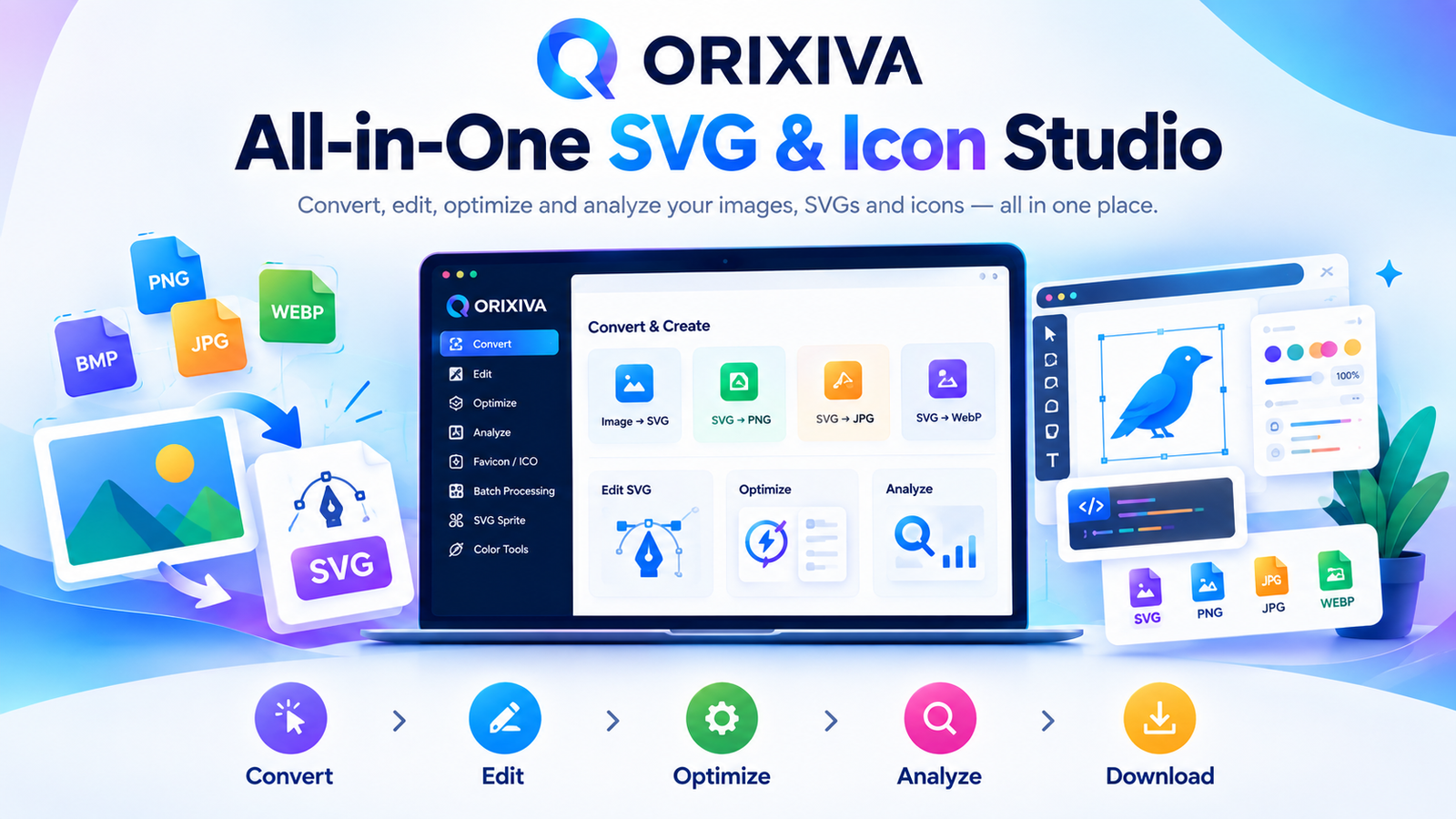
Advanced SVG & Icon Studio: A Free Online Workspace for Converting, Editing, Optimizing and Exporting SVG Files | Ai Free
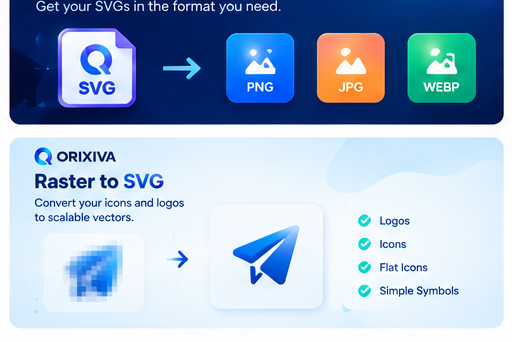
Image to SVG Free
image to svg, image to svg converter, image to svg online, free image to svg, convert image to svg, image to vector, image to vector converter, raster to svg, raster to vector, photo to svg, picture to svg.
PNG/JPG/WEBP
png to svg, png to svg converter, free png to svg, convert png to svg, png to vector, png to editable svg, jpg to svg, jpg to svg converter, jpeg to svg, convert jpeg to svg, webp to svg, webp to svg converter.
SVG to Image Free
svg to png, svg to png converter, convert svg to png, svg to jpg, svg to jpg converter, svg to webp, svg to webp converter, svg to image, svg to png transparent, svg to png high resolution.
Logo/Icon
logo to svg, logo to vector, logo vectorizer, convert logo to vector, vectorize logo, free logo vectorizer, icon to svg, icon converter, icon vectorizer, png icon to svg, svg icon editor.
Editor
svg editor, svg editor online, free svg editor, edit svg online, svg file editor, svg vector editor, svg path editor, svg code editor, svg markup editor, svg xml editor
Optimization
svg optimizer, svg optimizer online, free svg optimizer, svg compressor, compress svg, svg minifier, minify svg, reduce svg file size, svg cleaner, svg cleanup tool, svg validator, validate svg.
Resize/Color
resize svg, svg resizer, resize svg online, change svg size, svg viewbox editor, change svg viewbox, svg color changer, change svg color, recolor svg, change svg fill color, change svg stroke color.
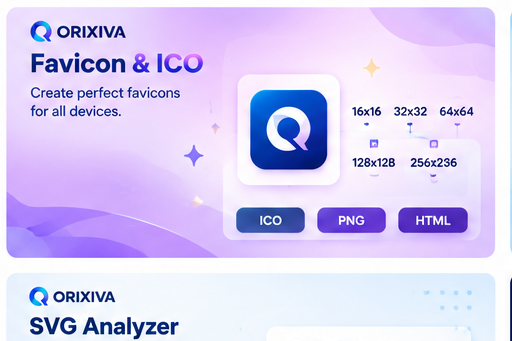
Favicon/ICO
svg to ico, svg to ico converter, svg to favicon, svg favicon generator, favicon converter, favicon ico generator, create favicon from svg, image to favicon.
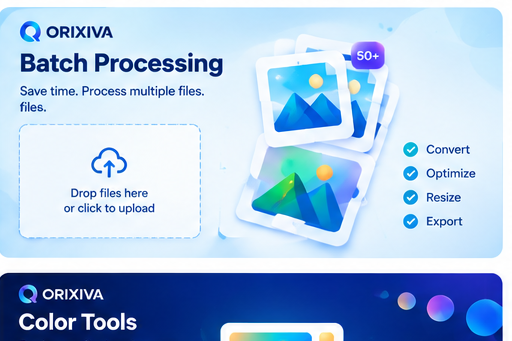
Batch/Sprite/Developer
batch svg converter, bulk svg converter, batch png to svg, convert multiple images to svg, svg batch processing, svg sprite generator, svg sprite maker, combine svg icons, svg symbol generator, svg to base64, svg to data uri, svg to react, svg to jsx.
Cricut/Silhouette
png to svg for cricut, jpg to svg for cricut, image to svg for cricut, svg converter for cricut, make svg for cricut, png to svg for silhouette, svg converter for silhouette, svg for cutting machine.
Privacy/Free
svg converter no upload, image to svg without upload, private svg converter, browser based svg converter, browser svg editor, svg converter without signup, free svg converter no signup, free svg converter no watermark.
Free SVG Converter, Editor & Icon Studio
AI-generated-file support
clean ai generated svg, ai generated svg cleaner, optimize ai generated svg, compress ai generated svg, edit ai generated svg, fix ai generated svg, svg editor for ai generated files.
Future AI features
ai svg generator, free ai svg generator, ai svg maker, ai icon generator svg, ai vectorizer, free ai vectorizer, ai image to svg, free ai image to svg, ai png to svg, free ai png to svg, ai logo to svg, ai logo vectorizer.
AI-generated SVG cleanup and preparation
SVG files created by external generative design tools can contain unnecessary groups, metadata, excessive path complexity or other markup. Where supported, use the studio to inspect, clean, validate, edit and optimize those SVG files. This section does not claim that the current v1 generates SVG with AI.
Privacy and processing
State exactly how files are processed. [VERIFY] If a workflow runs entirely in the browser and files are not uploaded or stored, say so plainly. If any workflow uses server processing, explain that clearly instead of making a blanket “no upload” claim.
How it works
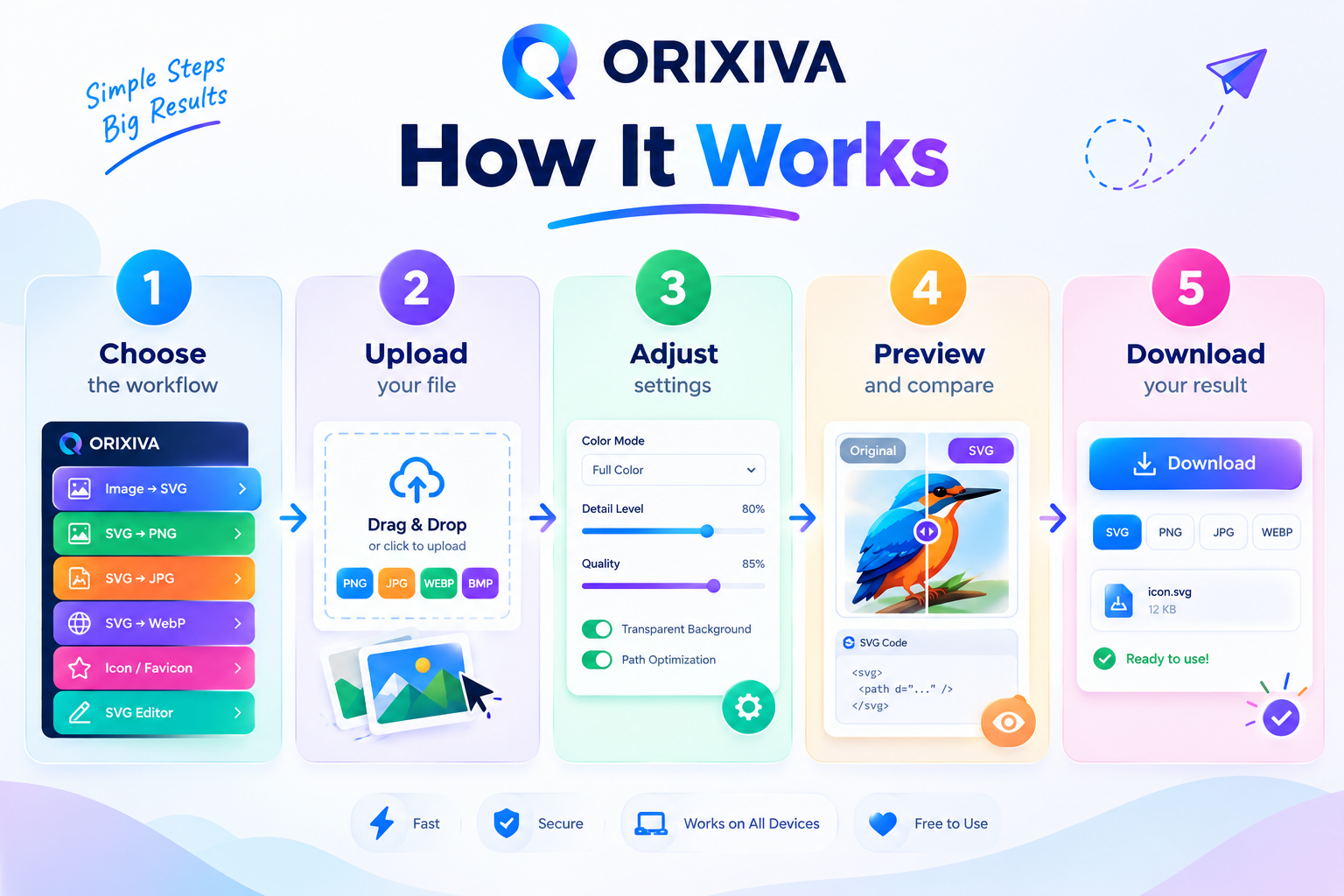
1) Choose the workflow. 2) Upload a supported file or paste SVG code where available. 3) Adjust conversion, dimension, color or optimization settings. 4) Preview and compare results. 5) Download one result or export the batch when available.
Advanced SVG & Icon Studio: A Free Online Workspace for Converting, Editing, Optimizing and Exporting SVG Files
SVG has become one of the most useful formats for modern web graphics because it can stay sharp at different sizes, remain lightweight when well-optimized, and preserve vector-based shapes instead of turning every design into a fixed-resolution bitmap. But the moment a designer receives a PNG logo, a JPG icon, an exported SVG full of unnecessary markup, or a file that needs a different size or format, the workflow can become fragmented. One website is used for conversion, another for editing, another for compression, and another for favicon or icon exports.
An Advanced SVG & Icon Studio brings those everyday jobs into one focused workspace. The goal is not to bury a simple task under a giant design application. It is to let someone choose the exact job—such as PNG to SVG, SVG to PNG, icon to SVG, SVG editor, SVG optimizer, SVG compressor, SVG validator, favicon generation, resizing, recoloring, or batch processing—and complete it with as few steps as possible.
For website owners, designers, developers, creators, and cutting-machine users, that combination creates a much more useful destination than a single-purpose converter. It also makes the experience easier to explain in search results and in conversational search: people can ask what the tool does, how a format conversion works, what an SVG actually contains, or how to reduce an SVG file size, and the page can answer those questions while placing the relevant tool directly beside the explanation.
Quick answer: An SVG converter changes supported graphics between SVG and other image formats, or converts suitable raster artwork into vector paths when a true vectorization workflow is available. An SVG editor then lets you work with paths, shapes, fills, strokes, text, layers and SVG code, while an optimizer focuses on safely reducing unnecessary markup and file size.
Why SVG still matters for logos, icons and web graphics
SVG stands for Scalable Vector Graphics. Unlike a typical raster image, an SVG can describe artwork with vector geometry such as paths, lines, circles, rectangles, fills and strokes. That makes the format especially useful for logos, interface icons, diagrams, illustrations, badges, simple illustrations, and other graphics that may appear at more than one size.
That does not mean every SVG is automatically small, clean, or production-ready. An SVG exported from a design application can contain metadata, editor-specific information, excessive decimal precision, unnecessary groups, redundant attributes, or embedded raster artwork. A file can technically be an SVG while still being awkward to edit, unnecessarily large, or poorly suited to a particular workflow. That is why conversion, editing, validation and optimization belong in the same toolkit.
What an all-in-one SVG and icon studio should actually do
The strongest version of an online SVG tool is not a collection of unrelated buttons. It is a connected workflow. You start with a source file or SVG code, make the smallest changes needed, preview the result, validate it, and export the format you actually need.
– Convert supported PNG, JPG/JPEG, WEBP and other raster artwork into SVG vector artwork when the vectorization method supports true path-based output.
– Convert SVG files to PNG, JPG/JPEG and WEBP with control over dimensions, scale, background and transparency.
– Convert icons or logos into editable SVG artwork, with cleanup and simplification options appropriate to the source.
– Edit SVG paths, shapes, fills, strokes, gradients, text, layers, alignment, rotation, size and viewBox values.
– Optimize and compress SVG code by removing unnecessary markup while preserving the artwork.
– Validate and clean SVG files before they are used on a website, in a design project, or in another application.
– Resize, recolor, create favicon assets, generate SVG sprites, and process supported files in batches.
Image to SVG: turning raster artwork into vector graphics
One of the most common searches around SVG is “image to SVG.” More specific versions include “PNG to SVG,” “JPG to SVG,” “WEBP to SVG,” “photo to SVG,” “logo to SVG,” and “icon to SVG.” The shared intent is simple: the user has a raster file and wants vector artwork.
A serious image to SVG converter should make an important distinction between an SVG wrapper and actual vectorization. Putting a PNG inside an SVG using an image element does not magically turn the pixels into vector paths. A genuine raster-to-vector workflow traces suitable image information into vector geometry, with results depending on source quality, contrast, color complexity, and the selected tracing method.
For logos and flat icons, a simple image can often produce a much cleaner result than a detailed photograph. That is why useful vectorization controls may include color mode, palette size, threshold, detail, smoothing, noise reduction, simplification, corner preservation and path optimization. A preview is essential because the user should be able to judge whether the resulting paths actually represent the original artwork before downloading the file.
PNG to SVG and JPG to SVG
PNG to SVG is often the most natural starting point for logos, icons and transparent graphics. JPG to SVG is useful when the source is a flat image or a logo saved without transparency. WEBP to SVG can also be helpful for web-originated images. A good interface should tell users which formats are supported and should not promise perfect tracing for photographs or highly textured artwork.
SVG to PNG, JPG and WEBP when you need a fixed-size image
Vector files are excellent for flexible scaling, but there are many situations in which a raster output is exactly what the project needs. An SVG to PNG converter is useful for social graphics, previews, app assets, email artwork, documentation, image uploads and workflows where the destination system does not accept SVG.
The most practical controls are width, height, aspect-ratio lock, scaling, transparency, custom background color and output quality where the browser and output format support it. Common presets such as 32, 64, 128, 256, 512 and 1024 pixels can make repetitive export jobs faster. The same workflow can expose SVG to JPG and SVG to WEBP without forcing the user to visit a separate tool.
SVG editor: edit paths, shapes, colors, text and code
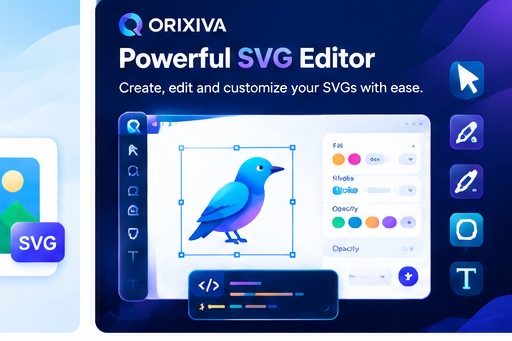
An SVG editor online is valuable because many small changes do not justify opening a full desktop design application. A focused editor can handle the jobs that matter most: selecting objects, moving and resizing them, rotating elements, editing path nodes, changing fills and strokes, modifying gradients, adding text, adjusting alignment, managing layers, and changing the canvas or viewBox.
Advanced users may also want an SVG code editor. Seeing the source makes it possible to inspect paths, IDs, dimensions, namespaces and other SVG markup directly. A useful editor therefore supports both visual editing and source-level editing, with a preview that shows the effect of code changes.
The editor should also provide undo and redo, a clear reset action, object visibility and lock controls, zoom and fit-to-screen options, and a transparent checkerboard so that users can understand what transparent artwork will look like.
SVG optimizer, compressor and minifier: make files cleaner without breaking them
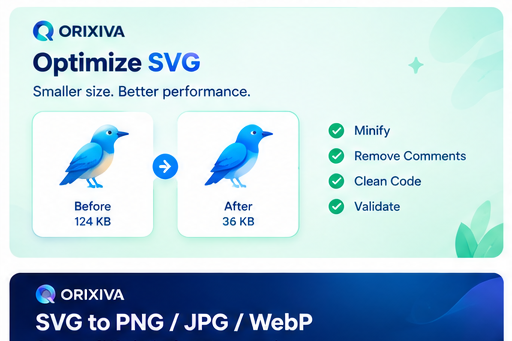
SVG optimization is a different job from image conversion. The objective is usually to remove unnecessary information while keeping the artwork visually and structurally valid. An SVG optimizer can remove comments and redundant metadata, reduce unnecessary attributes and whitespace, simplify safe path data, and minify the final markup.
A good SVG compressor should show the user the result rather than claiming a fixed percentage of compression. A helpful interface can display the original file size, optimized file size, and actual percentage saved. Safe optimization should be the default. More aggressive optimization can be available when users understand that certain transformations may alter editing behavior or remove metadata they still need.
This is especially useful when a designer receives exported SVGs from Figma, Illustrator, Inkscape or other tools, or when a file has passed through multiple editing systems. The point of optimization is not simply to make code look shorter; it is to reduce waste while preserving the design.
SVG cleanup and validation before production use
An SVG cleaner helps find problems that are easy to miss when viewing the artwork alone. A cleanup workflow may identify empty groups, redundant elements, duplicate IDs, unnecessary editor metadata, invalid attributes, broken references, excessive numeric precision, and embedded raster images.
An SVG validator adds another layer by checking whether the document is structurally valid. This is useful when an SVG is going into a website, a development project, an icon system, or another application that is less forgiving than the editor that produced the file.
These tools are especially useful for developers because an SVG may look visually correct and still contain code or structure that causes issues in a production environment. Validation and sanitization should therefore be treated as a normal part of the export workflow, not as an optional afterthought.
Resize SVG, edit viewBox and change colors without rebuilding the artwork
Because SVG is vector-based, resizing is usually straightforward, but users still run into viewBox and canvas problems. An SVG resizer should let users change width and height, preserve aspect ratio, add or remove padding, fit the canvas to the artwork, center the design, and adjust the viewBox.
A color tool can be equally practical. Designers often receive an icon or logo that is structurally correct but uses the wrong palette. Instead of rebuilding it, they can replace a fill or stroke, make a version monochrome, switch to black or white, or create a new color treatment while keeping the vector structure intact.
Icon converter, favicon maker and ICO export
Icons are often the smallest graphics with the biggest number of size requirements. A workflow that supports icon to SVG conversion, SVG resizing, recoloring, and favicon export can save a surprising amount of repetitive work. For website owners, a favicon generator can turn a suitable logo or icon into the required browser and device assets where the export workflow supports those formats.
An SVG to ICO workflow should clearly explain which sizes and ICO behavior are supported. The tool should validate generated output instead of assuming that a file with an .ico extension is automatically correct.
Batch SVG tools for repetitive work
Batch processing becomes important when a user has a folder full of icons or images. A bulk SVG converter or batch SVG optimizer should use a visible queue so users can see which files are processing, completed, failed or waiting for retry. One bad file should not stop the rest of the queue.
Useful batch features include multiple file selection, drag and drop, per-file download, retry, download all, and ZIP export when supported. Batch operations are also a natural place to add presets—for example, convert multiple SVG files to PNG at 512 pixels or optimize a set of SVG icons with the same safe settings.
SVG sprites and developer-friendly export
Developers often need SVGs in forms that are slightly different from the original design asset. An SVG sprite generator can combine multiple icons into a symbol-based sprite, assign stable IDs, and make the generated code easy to copy. Other useful developer utilities include SVG to Base64, SVG to Data URI, and framework-oriented exports such as SVG to React or SVG to JSX when those conversions are genuinely implemented.
These workflows are particularly useful for design systems and front-end projects because the same icon collection may move between design software, static files, component libraries and CSS or HTML implementations.
SVG for Cricut, Silhouette and other cutting workflows
Searches such as “PNG to SVG for Cricut” or “SVG for Silhouette” reveal a clear use case rather than a generic file conversion request. Users preparing cutting files care about clean paths, manageable complexity, closed shapes where appropriate, unwanted overlaps, and predictable dimensions.
A converter cannot guarantee that every source image will become a perfect cut file. A clean flat logo may trace well, while a photograph can produce thousands of paths that are difficult to cut. A helpful tool therefore exposes simplification and smoothing controls and encourages users to preview and inspect the result before sending it to cutting software.
Working with SVG files created by AI tools
AI-generated design workflows have created another practical SVG problem: a file may be visually useful but structurally messy. An SVG created by an external generative design system can contain unnecessary groups, excessive path detail, metadata or other markup that needs cleanup before web or design-system use.
That makes “clean AI-generated SVG” and “optimize AI-generated SVG” useful supporting intents for an SVG studio even without making the studio itself an AI generator. The workflow should be honest: inspect the file, clean it, validate it, edit the artwork when necessary, and optimize the result. Do not claim AI generation, AI vectorization or AI restyling unless those operations are actually provided by the product.
What “free online SVG tools” should mean for users
People searching for a free SVG converter, free SVG editor, free SVG optimizer or free icon converter usually care about friction as much as price. They want a clear upload area, understandable options, a quick preview, a reliable download, and no unnecessary registration steps.
Privacy can be part of that experience too. If a workflow processes files in the browser and does not upload or store them, say so plainly. If any part of the workflow sends a file to a server or third-party service, explain that instead. “No upload,” “private,” “browser-based,” “no signup,” and “no watermark” are product claims, not generic marketing phrases; publish them only when the implementation has been tested to support them.
How to convert and edit an SVG: a simple workflow
– Choose the task that matches your goal: Image to SVG, SVG to Image, Icon Converter, SVG Editor, Optimizer, Validator, Favicon or another utility.
– Upload a supported file or paste SVG code when the workflow allows it.
– Adjust only the settings that matter for the task—such as color count, detail, dimensions, background, smoothing or optimization mode.
– Preview the result before exporting. For vectorization, inspect the paths; for optimization, compare file size and visual output.
– Download the result in the format your next application actually needs.
Direct-Answer FAQ
What is an SVG converter?
An SVG converter changes supported graphics between SVG and other image formats, or traces suitable raster artwork into vector paths when the selected vectorization method supports it.
How do I convert PNG to SVG?
Upload the PNG, choose Image to SVG, adjust the available color and detail settings, preview the vector result, and download the SVG.
Can I convert JPG to SVG?
Yes, when JPG/JPEG input is supported. Upload the image, choose Image to SVG, adjust the available settings, preview the result and export the SVG.
How do I convert SVG to PNG?
Upload the SVG, choose SVG to PNG, set dimensions and background options, preview the raster output, and download the PNG.
Can I edit an SVG online?
Yes. A supported SVG editor can let you modify paths, shapes, fills, strokes, text, layers, dimensions and source code directly in the browser.
Can I resize an SVG without losing vector quality?
Yes, when the artwork remains vector-based. SVG graphics are resolution-independent, although an embedded raster image inside an SVG remains resolution-dependent.
How do I reduce SVG file size?
Use an SVG optimizer to remove unnecessary markup and metadata, optimize paths, reduce safe numeric precision and minify the code. Compare the before and after sizes.
Can I change the color of an SVG?
Yes, where the SVG elements use editable fills or strokes. A color tool can replace colors, create monochrome versions or apply a new palette.
Can I create a favicon from SVG?
Yes, if the export workflow supports favicon/ICO output. Choose the required size preset, validate the generated asset and then add it to your website.
Can I use SVG for Cricut?
SVG is commonly used for cutting workflows, but the file should be checked for clean paths, closed shapes where appropriate, unwanted overlaps and the requirements of the specific machine/software workflow.
Does this tool upload my files?
The answer must match the implementation. Do not publish a blanket “no upload” statement unless every relevant workflow is confirmed to run locally.
Can I optimize an SVG made by an AI tool?
Yes, if the file is a normal SVG that the optimizer/editor supports. Use cleanup, validation and optimization to reduce unnecessary markup or path complexity.
Frequently asked questions
How do I convert a PNG or JPG to SVG for free?
Open the Image to SVG tool in the Orixiva SVG converter, upload a PNG, JPG or WebP, adjust the colour and detail settings and download the vector SVG. It works in your browser with no sign-up.
Will converting a photo to SVG keep the same quality?
Vectorising works best for logos, icons and flat graphics with clear edges and few colours. Detailed photos turn into many shapes and large files, so a PNG, JPG or WebP is usually better for photos.
How do I convert SVG to PNG, JPG or WebP?
Use SVG to Image, choose the output format and the width and height you need, and download. Pick PNG when you need a transparent background.
Can I edit an SVG online without design software?
Yes. The SVG editor lets you change paths, shapes, colours, text and the code itself, and you can resize the artwork or edit its viewBox without rebuilding it.
What does an SVG optimizer do?
It removes unnecessary metadata, editor data and extra decimal places from the code to make the file smaller and cleaner, without changing how the graphic looks.
How do I make a favicon or ICO file?
Upload your logo or icon to the Favicon/ICO tool. It creates the common favicon sizes and an ICO file you can add to your website.
Can I use SVG files with Cricut or Silhouette?
Yes. Cutting machines work with SVG. Use simple, closed shapes, remove tiny details and check the design in your cutting software before you cut.
Are my files uploaded to a server?
The SVG tools are designed to work in your browser, so your files are processed on your own device.