Try our free AI tools – no sign-up needed!


How to Create Barcodes for Your Products: GTIN, EAN, UPC and Label Printing Explained
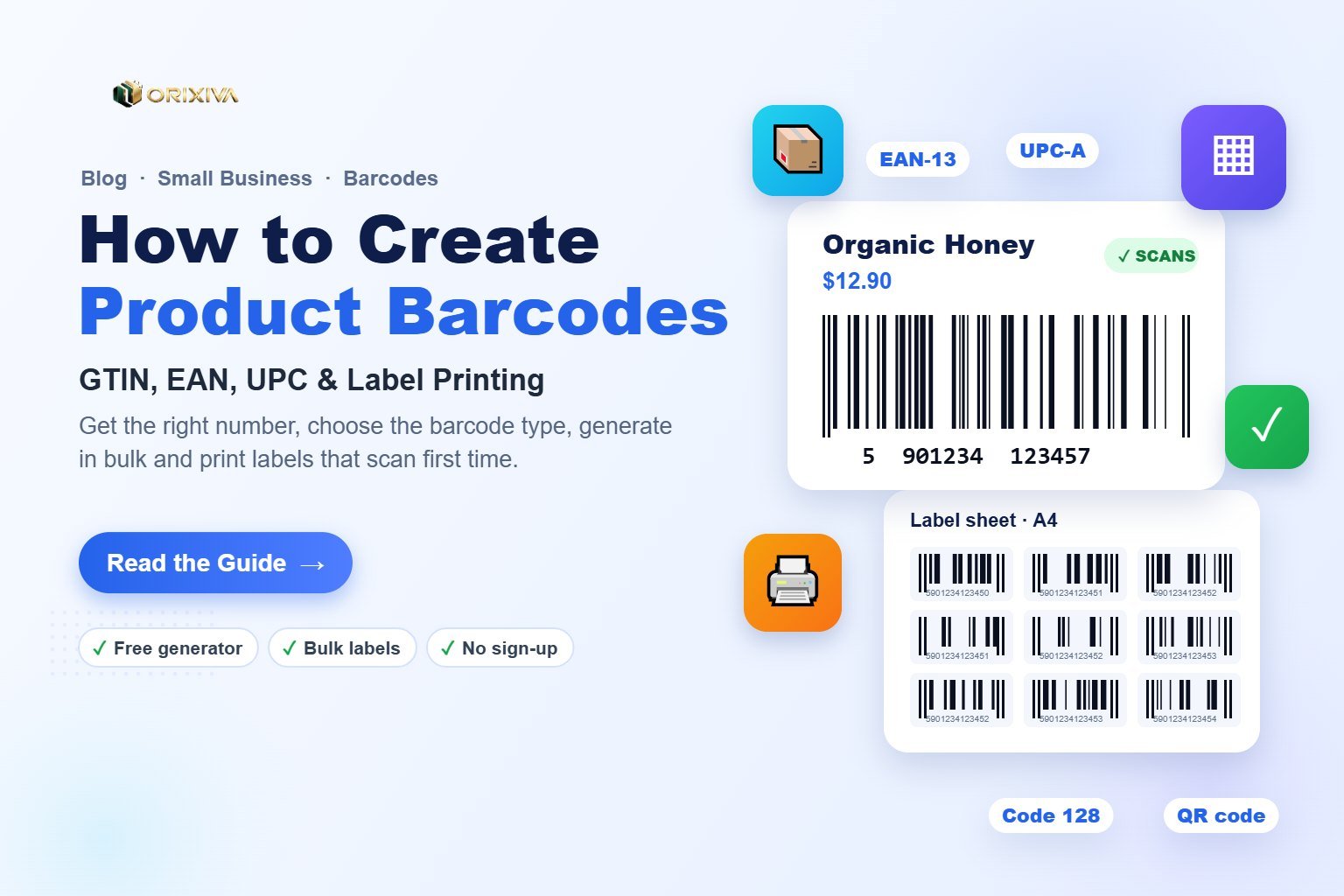
Short answer: To create barcodes for your products, first get a product number. Use a GS1-licensed GTIN if you sell through retailers or marketplaces, or your own SKU for internal stock. Then choose the right format: EAN-13 or UPC-A for retail, Code 128 for warehouse labels, ITF-14 for cartons. Generate the barcode with a free barcode generator, test-scan it, and print it at 100% size with clear quiet zones.
Key takeaways
- The number matters more than the picture. A barcode image is free to make, but a retail-ready GTIN must come from GS1 or your local GS1 member organisation.
- EAN-13 and UPC-A are for products sold in shops and online marketplaces. Code 128 is the best choice for internal SKUs, bins and shipping.
- Size and contrast decide whether it scans. Print black bars on a white background, keep the margins clear, and never shrink an EAN-13 below about 80% of its standard size.
- Bulk generation saves hours. Import your product list from Excel or CSV and print a whole label sheet at once.
What a product barcode really is
A barcode is simply a number written in bars and spaces so that a scanner can read it in a fraction of a second. The scanner does not "know" your product. It reads the number and looks it up in a database, such as your point-of-sale system, your inventory sheet or a retailer's catalogue.
That is why creating barcodes for products is really two jobs:
- Getting the right number. This is the identity of the product, for example a 13-digit GTIN.
- Drawing that number as a scannable symbol. This is the barcode image you print on packaging or labels.
The second job is easy and free. The first job decides whether your barcode will be accepted by shops and marketplaces.
Do you need a GS1 barcode or can you make your own?
It depends on where your products will be scanned. Use this rule of thumb:
✅ You need a GS1 GTIN
You sell through supermarkets, chain stores, pharmacies or marketplaces such as Amazon, Walmart and many regional platforms. These check that the number belongs to your brand in the GS1 database.
✅ Your own number is fine
You only scan the code yourself: your own shop's POS, inventory, warehouse bins, assets, samples, event tickets or internal shipping labels.
To get GTINs, contact GS1 or the GS1 member organisation in your country. You can usually buy a single GTIN for one product or a company prefix that lets you number a whole range. See GS1's own guide to getting a GTIN for current options and fees.
Watch out: cheap "barcode resellers" sell numbers that were licensed to another company years ago. Marketplaces increasingly reject these because the brand in the GS1 database does not match yours.
Which barcode type should you use?
Choosing the symbology (the barcode "language") is the most important technical decision. Here is the short version:
| Barcode | What it holds | Use it for |
|---|---|---|
| EAN-13 | 13 digits (GTIN-13) | Retail products sold almost anywhere in the world |
| UPC-A | 12 digits (GTIN-12) | Retail products in the USA and Canada |
| EAN-8 / UPC-E | 8 digits / compressed UPC | Very small packs where a full code will not fit |
| ITF-14 | 14 digits (GTIN-14) | Outer cartons and cases printed on corrugated board |
| Code 128 | Letters, numbers and symbols | Internal SKUs, inventory, bins, assets and shipping |
| GS1-128 | GTIN plus batch, expiry, weight, SSCC | Logistics and pallet labels for retailers and distributors |
| QR code / Data Matrix | Links, text, up to thousands of characters | Marketing, product info pages, small parts, healthcare |
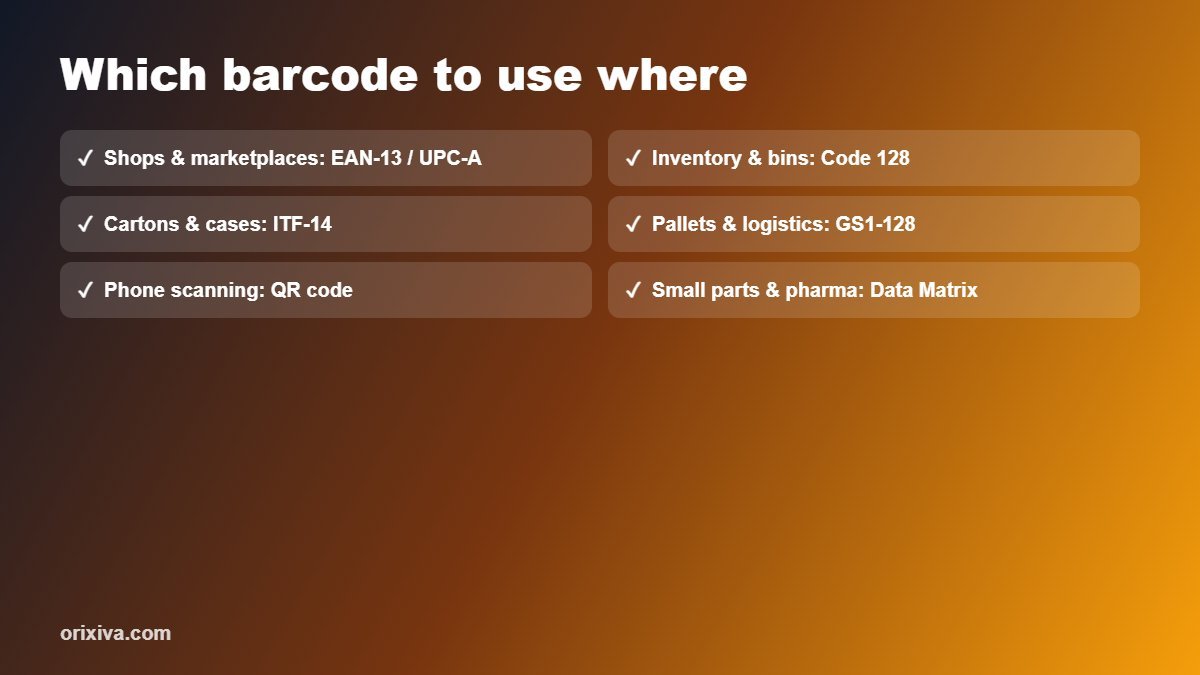
Simple decision path: sold in shops → EAN-13 (or UPC-A in North America). Only used inside your business → Code 128. Printed on a shipping carton → ITF-14. Customers will scan it with a phone → QR code.
How to create a barcode for a product, step by step
You can do all of this for free in the Orixiva free barcode generator, which runs in your browser, so your product list is never uploaded.
- Get your number. Take your GS1 GTIN, or create an internal SKU such as ORX-00125 if the code is only for your own systems.
- Choose the barcode type. Select EAN-13, UPC-A, Code 128 or another type from the table above.
- Type the data. For EAN-13, enter the first 12 digits; the generator adds the 13th check digit for you.
- Set the size. Keep EAN-13 at its standard size (a bar module, or X-dimension, of about 0.33 mm) unless your packaging is very small.
- Check the scan test. A green tick under the preview means the code was decoded correctly inside the page.
- Download or print. Use SVG or PDF for packaging designers and printers, PNG for documents, or print labels directly.
Pro tip: send packaging designers a vector file (SVG or PDF), not a screenshot. Vector bars stay sharp at any size and do not blur when the artwork is scaled.
How check digits work (and why a wrong one fails)
The last digit of an EAN-13, UPC-A or ITF-14 is a check digit. It lets the scanner catch misreads. Here is how it is calculated for EAN-13, using the example number 590123412345:
- Starting from the left, multiply digits in odd positions by 1 and digits in even positions by 3.
- Add them up: 5 + 27 + 0 + 3 + 2 + 9 + 4 + 3 + 2 + 9 + 4 + 15 = 83.
- Find the amount needed to reach the next multiple of 10: 90 − 83 = 7.
So the full barcode number is 5901234123457. If someone types the last digit wrongly, scanners will reject the code. A good generator calculates the check digit automatically and warns you when an imported list contains a wrong one.
How to create barcodes for a whole product catalogue
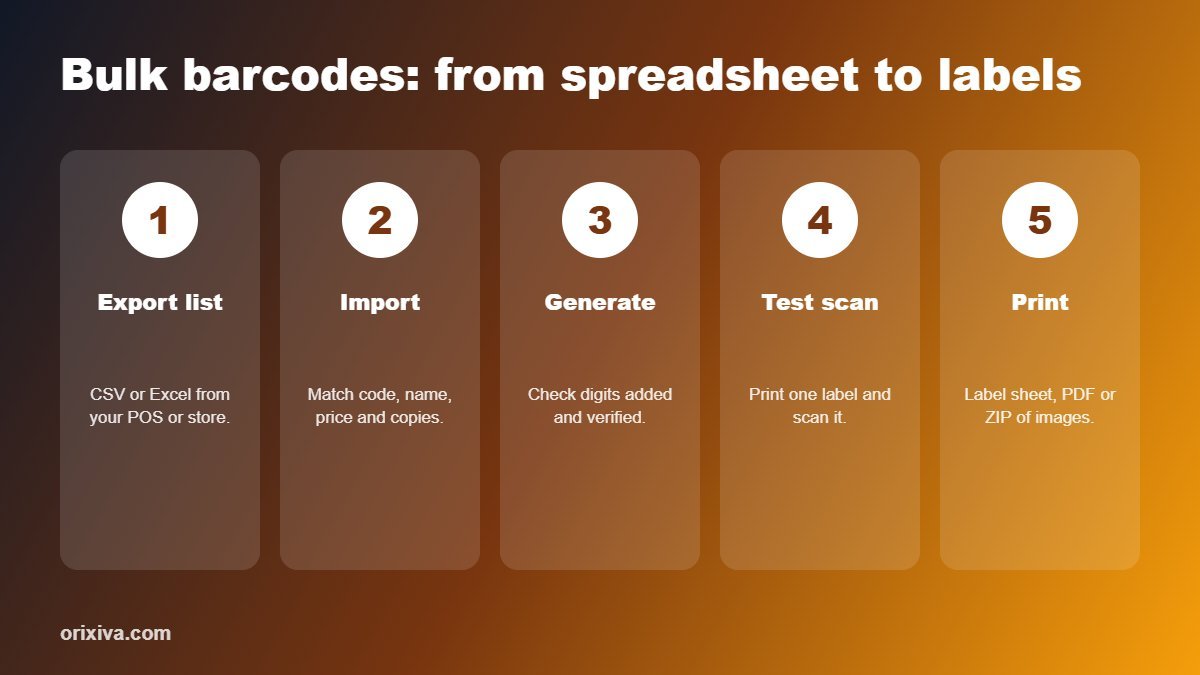
Making codes one by one is fine for five products, but not for five hundred. A bulk barcode generator turns a spreadsheet into a full set of labels:
- Export your product list from Excel, Google Sheets, your POS or your online store as CSV or XLSX. Include columns for the code, product name, price and number of copies.
- Import the file into the Bulk & Labels section of the barcode generator. Check that each column is matched correctly.
- Generate serial numbers if you need them, such as ORX-00001 to ORX-05000, with a prefix, step and zero padding.
- Preview the sheet, then print, download a PDF, or download a ZIP with one image per code named after the code.
How to print barcode labels that scan first time
Most scanning problems come from printing, not from the code itself. Follow these rules:
| Rule | Why it matters |
|---|---|
| Print at 100% scale (turn off "fit to page") | Shrinking the PDF changes bar widths and can make EAN codes too small to read |
| Keep quiet zones clear on both sides | Scanners need blank space to find where the code starts and ends |
| Use dark bars on a light background | Red, orange and light colours look white to most laser scanners |
| Do not stretch the height below the guide | Very short bars are hard to scan, especially with handheld scanners |
| Match the label template to your sheet | A4 and Letter sheets differ; thermal rolls need the right width and gap |
| Test-scan one printed label before a full run | Use your POS scanner or a phone app before printing hundreds |
For thermal printers, set the printer's darkness so that the bars are solid but do not bleed into each other. For inkjet labels, use matte label paper; glossy paper can reflect the scanner's light.
Common barcode mistakes to avoid
- Reusing one number for different sizes or colours. Each variant that is sold separately needs its own GTIN.
- Putting the barcode over a fold, seam or curve. Place it on a flat panel, ideally on the back or bottom of the pack.
- Making the human-readable digits too small. Staff type these numbers in when a scan fails.
- Using a QR code where a retail barcode is required. Shop tills expect EAN or UPC, so add a QR code in addition, not instead.
- Skipping the test print. One quick scan test can save a full print run.
Create your product barcodes now
Make EAN-13, UPC-A, Code 128, ITF-14 and QR codes, import your product list, and print label sheets for free. No sign-up, no watermark, nothing uploaded.
Open the free barcode generator →Frequently asked questions
Can I create a barcode for my product for free?
Yes. You can generate the barcode image for free with an online barcode generator. If you sell through retailers or marketplaces, you still need a GTIN number licensed from GS1 to put inside that barcode.
What is the difference between a UPC and an EAN barcode?
UPC-A holds 12 digits and is mainly used in the USA and Canada. EAN-13 holds 13 digits and is used in most other countries. Modern scanners read both, and both are GTINs in the GS1 system.
Do I need a different barcode for each product size or colour?
Yes. Every variant that is sold as a separate item, such as a different size, flavour, colour or pack quantity, needs its own unique GTIN and barcode.
Which barcode should I use for inventory only?
Code 128 is the best general choice for internal inventory, bins and assets because it stores letters, numbers and symbols in a compact barcode.
Can I make a barcode in Excel?
You can keep your product numbers in Excel and import that file into a bulk barcode generator, which creates every barcode and prints them on label sheets in one go.
Why is my barcode not scanning?
The most common causes are printing below 100% scale, missing quiet zones, low contrast or coloured bars, a wrong check digit, or a label placed over a curve or fold.
What file format should I give my packaging printer?
Send a vector file such as SVG or PDF. Vector barcodes stay sharp at any size, while PNG or JPG images can blur when they are scaled.
Is a QR code a replacement for a product barcode?
Not for retail checkout. Most store tills scan EAN or UPC barcodes, so use a QR code alongside the retail barcode to link customers to manuals, videos or reorder pages.
Over to you
How do you label your products today: printed sheets, a thermal printer, or labels from your packaging supplier? Share your setup or your biggest barcode headache in the comments. We read every comment and use your questions to improve the barcode generator and this guide.
Related guides and tools
- Free barcode and QR code generator
- Business calculator: margin, markup and break-even
- Small Business Bookkeeping Kit (Excel)
- Free image resizer for product photos
Sources: GS1: Get barcodes · GS1 support: how to get a GTIN. This guide is general information; check your retailer's and local GS1 organisation's current requirements before printing packaging.