Try our free AI tools – no sign-up needed!

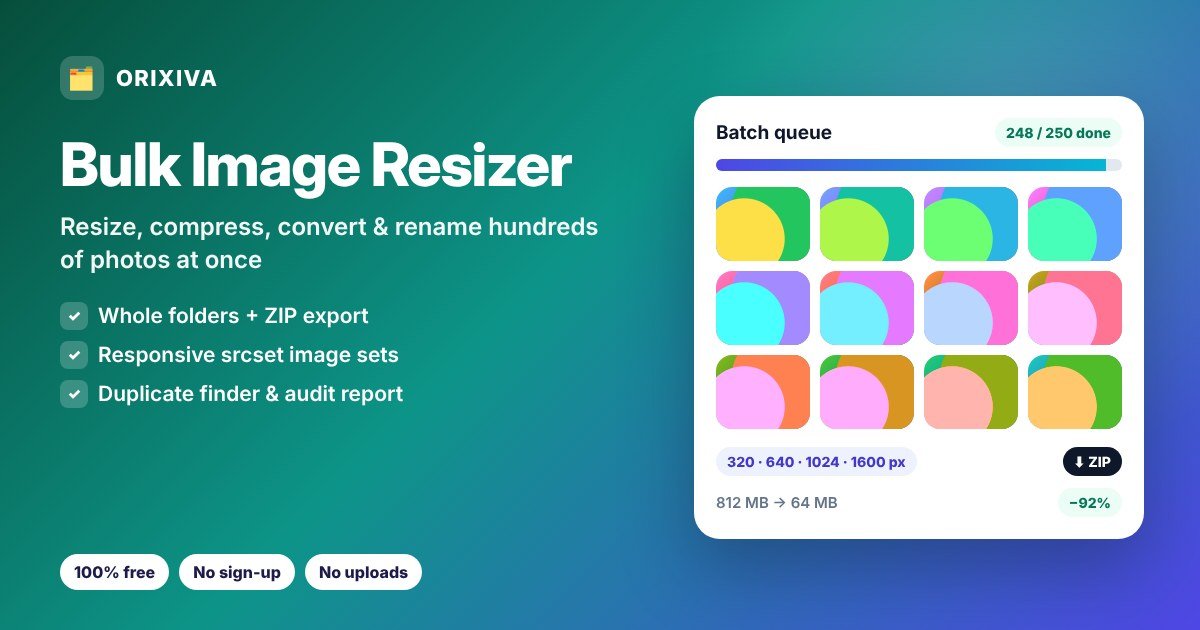
Quick answer: add your images or a whole folder to the bulk image resizer above, pick a recipe such as Website images or WooCommerce products, press Process all, then click Download ZIP. Every photo is resized, compressed, converted and renamed in one pass, on your own device.
What is a bulk image resizer?
A bulk image resizer applies the same changes to many images in one go, so you can batch resize images instead of opening and saving each photo by hand. The Orixiva bulk image resizer combines four jobs in a single workflow: batch resize, batch compress, format conversion and bulk renaming. It also checks your images for problems first, finds duplicates and can create responsive image sets with ready-made srcset code for websites.
Unlike most online batch tools, nothing is uploaded. Your browser does all the work, so even private or unreleased photos stay on your computer or phone. Read more about our client-side processing.
How to resize multiple images at once
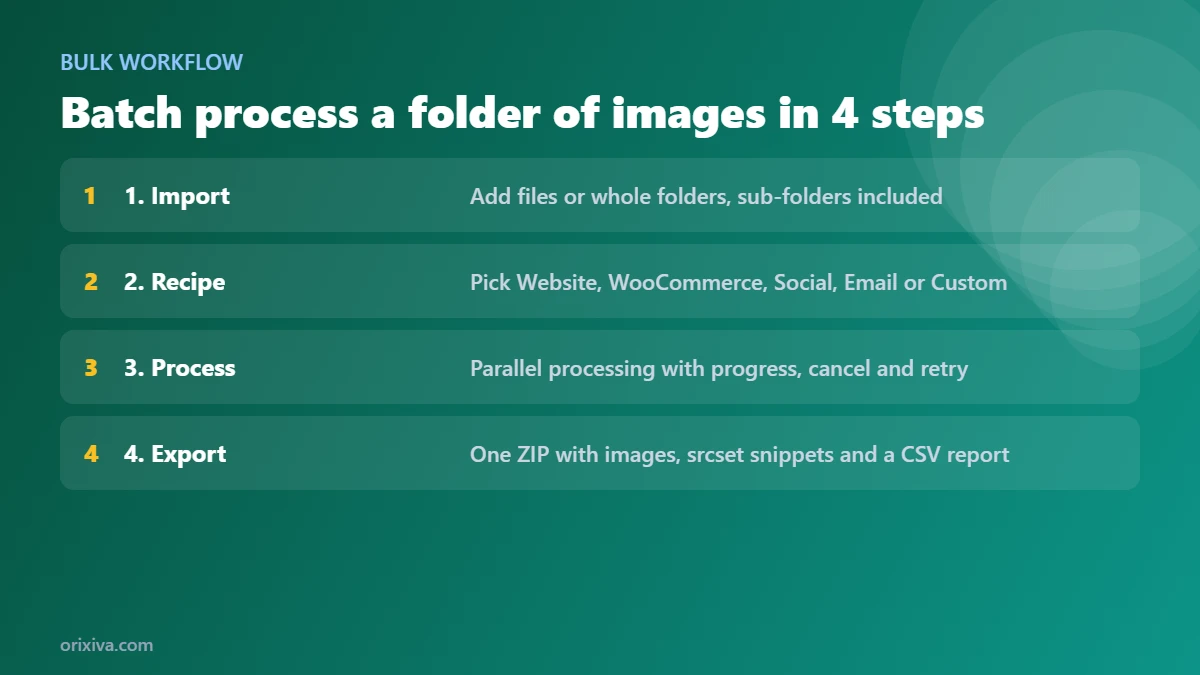
- Import your images Click Add images or Add a folder, or drag a whole folder onto the drop zone. Sub-folders are included, and files already in the queue are skipped.
- Choose a recipe Pick Website images, WooCommerce products, Social upload, Email attachments or Private sharing. Each recipe sets the format, quality, size, metadata and naming in one click. Change anything to make it your own.
- Adjust size and names Set a width, fit a box, scale by percentage, use an exact size or crop to fill. Add a file name pattern, prefix, suffix and starting number.
- Process all Press Process all. A progress bar shows speed and time left. You can cancel at any time and retry failed files.
- Export Click Download ZIP. The archive contains your images, a CSV report and, if you made responsive sets, an HTML file with the
srcsetsnippets.
Ready-made recipes for common jobs
| Recipe | What it does | Best for |
|---|---|---|
| Website images | WebP at 78% quality, max 1920 px wide, metadata removed, SEO-friendly file names | Blogs, WordPress, landing pages |
| WooCommerce products | JPG on white, fitted within 1200 × 1200 px, each under 200 KB | Online shop catalogues |
| Social upload | High-quality JPG, 1080 px wide, metadata removed | Instagram, Facebook, LinkedIn posts |
| Email attachments | Each photo under 300 KB, max 1600 px | Sending many photos by email |
| Private sharing | Same format and size, all metadata and GPS removed, neutral names like photo-001 | Sharing family or client photos safely |
| Custom | Any combination of settings, which you can save as your own recipe | Repeat jobs every week |
Saved recipes are stored in your browser, so the next batch takes one click.
Bulk image resizer features
Batch resize
Six modes: keep size, fit inside a box, set width, scale by percentage, exact size, or crop to fill from the centre. Small images are only enlarged if you allow it.
Bulk compress
Set a quality level, or a maximum file size per image. The tool lowers quality, and size if needed, until each file fits.
Bulk convert
Convert images to WebP, JPG, AVIF (where your browser can create it), smart PNG or lossless PNG, or keep each file's own format.
Bulk rename
Rename images with tokens, a prefix, a suffix, a start number and SEO-friendly slugs. Folder structure can be kept inside the ZIP.
Responsive image sets
Create 320, 640, 1024 and 1600 px versions (or your own widths) of every image, plus a JPG fallback and copy-ready srcset code.
Audit & duplicate finder
See file sizes, dimensions, formats, transparency, metadata and GPS for the whole batch. Exact duplicates are found by file hash, and similar-looking images are grouped.
Per-file settings
Give one image a different format, quality, size limit or width, or skip it, without changing the recipe for the rest.
Progress, cancel & retry
Live progress with images per second and time left. Cancel safely, keep finished files, and retry only the ones that failed.
ZIP and CSV report
Download one ZIP with everything. Very large batches are split into parts under 1.8 GB. The CSV report lists every file with its old and new size.
Private and fast
Images are processed in parallel by Web Workers in your browser. Choose fewer parallel jobs on low-memory devices.
How to bulk rename images
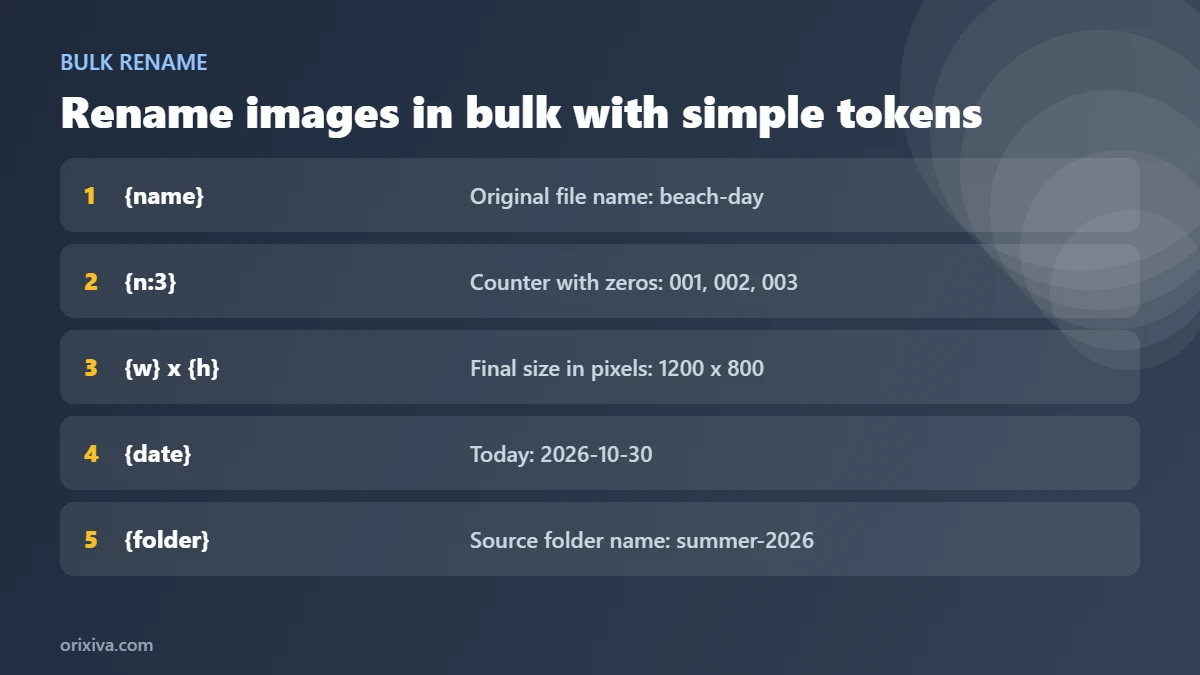
Type a pattern in File name pattern. Tokens are replaced for each image:
{name}: the original name, for example beach-day{n}or{n:3}: a running number, with optional leading zeros (001, 002…){w}and{h}: the final width and height in pixels{date}: today's date in year-month-day format{folder}: the name of the folder the image came from{fmt}: the output format, such as webp
For example, the pattern {folder}-{n:3} with the prefix shop- turns IMG_4821.JPG from the folder summer into shop-summer-001.webp. Choose seo-friendly-slug as the name style to get lowercase names with hyphens, which Google's image SEO guidelines recommend over generic camera names. A live preview under the pattern shows the result before you process anything.
Create responsive images and srcset code
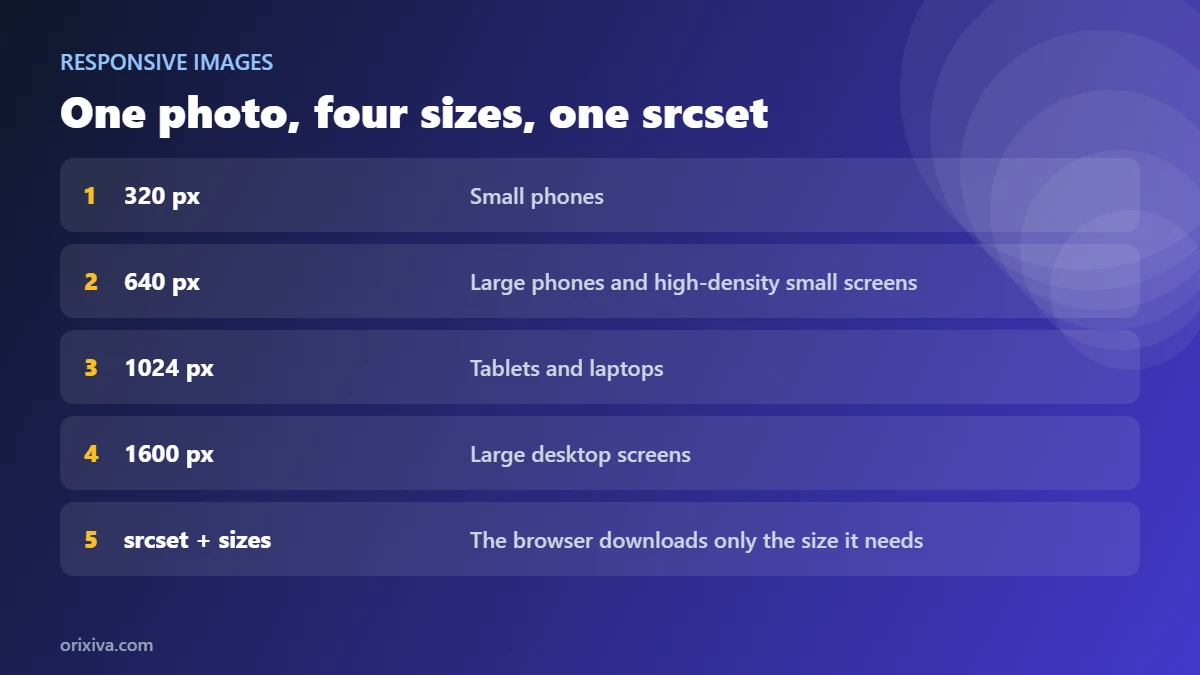
Phones do not need the same 1920 px image as a large monitor. Responsive images let the browser download the smallest version that still looks sharp. Turn on Responsive image sets in the Resize card, keep or change the widths (320, 640, 1024 and 1600 px by default), and process. For each photo the bulk image resizer creates one file per width, never larger than the original, plus an optional JPG fallback set when the main format is WebP or AVIF.
Open the Responsive code tab, enter the folder URL where you will upload the files, and copy the ready <picture> and srcset HTML, with width and height set to prevent layout shift. Remember to edit the alt text. MDN's guide to responsive images explains how browsers choose between the sizes.
Audit images and find duplicates before processing
Open the Audit & duplicates tab and run an audit. In a few seconds you see:
- the number of images, total and average size, and the largest files
- how many images are over 1 MB or wider than 2500 px
- which photos contain metadata, and which contain an exact GPS location
- transparent images and a breakdown by format
- exact duplicates, found by comparing a SHA-256 fingerprint of each file, with a button to remove the extra copies
- similar-looking images, such as the same photo saved twice at different sizes, grouped for you to review
Export the audit as a CSV to share with a client or team. If a batch contains GPS data, keep Remove all metadata, or inspect single photos in detail with the EXIF data remover.
Who uses a bulk image resizer?
Online store owners
Upload a supplier's folder of product photos, apply the WooCommerce recipe, and rename everything with your product codes. Remove backgrounds first with the AI background remover, and print matching labels with the free barcode generator.
Bloggers and web designers
Batch resize images for a whole article, convert them to WebP, create responsive sets and paste the generated code. Smaller images help pages load faster; our on-page SEO checklist covers the other checks.
Photographers and agencies
Deliver web-sized previews to clients with a consistent naming pattern, and remove camera serial numbers and locations from shared files.
Teachers, students and offices
Shrink a folder of event photos so it fits in an email or a school portal, or rename scanned pages in the right order with a numbered pattern.
Social media teams
Prepare a month of posts at 1080 px in one go, then turn a few into an animation with the image to GIF maker.
Which Orixiva image tool should you use?
| Task | Best tool |
|---|---|
| Hundreds of images, folders, renaming, srcset | Bulk image resizer (this page) |
| A few photos to an exact size like 20 KB or 100 KB, with before/after | Free image compressor |
| Inspect, edit or remove EXIF and GPS data | EXIF data remover |
| Resize, crop and compress a single image | Image resizer |
| Logos to SVG and favicons | SVG converter |
Tips for large batches
- Work in chunks on phones. The bulk image resizer uses your device memory for all processing. On phones, batches of 300–500 photos work best; computers can handle more.
- Lower parallel jobs if the browser struggles. Set Parallel jobs to 1 under Metadata & advanced.
- Run the audit first. Removing duplicates before processing saves time and space.
- Keep your originals. The tool never changes your files, but keep the originals until you have checked the new ones.
- Use the CSV report to spot files that missed a size target or were kept unchanged because they were already optimised.
Privacy and limits
With this bulk image resizer, your photos never leave your device; there is no upload, no account and no cloud storage. Limits come from the browser: AVIF output is only available where the browser can encode it, HEIC files open only in browsers that support them (mainly Safari), animated GIFs are processed as a single frame, and ZIP files over 1.8 GB are split into parts for reliability.
Share your workflow
Do you process images for a shop, a school or a client every week? Tell us your recipe through the contact page, and we may add it as a one-click preset for everyone.
Bulk image resizer FAQ
Is the bulk image resizer free?
Yes. It is completely free, with no watermark, no sign-up and no limit on the number of batches.
How many images can I resize at once?
There is no fixed limit; it depends on your device memory. Computers usually handle large batches easily, while on phones 300–500 photos per batch is a safe size.
Can I resize a whole folder of images?
Yes. Click Add a folder or drag the folder onto the drop zone. Images in sub-folders are included, and the folder structure can be kept inside the ZIP.
Are my photos uploaded anywhere?
No. The bulk image resizer runs in your browser and processes photos on your device. Nothing is uploaded or stored.
How do I batch convert images to WebP?
Choose the Website images recipe, or set Output format to WebP, then press Process all and download the ZIP.
Can I bulk compress images to a maximum file size?
Yes. Choose Max file size and enter a size in KB. Each image is compressed, and reduced in size if needed, until it fits.
How do I rename multiple images at once?
Type a pattern such as {name}-{n:3} in File name pattern, add an optional prefix or suffix, and choose a name style. The preview shows the result before you process.
Can I resize images for WooCommerce or Shopify?
Yes. The WooCommerce recipe fits product photos within 1200 × 1200 px on a white background and keeps each under 200 KB, which also suits most other shop platforms. Adjust the size if your theme needs something different.
What is a srcset and why do I need it?
A srcset lists several sizes of the same image so the browser can download the smallest one that looks sharp on each screen. It makes pages load faster, especially on phones.
How does the duplicate finder work?
Exact duplicates are found by comparing a SHA-256 fingerprint of each file. Similar-looking images are found with a visual fingerprint and grouped for you to review before deleting anything.
Can I use different settings for one image?
Yes. Click the gear icon on any row to set its own format, quality, size limit or width, or to skip it.
Will my images become bigger?
Not if Never make a file bigger is on. When a file is already optimised, the original is kept and the report says so.
Does it remove EXIF and GPS data?
By default, yes. You can also keep metadata, or keep it without the GPS location.
Can I crop images to the same size?
Yes. Choose Crop to fill (center) and enter a width and height. Every image is cropped from the centre to that exact size.
What happens if some images fail?
Failed files are marked with the reason. Press Retry failed to process only those again, for example after lowering the number of parallel jobs.
Does it work on Mac, Windows, Android and iPhone?
Yes, in any modern browser. Folder upload works on desktop browsers; on phones, select multiple photos instead.
Can I save my settings for next time?
Yes. Click Save next to the recipe list to store your current settings as a named recipe in this browser.
Ready to process your folder? Scroll up to the bulk image resizer, add your images and choose a recipe. Need just a few photos at an exact size? Try the free image compressor, or browse all free online tools.