Try our free AI tools – no sign-up needed!


How to Make a Checklist You’ll Actually Use: 7 Easy Steps + Free Templates
Want to skip ahead? The free checklist maker has 78 ready templates, a board view and printable PDFs. No sign-up.
Jump to the free tool ↓Most lists fail for the same reasons: they are too long, too vague, or forgotten in a notebook. This guide shows you how to make a checklist that people actually follow, at home, at work or in class. You will learn the 7 steps, the two kinds of checklist professionals use, and real examples you can copy.
Every step also shows how to do it in the free Orixiva checklist maker, which runs in your browser and saves your lists on your own device.
Key takeaways
- A good checklist has one clear goal, short steps that start with a verb, and only the steps people tend to forget.
- Choose the type first: a read-do list for doing tasks in order, or a do-confirm list for checking work you already know.
- Keep most checklists to about 5–9 items per section. Long jobs need sections, not longer lists.
- Add dates only to the tasks that need them, and review the list once a week.
- Starting from a checklist template saves time; untick the steps you do not need.
Why checklists work (and why many fail)
A checklist moves the remembering out of your head and onto a page. That frees your attention for the actual work. It sounds simple, but the effect can be large. In a well-known study of the World Health Organization’s surgical safety checklist across eight hospitals, the death rate after surgery fell from 1.5% to 0.8% and complications fell from 11% to 7% after teams started using a short checklist (New England Journal of Medicine, 2009).
Your grocery run is not surgery, but the lesson is the same. Checklists help most when a job has many small steps, when you are tired or rushed, and when one missed step causes a real problem. They fail when they are long, unclear or written for someone else’s job. Knowing how to make a checklist well is mostly about removing what does not need to be there.
Checklist vs to-do list: which one do you need?
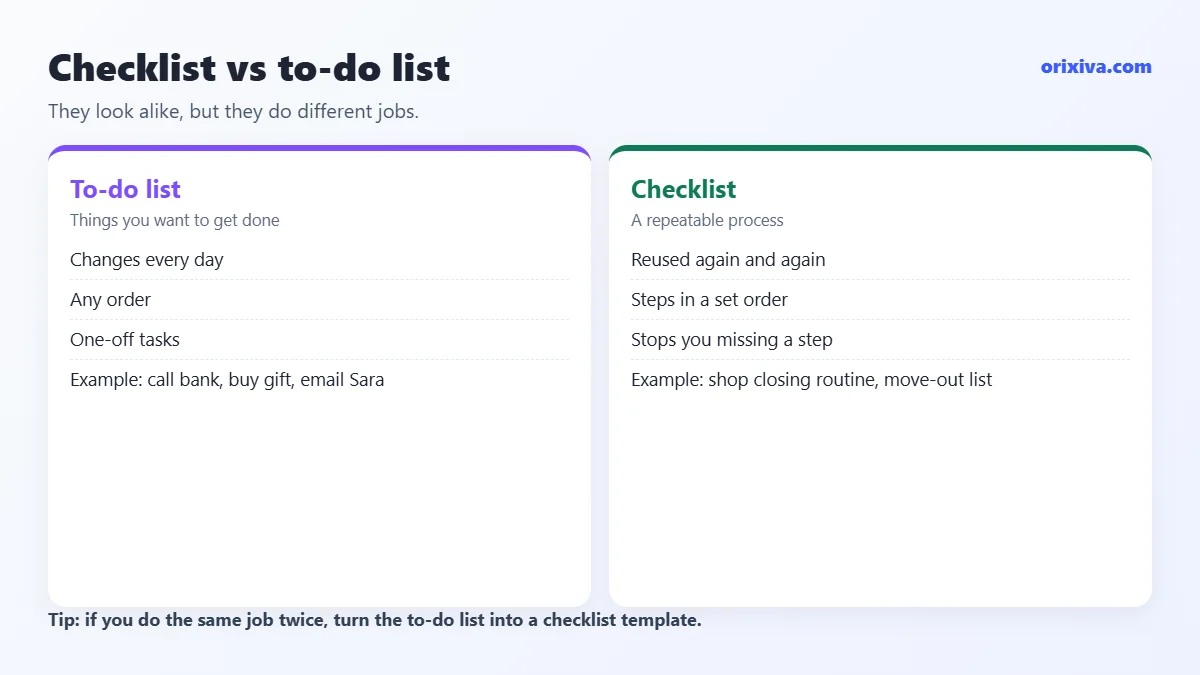
People use the words loosely, but they do different jobs. A to-do list collects things you want to get done, often in no fixed order. A checklist describes a repeatable process, in order, so the same job is done the same way every time.
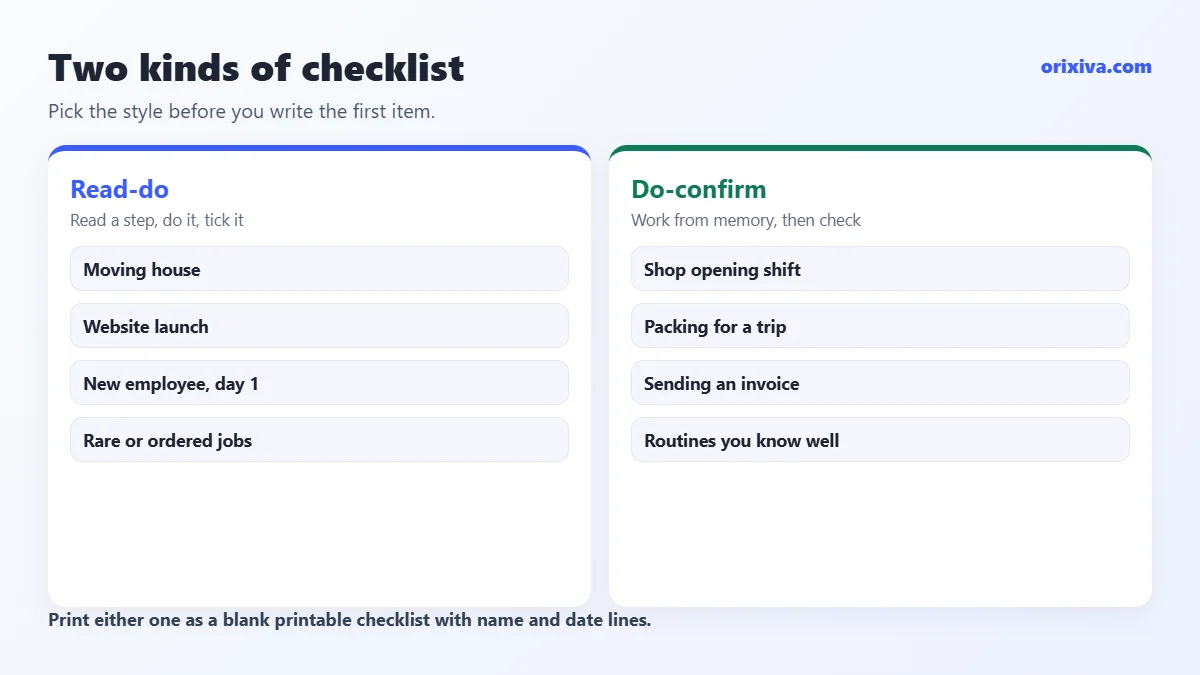
Checklists come in two styles, a distinction that surgeon and author Atul Gawande made popular in The Checklist Manifesto:
Read-do checklist
You read a step, do it, tick it, then move on. Best for jobs you do rarely or that must follow an order: moving house, launching a website, a new-employee first day.
Do-confirm checklist
You do the work from memory, then pause and confirm nothing was missed. Best for routines you know well: closing a shop, packing for a trip, sending an invoice.
Decide which style you need before you write a single item. It changes how detailed each step should be.
How to make a checklist in 7 steps
Here is how to make a checklist from a blank page to something you can print or share. Each step shows where to do it in the free checklist maker.
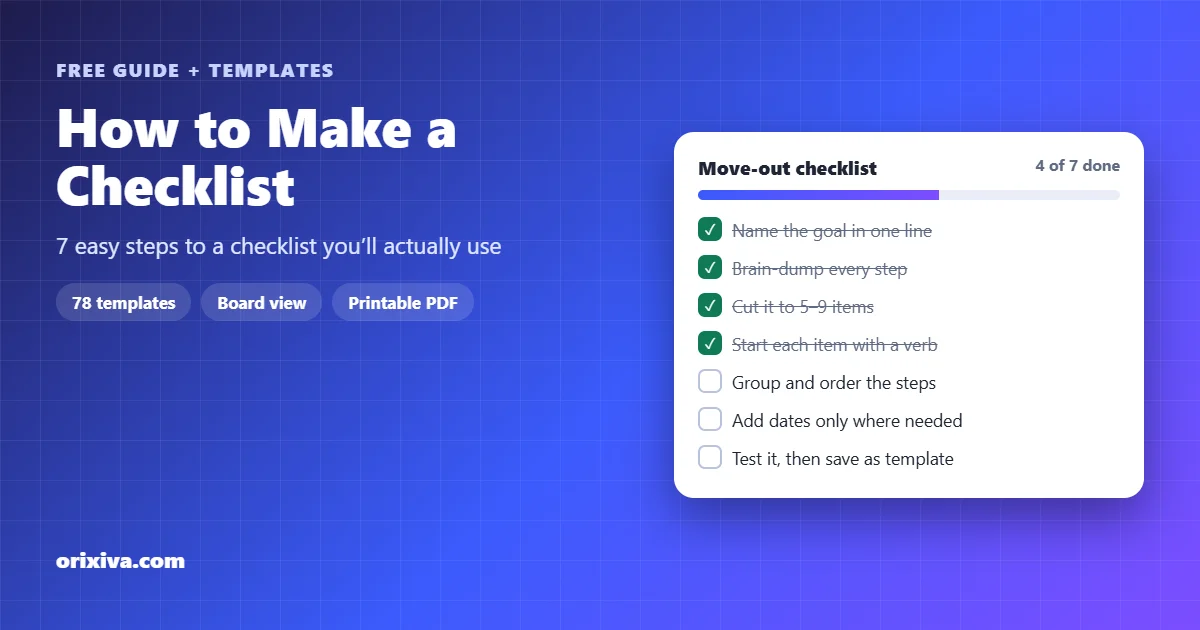
- Name the goal in one line. Write what “done” looks like: “Apartment ready for move-out inspection”, not “Moving stuff”. In the tool, press + New list and type that line as the list name.
- Brain-dump every step. Write everything you can think of without sorting it. If you already have a list in Notes, WhatsApp, Word or Markdown, use ≡ Add many and paste it: each line becomes a task, and indented lines become subtasks.
- Cut it down. Delete steps nobody would forget and merge tiny ones. Keep the steps where mistakes really happen. Aim for about 5–9 items per section.
- Start each item with a verb. “Book movers”, “Photograph meter readings”, “Return keys”. A verb tells the reader exactly what to do.
- Group and order the items. Put steps in the order they happen and group them with a category such as Kitchen, Paperwork or Day 1. Type
+Categoryin a task to set it without opening a menu. - Add dates, priorities and owners only where needed. Type
@tomorrow,@frior@+3for a due date and!highfor a priority. Use#labelfor a person or client so you can search for it later. - Test it once, then fix it. Use the checklist on a real job. Anything you skipped, did out of order or had to look up is a sign the list needs a change. Press Save as template when it works, so next time you start from the finished version.
Tip: type details straight into the task“Pay rent !high +Home @+1m” creates a task called “Pay rent” with high priority, in the Home category, due in one month. The shortcuts are removed from the title automatically.
Break big tasks into subtasks
If a step takes more than an afternoon, it is really a small project. Press + Subtask under it, or edit the task and write one subtask per line. A progress bar then shows how far the step has come, and notes keep useful details (phone numbers, links, measurements) next to the task they belong to.
5 checklist examples you can copy
Seeing a finished list is the fastest way to learn how to make a checklist that works. Each example below follows the 7 steps.
Example 1: Moving house (read-do)
Move-out checklist
Goal: keys returned and deposit protected
9 stepsGoal: keys returned and deposit protected
| Step | When |
|---|---|
| Confirm moving date and budget | 6 weeks before |
| Book movers or a van | 5 weeks before |
| Declutter, sell or donate | 4 weeks before |
| Transfer utilities and update address | 2 weeks before |
| Label boxes by room | While packing |
| Pack an essentials bag | 2 days before |
| Photograph every room and meter | Moving day |
| Clean and check for damage | Moving day |
| Return keys and get a receipt | Moving day |
In the tool, pick the “Moving house” template, set the start date and the days between steps, and every step gets its own due date.
Example 2: Weekly reset (do-confirm)
A 10-minute Sunday routine: review last week, check the calendar, choose three priorities, plan meals, tidy the desk, check bills, and prepare Monday’s first task. Set the list to repeat weekly and it comes back every Sunday on its own.
Example 3: Exam preparation
List exam dates and topics, rate your confidence in each topic, build a revision timetable, make flashcards, do timed practice papers, review mistakes, and pack your exam-day materials. For the timetable itself, the free study planner builds a day-by-day revision plan from your exam dates.
Example 4: Restaurant opening shift
Short, physical and the same every day, which makes it a perfect do-confirm list: fridge temperatures logged, prep stations stocked, handwash points full, tables set, card machine on, specials board updated. Print it as a blank checklist and pin it by the kitchen door.
Example 5: Website launch
Here the order matters and several people are involved: content proofread, forms tested, analytics working, pages mobile-checked, 404 page set, backups on. Our on-page SEO checklist covers the search side in detail.
How to use a checklist template without making a mess
A checklist template stops you forgetting the obvious step, but a template written for everyone will contain steps that do not apply to you. Here is how to use one well.
- Open the template library and search for what you are doing, for example “wedding”, “onboarding” or “food safety”.
- Untick every step you do not need before creating the list. It is easier than deleting later.
- Rename the list for this job, such as “Ali’s first week”.
- Set a start date and the number of days between steps if you want each step to get its own due date.
- Press Create new checklist, or add the steps to the list you have open.
The library holds 78 templates in more than 40 categories, from daily planners, habit trackers and grocery shopping to job applications, client onboarding, rental inspections, cybersecurity reviews and crop seasons.
Home and personal
Daily planner, weekly reset, cleaning, moving house, renovation, budget, travel and camping.
Study and career
Study session, exam preparation, research assignment, job application and interview preparation.
Business
Business launch, freelance client onboarding, e-commerce setup, newsletters, invoice processing.
Specialist work
Food safety audit, IT setup, incident response, solar maintenance, farm equipment checks.
How to make a printable checklist (or PDF)
Paper still wins for some jobs: cleaning rotas, safety checks, classroom routines and anything done with dirty hands. A printable checklist also works where phones are not allowed, such as exam halls and some factory floors. To make a printable checklist, press 🖨 Print and choose a layout:
- Checklist with progress shows ticks, crossed-out finished tasks and a summary such as “7 of 12 complete”. Good for handovers and reports.
- Blank printable checklist prints every task with an empty box plus name and date lines. Good for forms people fill in by hand.
To get a PDF instead of paper, choose Save as PDF as the printer in your browser’s print window. Only the checklist is printed, not the rest of the web page.
How to share a checklist with a team or family
Checklists are most useful when everyone follows the same one. There are three easy ways to hand yours over:
- Share link. Press 🔗 Share. The whole checklist is packed into the part of the link after the # sign, which browsers do not send to the website, so no account or server is involved. You can share it with all boxes unticked for a team to reuse. Each person gets their own copy; changes are not synced.
- Copy as text. Paste it into WhatsApp, email or a chat with ☐ and ☑ boxes.
- Export a file. CSV for Excel or Google Sheets, Markdown for Notion or Obsidian, a calendar file (.ics) so due dates appear in Google, Apple or Outlook calendar, or a full JSON backup.
List view or board view?
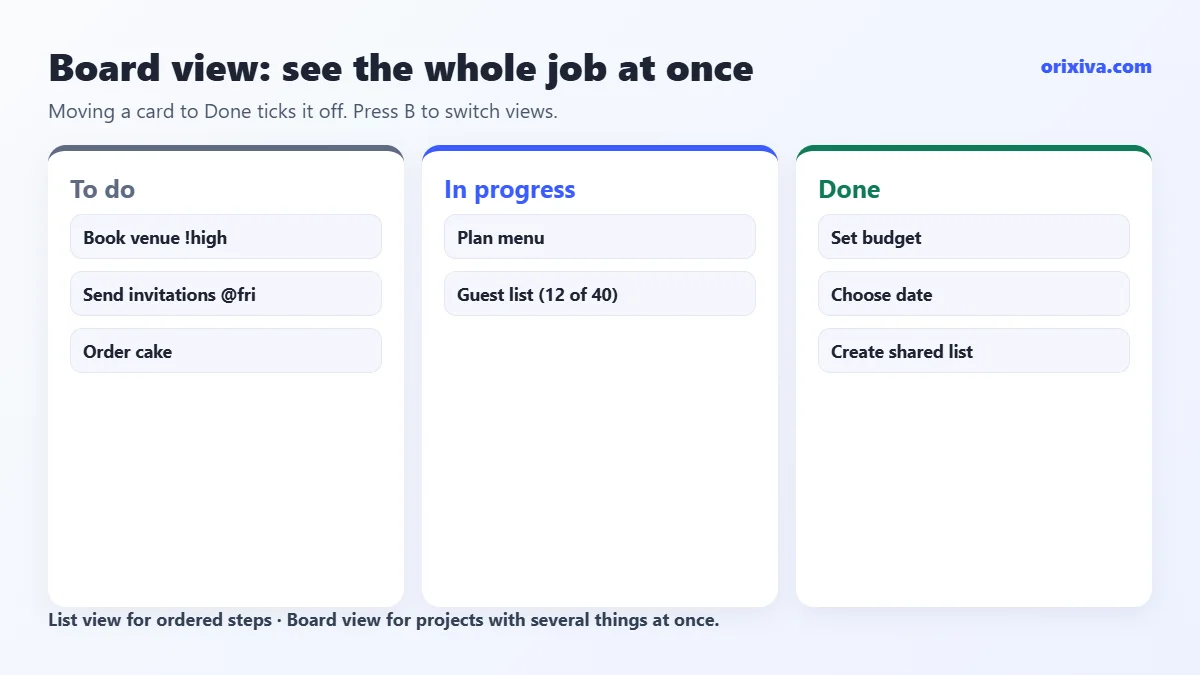
Use the list view for step-by-step jobs where order matters. Switch to the board view (press B) when several things happen at once: tasks sit in To do, In progress and Done columns, and moving a card to Done ticks it off.
How to keep using your checklist every week
Knowing how to make a checklist is half the job; the other half is still using it next month. These habits help:
- Make routines repeat. Open a task with ✎ and set it to repeat daily, on weekdays, weekly, monthly or yearly. When you tick it, the next one is created with the next date.
- Link steps that depend on each other. The Do this after setting reminds you if you tick a task before the one it depends on.
- Check only what is due. Filter by “Due today”, “Due in 7 days” or “Overdue” instead of scrolling the whole list.
- Use bulk actions. Select several tasks to complete, re-prioritise, move or delete them in one step.
- Review weekly. Clear completed items, move dates and update the template with anything you learned.
Prefer the keyboard? Press N to add a task, / to search, and Ctrl + Z to undo. Every change can be undone and redone, so it is safe to reorganise.
7 checklist mistakes to avoid
Even when you know how to make a checklist, these slips creep in. Check your list against them once it is finished.
- Writing everything down. A checklist is not a manual. Keep the steps that are easy to miss.
- Vague items. “Venue” could mean anything. “Book venue and pay deposit” cannot.
- No clear finish line. If you cannot say when the list is done, people will not finish it.
- Everything is high priority. If everything is urgent, nothing is. Use high for two or three items at most.
- Dates on every task. Too many dates make the overdue counter meaningless.
- Never updating it. A list that does not match reality gets ignored.
- Keeping it in one place only. Lists in the checklist maker are saved in your browser, so export a backup now and then before clearing browser data.
Your turn: What is the one checklist you could not live without: a packing list, a shop closing routine, a weekly reset? Share it in the comments (just the steps, no personal details) and help other readers start faster.
Make your checklist now, free
You know how to make a checklist that works. Open the free checklist maker, pick one of 78 templates or start blank, and print, share or export it in minutes. No sign-up, nothing uploaded.
Open the free checklist maker → Looking for something else? Search all tools on orixiva.comChecklist questions people often ask
How do I make a checklist for free?
Open the Orixiva free checklist maker, press + New list or choose a template, and add your tasks. It runs in your browser with no account, and you can print, export or share the list at no cost.
How many items should a checklist have?
For a list people use under pressure, about 5–9 items per section works well. Longer jobs should be split into sections or separate lists rather than one long page.
What is the difference between a checklist and a to-do list?
A to-do list collects tasks you want to finish, often in any order. A checklist describes a repeatable process so the same job is done the same way every time.
How do I make a checklist in Word or Google Docs?
Both offer checkbox bullets in the list menu. That is fine for a simple printout, but you cannot add due dates, repeats or a board view. Making it in a checklist maker and exporting a PDF or text is usually faster.
Can I turn a list from WhatsApp or Notes into a checklist?
Yes. Copy the list, open ≡ Add many and paste it. Each line becomes a task and indented lines become subtasks.
How do I make a printable checklist with empty boxes?
Press Print and choose the blank printable checklist layout. It prints every task with an empty box and name and date lines; choose Save as PDF to keep a file.
Can I share a checklist without an account?
Yes. The share link carries the checklist inside the link itself. The person who opens it gets their own copy; later changes are not synced between you.
Can I add checklist due dates to my calendar?
Yes. Export a calendar file (.ics) and open it in Google Calendar, Apple Calendar or Outlook to add every dated task.
Where are my checklists saved?
They are saved in your browser on your device, not on a server. They disappear if you clear site data or use a private window, so export a JSON backup now and then.
Can I make my own checklist template?
Yes. Build the list once, press Save as template, and it appears in the template library marked “Yours”, ready to reuse.