Try our free AI tools – no sign-up needed!

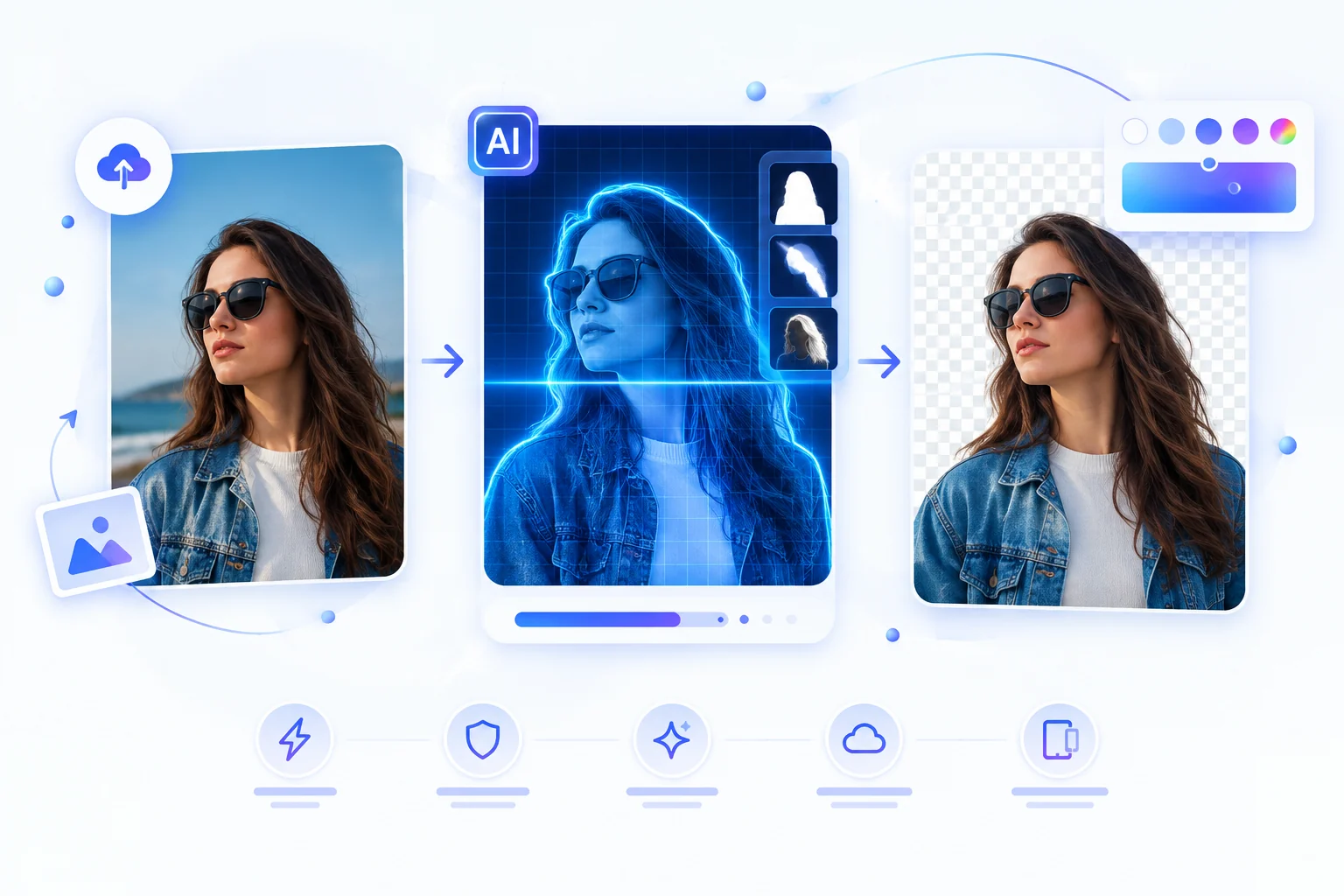
How to Remove an Image Background with AI for Free (Online Guide)
Removing a background used to mean opening a full photo editor, selecting a subject manually, refining edges, and exporting the result. AI background-removal tools can reduce that work to a simple upload-and-process workflow. In this guide, you’ll learn what AI background removal is, how to remove a background online for free, how to get a transparent PNG, and what to check when the result is not perfect.
how do you remove a background with AI?
Upload your image to an online AI background remover, start the background-removal process, review the cutout, and download the transparent PNG. For the Orixiva workflow, you can upload a JPG, PNG, or WebP, process the image in the browser, preview the cutout, and choose a transparent or colored background before downloading.
What is AI background removal?
AI background removal is an image-segmentation task. The system analyzes the pixels in a photo and estimates which areas belong to the main foreground subject and which areas belong to the background. The foreground mask can then be used to make the background transparent or replace it with another color or image.
Why use an AI image background remover instead of manual editing?
Manual selection gives experienced editors precise control, but it can take time, especially around hair, clothing edges, and irregular shapes. An AI-first workflow is useful when the goal is speed and convenience: upload the image, let the model generate a subject mask, inspect the result, and export a PNG.
How does Orixiva remove a background?
You upload an image, Orixiva runs its browser-side background-removal engine to create a subject mask, and the tool returns a transparent foreground image for preview and download.
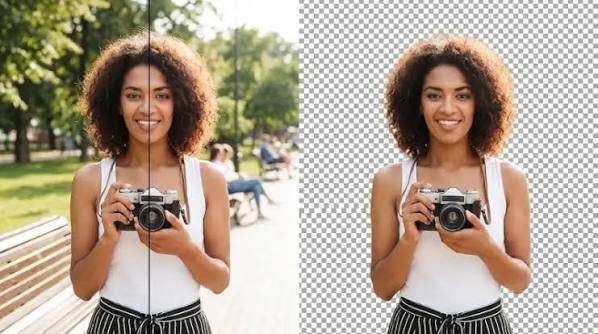
How to remove a background from an image online for free
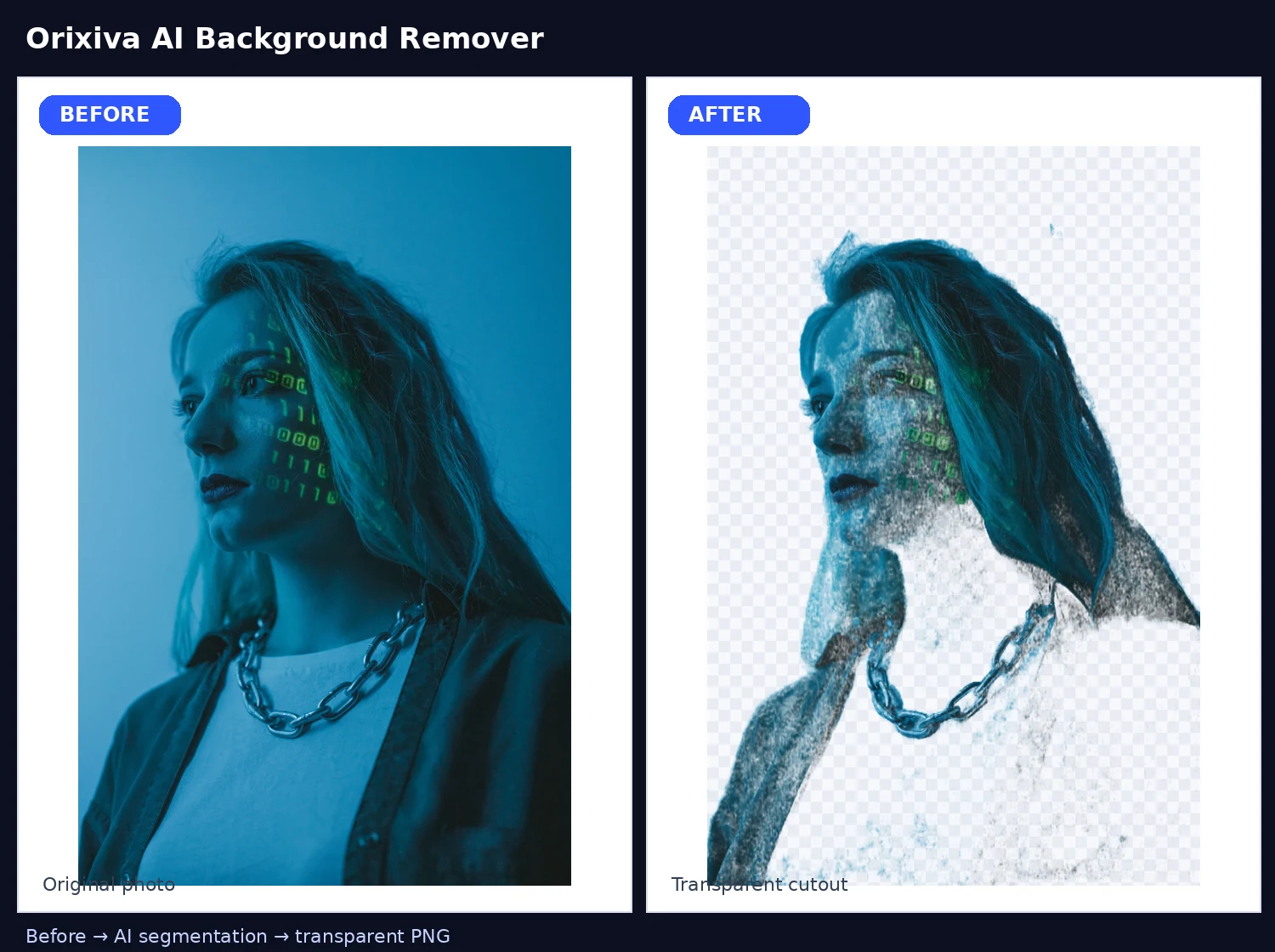
The simplest workflow is four steps. First, upload a supported photo. Second, start the AI background-removal action. Third, inspect the transparent cutout and test a background color when helpful. Fourth, download the finished PNG. Keeping these steps visually obvious also improves the user experience because visitors can understand the task without reading a long tutorial.

Upload the image
Choose a photo in JPG/JPEG, PNG, or WebP format. For the Orixiva tool, the current upload limit is 15 MB. Start with the best-quality source you have because a cleaner, higher-resolution original gives the segmentation system more useful visual information to work with.
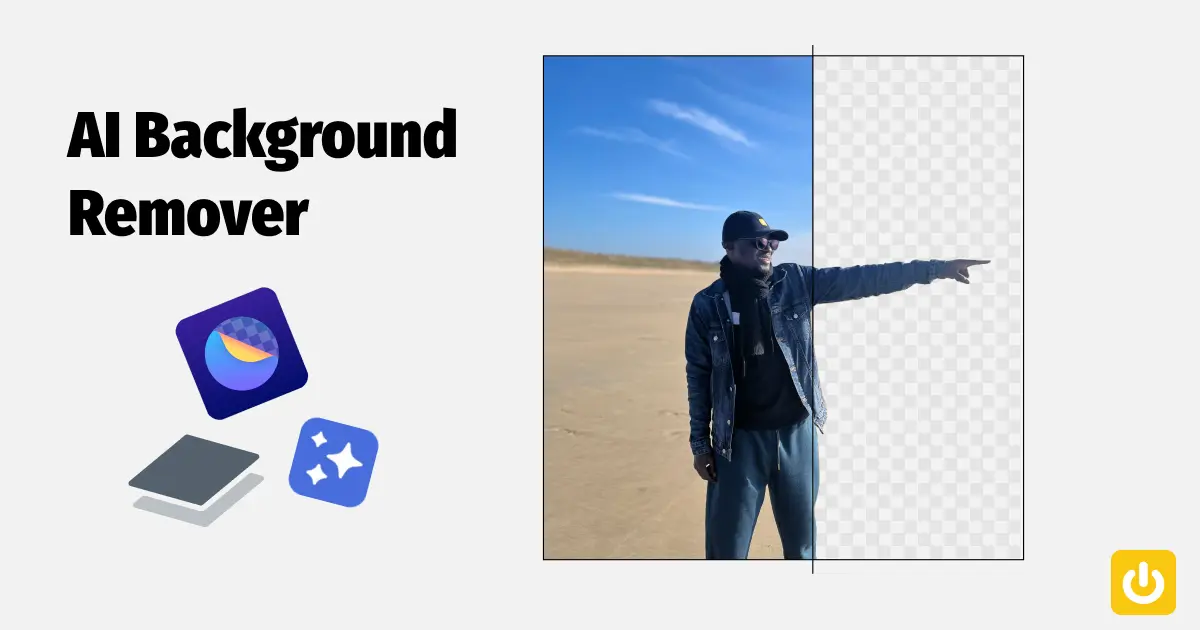
Start AI background removal
Click “Remove Background with AI.” The tool analyzes the image and builds a foreground/background separation. On browser-based tools, the first run can feel slower because model assets may need to initialize or download. Cached runs can behave differently depending on the device and browser.

Review the transparent cutout
A checkerboard preview is useful because it makes transparent pixels visible. Look closely around hair, fingers, glasses, thin straps, product handles, and other detailed edges. If the source and background have similar colors or very low contrast, inspect the result carefully before publishing.

Choose a background or download transparent PNG
For designs that need a cutout, keep the background transparent and export PNG. If you want a simple colored background, choose a preset or custom color in the editor before downloading.
Best use cases for a free AI photo background remover
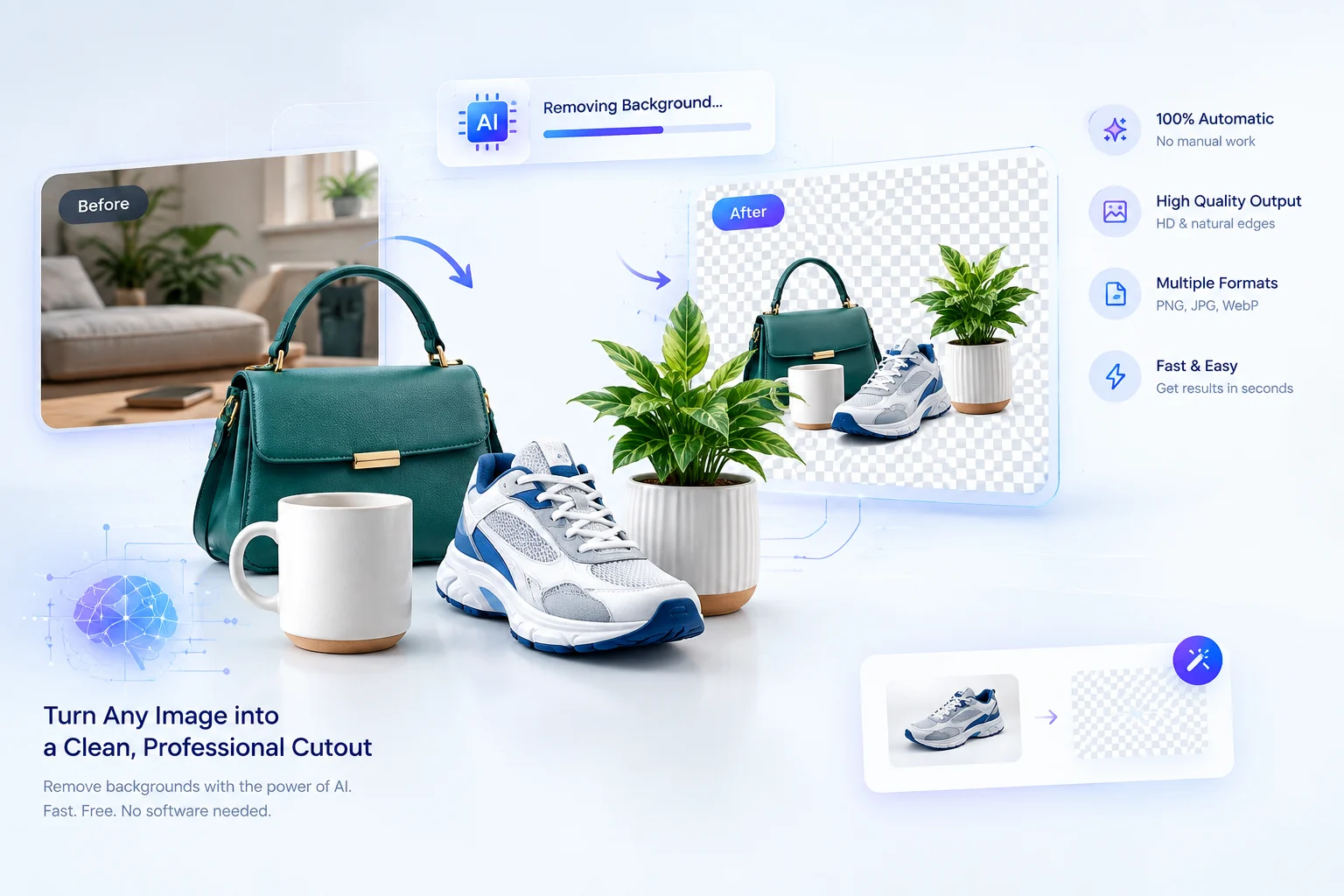
Product photography is one of the clearest use cases because a clean subject cutout can make a catalog or marketplace listing look more consistent. The same approach can help with profile graphics, social-media posts, thumbnails, presentations, promotional creatives, portfolio images, and simple product mockups.
How to get better results from AI background removal
Use good source images with clear subject/background separation when possible. Avoid extremely dark subjects against very dark backgrounds and be cautious with transparent objects such as glass. For portraits, hair and flyaway strands deserve extra review. For product images, check thin edges and reflective surfaces. When an image is complex, comparing the original and cutout side by side is more useful than judging the cutout alone.
Is browser-based processing private?
Browser-side processing can reduce the need to send an image to a tool provider’s upload server. Orixiva’s current implementation is designed to process the selected image in the browser. This is a product behavior worth explaining clearly on the page, but privacy copy should remain limited to what the implementation actually guarantees.
AI background remover: quality vs. speed
Background-removal models involve a trade-off between model size, processing performance, and segmentation quality. Smaller or quantized models can reduce download and compute requirements but may show more visible artifacts on difficult images. That is why a production tool should be tested on portraits, hair, product edges, low-contrast scenes, and transparent materials—not just a handful of easy photos.
What is a transparent PNG?
A transparent PNG is an image that can contain an alpha channel, allowing background pixels to be transparent instead of a solid color. This makes the cutout easy to place over a new background in design tools, presentations, websites, product listings, and marketing creatives.
Common problems when removing an image background
If small background fragments remain, inspect the edge mask and consider using a higher-quality model or a better source image. If the subject has holes, the model may be confusing a low-contrast region with background. If there is a colored halo, look for color spill around the edge. If processing is unexpectedly slow, the delay may be model initialization, device performance, or browser resource availability rather than the image file size alone.
Why Orixiva is useful for quick online background removal
Orixiva combines a simple upload workflow with an AI processing state, transparent preview, background-color controls, and PNG download. The goal is to let users complete one specific image-editing task without navigating a full photo editor. Because the tool runs in the browser, users can also see a clear privacy-oriented message: the current implementation handles the selected image locally.
Final checklist before you publish the cutout
Check the hair and fine edges. Check transparent or reflective areas. Compare the cutout against both a light and dark background when practical. Confirm the subject did not lose important internal details. Then export the PNG and use a descriptive filename such as product-name-background-removed.png.
Conclusion
AI background removal is most useful when it turns a multi-step editing task into a simple, repeatable workflow. For a quick online solution, the process is straightforward: upload the image, run the AI background removal, review the cutout, choose a background when needed, and download the PNG. Try Orixiva’s free AI image background remover to create a clean cutout directly in your browser.
Social Media Content Planner – Excel & Google Sheets Content Calendar

Rental Property ROI Calculator – Excel Real Estate Investment Analysis

Small Business Bookkeeping Kit – Excel Income, Expense & Invoice Template