Try our free AI tools – no sign-up needed!


How to Make a GIF From Photos: 7 Easy Ideas With the Best Settings
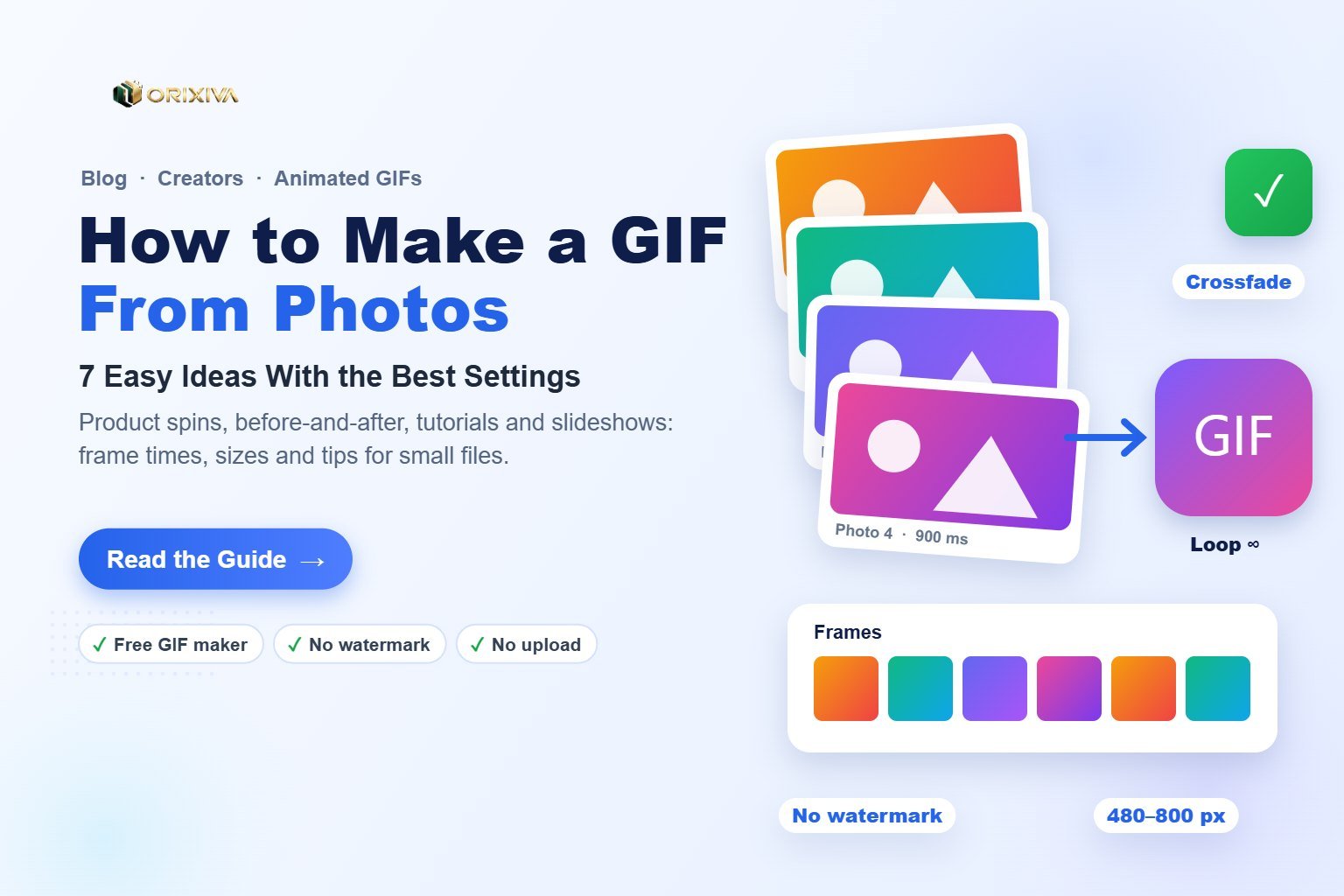
Short answer: To make a GIF from photos, add two or more pictures to a GIF maker, put them in order, choose a width (480–800 px), set how long each photo shows (100–200 ms for motion, 500–1500 ms for a slideshow), then create and download the GIF. The free Orixiva Image to GIF maker does this in your browser with no sign-up, no watermark and no upload.
Key takeaways
- Frame time sets the mood: short times (100–200 ms) look like motion; long times (500–1500 ms) work as a slideshow.
- Width controls file size: halving the width makes the GIF roughly four times smaller.
- Use the same shape for every photo, or choose "Fill" so frames do not jump.
- Fewer colours and fewer frames keep GIFs fast to load on websites and in email.
Why make a GIF instead of a video?
A GIF plays automatically, loops forever and works almost everywhere: websites, emails, chat apps, forums, product listings and slide decks. It needs no play button and no sound. That makes GIFs ideal for short, silent moments such as showing a product from several angles, a before-and-after result or three steps of a tutorial.
Use a video instead when the clip is long, needs sound, or has lots of fast movement, because a GIF stores every frame as an image and quickly becomes large.
| Use a GIF when… | Use a video (MP4) when… |
|---|---|
| The animation is 2–6 seconds long | The clip is longer than about 10 seconds |
| It must autoplay in email or chat | You need sound or voice-over |
| You have a few photos or slides | You have smooth, fast real-world motion |
| You want a simple loop on a web page | File size must be as small as possible |
How to make a GIF from photos, step by step
- Prepare your photos. Use the same orientation and similar lighting. Name them in order (photo-1, photo-2…) so they load in sequence.
- Add the images. Open the Image to GIF maker and drop in PNG, JPG or WebP files, or paste a screenshot with Ctrl + V.
- Arrange the frames. Drag to reorder, duplicate a frame to hold it longer, or give one frame its own display time.
- Pick size and shape. Start at 480 px wide. Choose square, 16:9, 9:16 or 4:5, and "Fit" (keeps the whole photo) or "Fill" (crops to the shape).
- Set the timing and effects. Choose a frame time, then add a crossfade, boomerang or caption if you want.
- Create and download. Press Create GIF, check the preview and file size, then press Download GIF.
Pro tip: put your key message on the first frame. Some email apps show only the first frame of a GIF, so it should make sense on its own.
7 GIF ideas from photos (with settings that work)
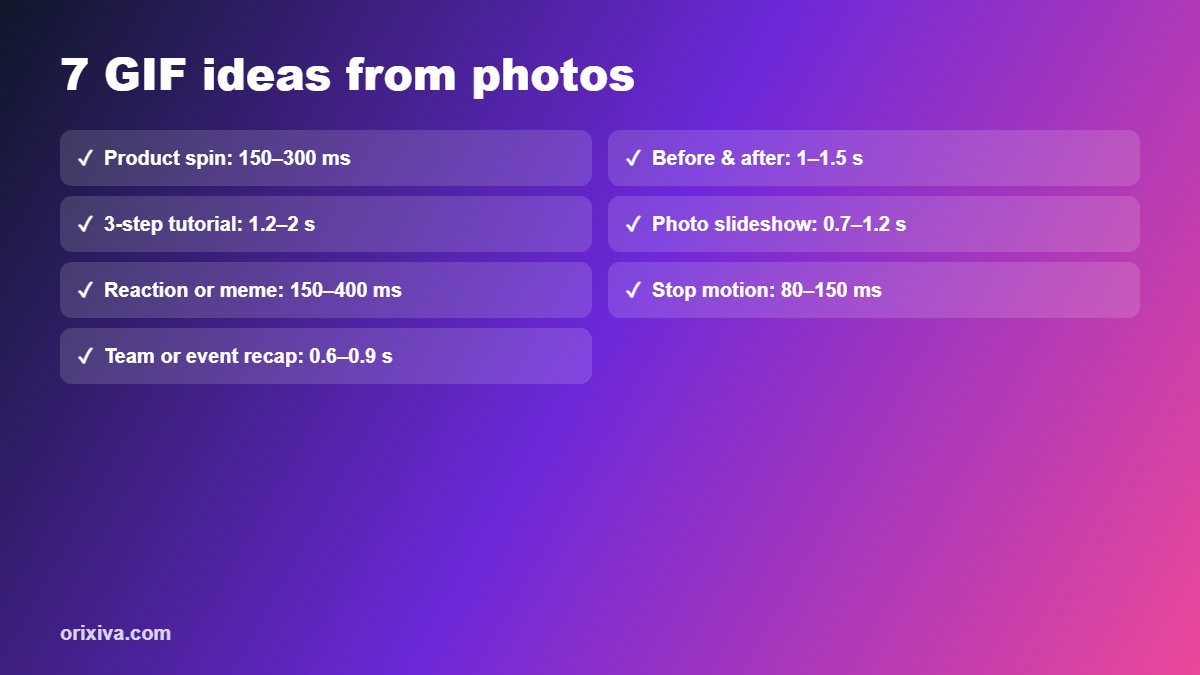
| Idea | Photos | Frame time | Shape & width | Extras |
|---|---|---|---|---|
| 1. Product spin | 6–12 angles | 150–300 ms | Square, 600–800 px | White background, no caption |
| 2. Before and after | 2 | 1000–1500 ms | Same as photos, 600 px | Crossfade, "Before"/"After" captions |
| 3. 3-step tutorial | 3–5 screenshots | 1200–2000 ms | 16:9, 640–800 px | Step number captions |
| 4. Photo slideshow | 5–15 | 700–1200 ms | 4:5 or square, 540 px | Smooth crossfade |
| 5. Reaction or meme | 2–6 | 150–400 ms | Square, 480 px | Bold top or bottom caption |
| 6. Stop motion | 10–30 | 80–150 ms | Any, 480 px | Tripod shots, loop forever |
| 7. Team or event recap | 6–10 | 600–900 ms | 16:9, 640 px | Boomerang for a playful feel |
1. Product spin for online stores
Photograph the product on a turntable or rotate it by hand in equal steps, keeping the camera fixed. Eight photos at 45° steps give a smooth spin at about 200 ms per frame.
2. Before and after
Ideal for photo edits, renovations, cleaning, design changes or a background removed with the AI background remover. Use the same crop on both photos and a gentle crossfade.
3. A quick tutorial
Take screenshots of each step and add a caption such as "1. Upload", "2. Edit", "3. Download". Hold each step long enough to read, about 1.5 seconds.
4–7. Slideshows, memes, stop motion and recaps
For slideshows and recaps, longer frame times and crossfades feel calm. For memes and stop motion, short frame times and loops create energy. Keep captions short and high-contrast so they stay readable at small sizes.
Frame time cheat sheet
| Frame time | Feels like | Best for |
|---|---|---|
| 80–150 ms | Smooth motion | Stop motion, short video frames |
| 150–300 ms | Quick, lively | Product spins, reactions |
| 500–900 ms | Relaxed | Slideshows, recaps |
| 1000–2000 ms | Time to read | Tutorials, before-and-after, text |
How to keep your GIF file small
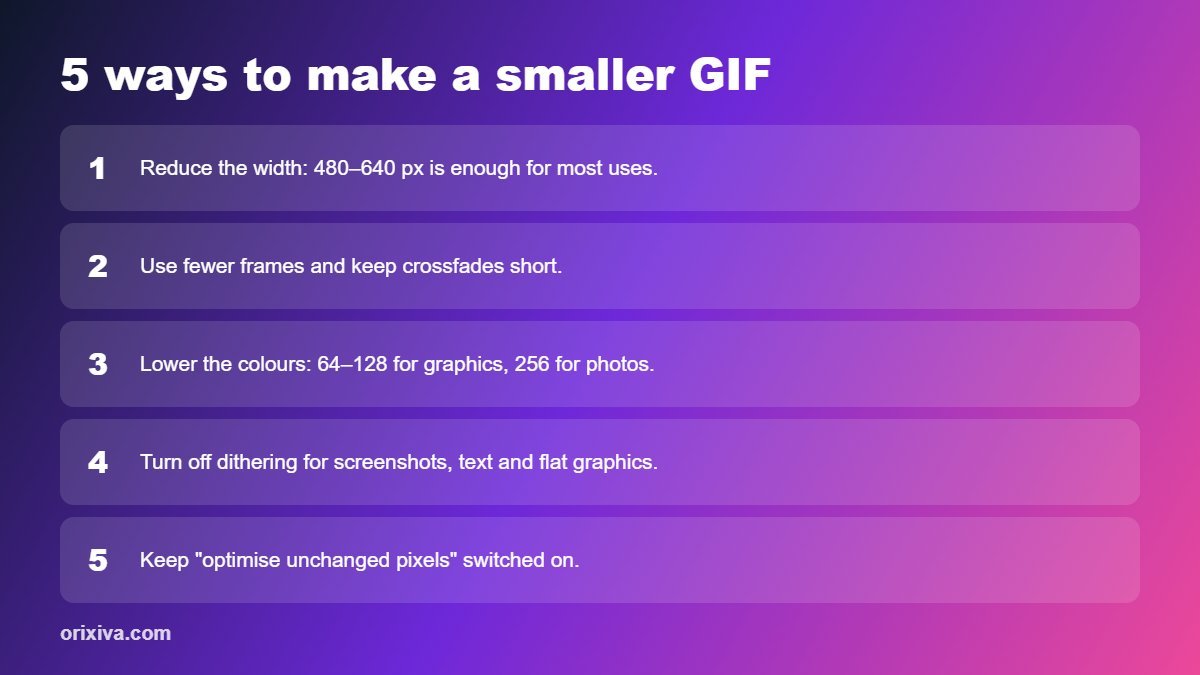
- Reduce the width. 480–640 px is enough for most uses; halving the width cuts the size to about a quarter.
- Use fewer frames. Remove near-duplicate photos and keep crossfades short.
- Lower the colours. 64–128 colours suit graphics; photos may need 256.
- Turn off dithering for screenshots, text and flat graphics.
- Keep "optimise unchanged pixels" on so only the parts that change are stored.
As a guide, aim for under 2–3 MB on web pages so they load quickly on mobile data.
Common mistakes to avoid
- Mixing portrait and landscape photos without choosing "Fill", which makes frames jump.
- Using very large widths such as 1600 px for a chat GIF.
- Text that changes too fast to read. Allow at least 1 second per caption.
- Turning a long video into a GIF. A 10-second clip at 25 fps is 250 frames; use MP4 instead.
- Forgetting the loop setting. Choose "forever" for websites and "once" for presentations if needed.
Make your GIF now
Drop in your photos, set the timing and download a looping GIF in seconds. Free, no sign-up, no watermark, and your pictures never leave your device.
Open the Image to GIF maker →Frequently asked questions
How do I make a GIF from photos for free?
Add two or more photos to a free GIF maker such as Orixiva Image to GIF, arrange them, set the frame time and width, then create and download the GIF. No sign-up is needed.
How many photos do I need for a GIF?
At least two. Two photos work for before-and-after, 5–15 for a slideshow, and 8–12 for a smooth product spin.
What is the best speed for a GIF slideshow?
About 700–1200 milliseconds per photo feels natural for a slideshow. Use 1–2 seconds when frames contain text people need to read.
What size should a GIF be?
480–800 pixels wide suits most websites, blogs and chat apps. Keep files under about 2–3 MB for fast loading.
Can I add text to a GIF?
Yes. Orixiva Image to GIF lets you add bold outlined captions at the top, middle or bottom of every frame.
Why is my GIF so large?
Usually because it is too wide, has too many frames or uses many colours with dithering. Reduce the width, remove frames and lower the colour count.
Can I make a GIF from a video instead of photos?
Yes. Use the "Frames from a video" option to pick a start and end time and a frame rate, then create the GIF from the extracted frames.
Are my photos uploaded when I make a GIF?
No. Orixiva's GIF maker runs in your browser, so your photos stay on your device.
Show us your GIF
What did you turn into a GIF: a product, a pet, a tutorial or a meme? Tell us your favourite settings in the comments. Helpful tips from readers may be added to this guide.
Related guides and tools
- Free Image to GIF maker
- How to make Shorts, Reels and TikToks for free
- Free image resizer
- AI background remover
Note: platform size limits for GIFs change; check each app's help pages before posting large files.